
User guide
Update your profile and language
Manage your name, language, and password; check your account access.
Your organization settings and account permissions determine which options are available.
All screens use fictional data. QR images and setup codes are examples and cannot be used to register.
Before you start
Open My profile from your own account. Changing your name does not change account permissions.
How the task works
Follow the main steps in order. Where a choice is shown, follow the branch that matches your situation.
- UserOpen My profile
- UserCheck name and language
- UserSave changes that require saving
Steps
Open the user menu and select My profile.
Change your name, then save. A language selection takes effect when you change it.
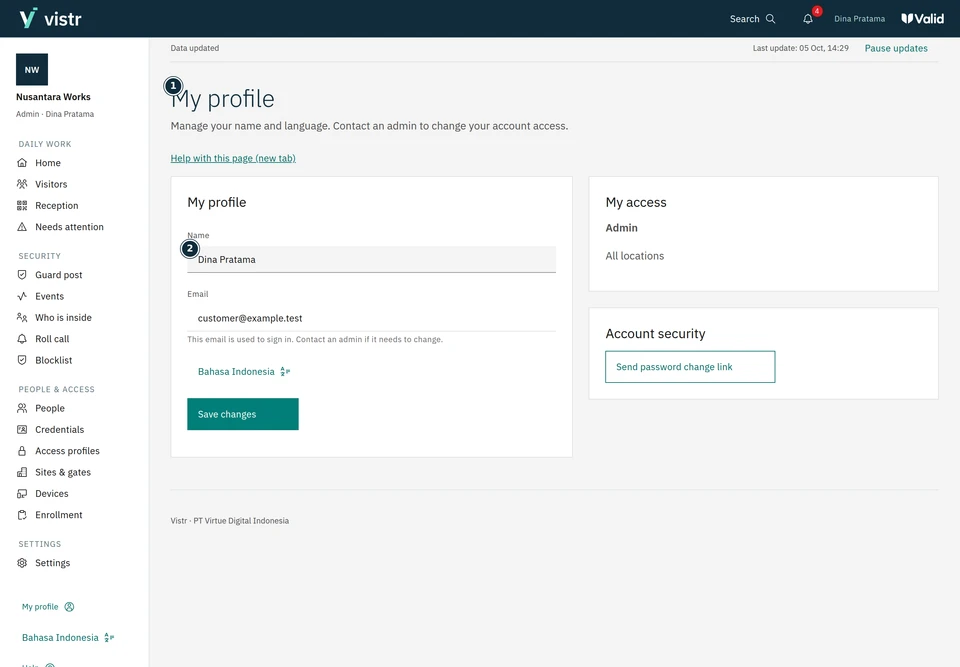 Enlarge image
Figure 1. Review account details and language preference. - My profile
- Name
Sample data · Admin · 2026-10-05 · 2880 × 2000 px
Check your role and places in the access summary. Ask an admin to review incorrect assignments.
Use the password reset link to change your password. Follow the provided instructions.
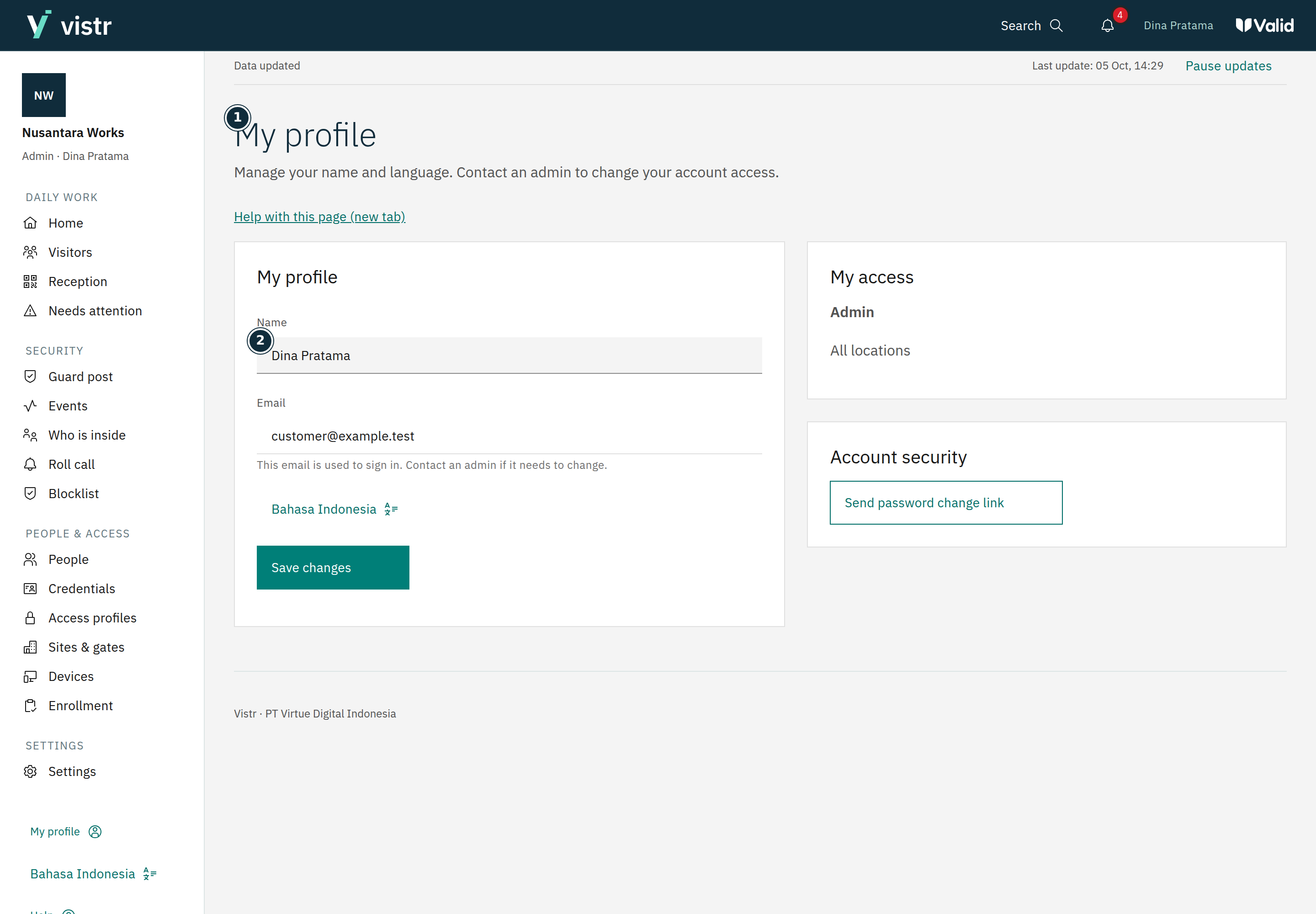
What to enter and why
| Field | When needed | Purpose | Example |
|---|---|---|---|
| Display name | As required by the form | The name displayed for the staff account. | Dina Pratama |
| Language | User preference | Changes the interface language when selected. | Indonesia / English |
Expected result
The name updates after saving; language selection applies immediately. Roles and locations remain managed by an Admin.
If something goes wrong
Need a different role
Ask an Admin to review the assignment. My profile is not a way to increase your own permissions.
Account email
Your login email is read-only. My profile does not let you change your role or organization policy. Contact your account administrator if your address or access needs updating.