
User guide
Manage team members and access
Manage work accounts, roles, and assigned places separately from person records.
Your organization settings and account permissions determine which options are available.
All screens use fictional data. QR images and setup codes are examples and cannot be used to register.
Before you start
Only organization Admins manage team members. Decide the person’s tasks and locations before choosing a role.
How the task works
Follow the main steps in order. Where a choice is shown, follow the branch that matches your situation.
- AdminCheck existing accounts
- AdminEnter email, role, and locations
- AdminSend a member invitation
- MemberMember follows the invitation
Steps
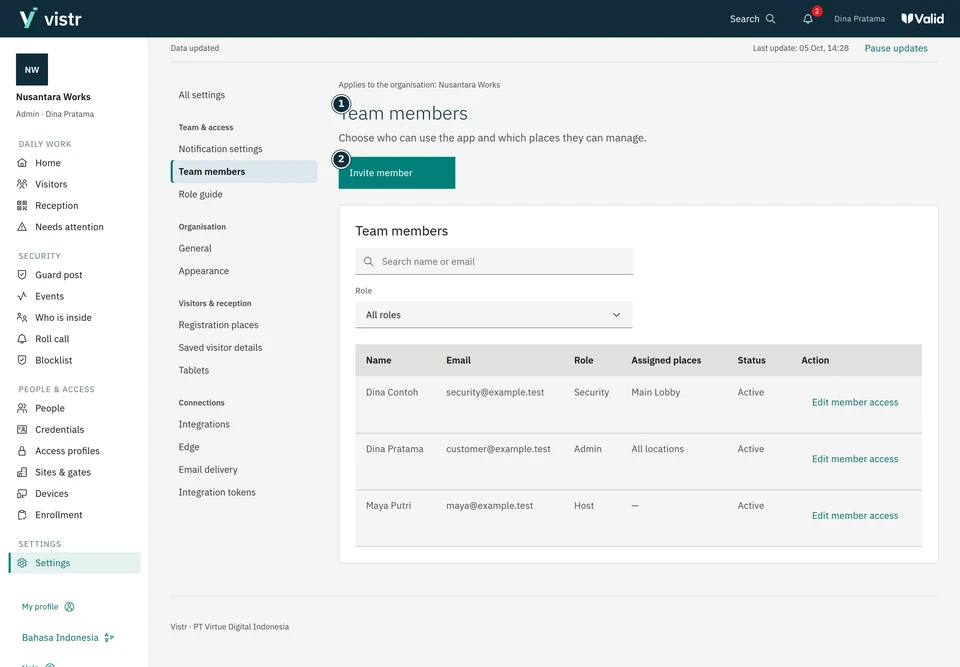
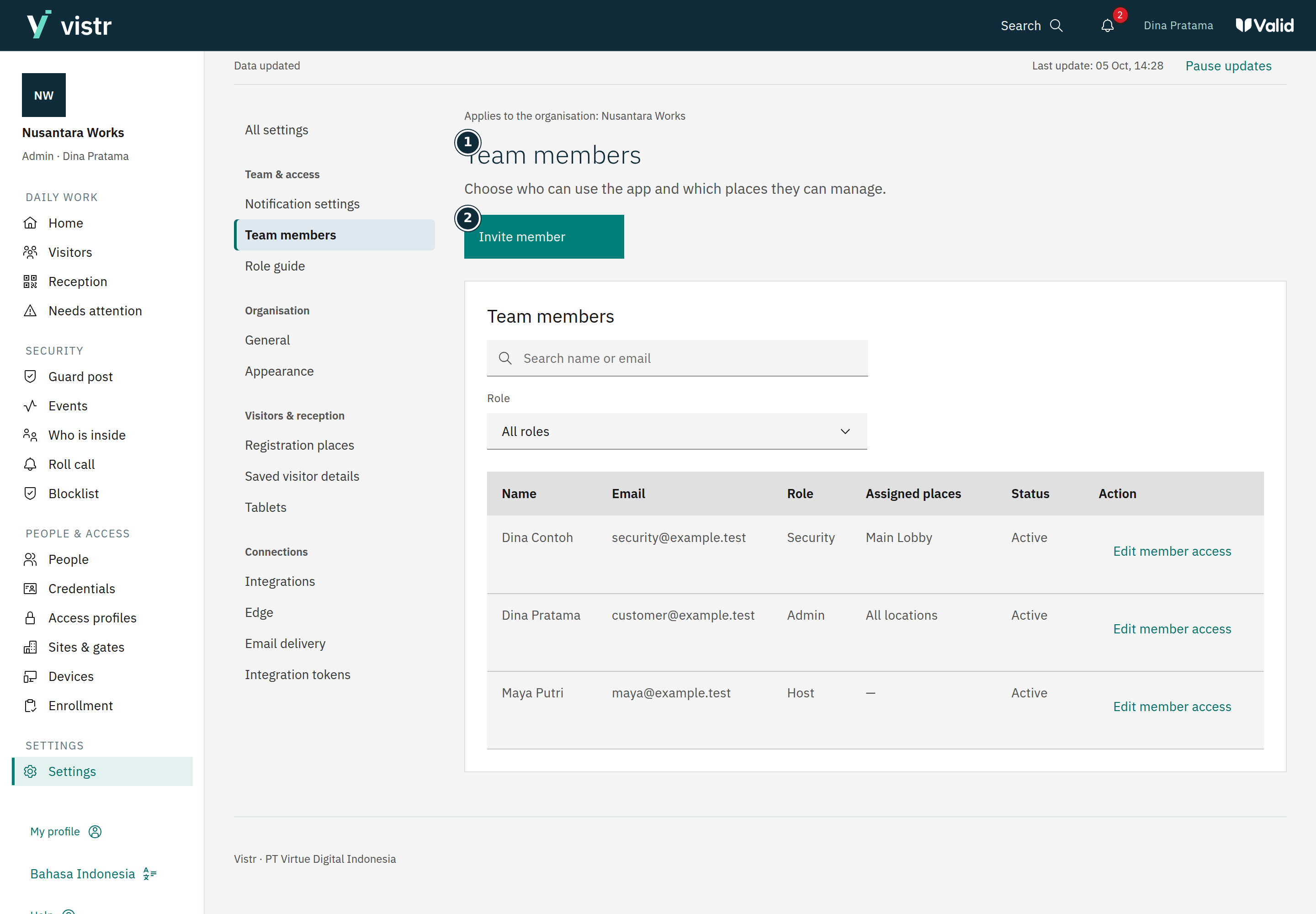
Open Settings, then Team members. Search for the member before inviting a new account.
 Enlarge image
Figure 1. Check the list to avoid inviting the same account twice. - Team members
- Invite member
Sample data · Admin · 2026-10-05 · 2880 × 2000 px
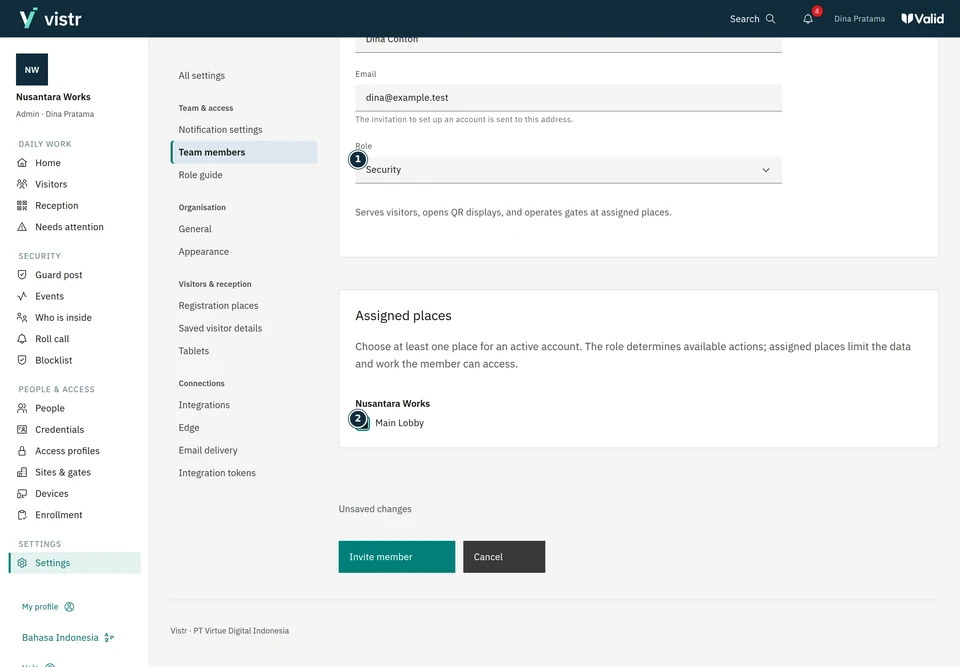
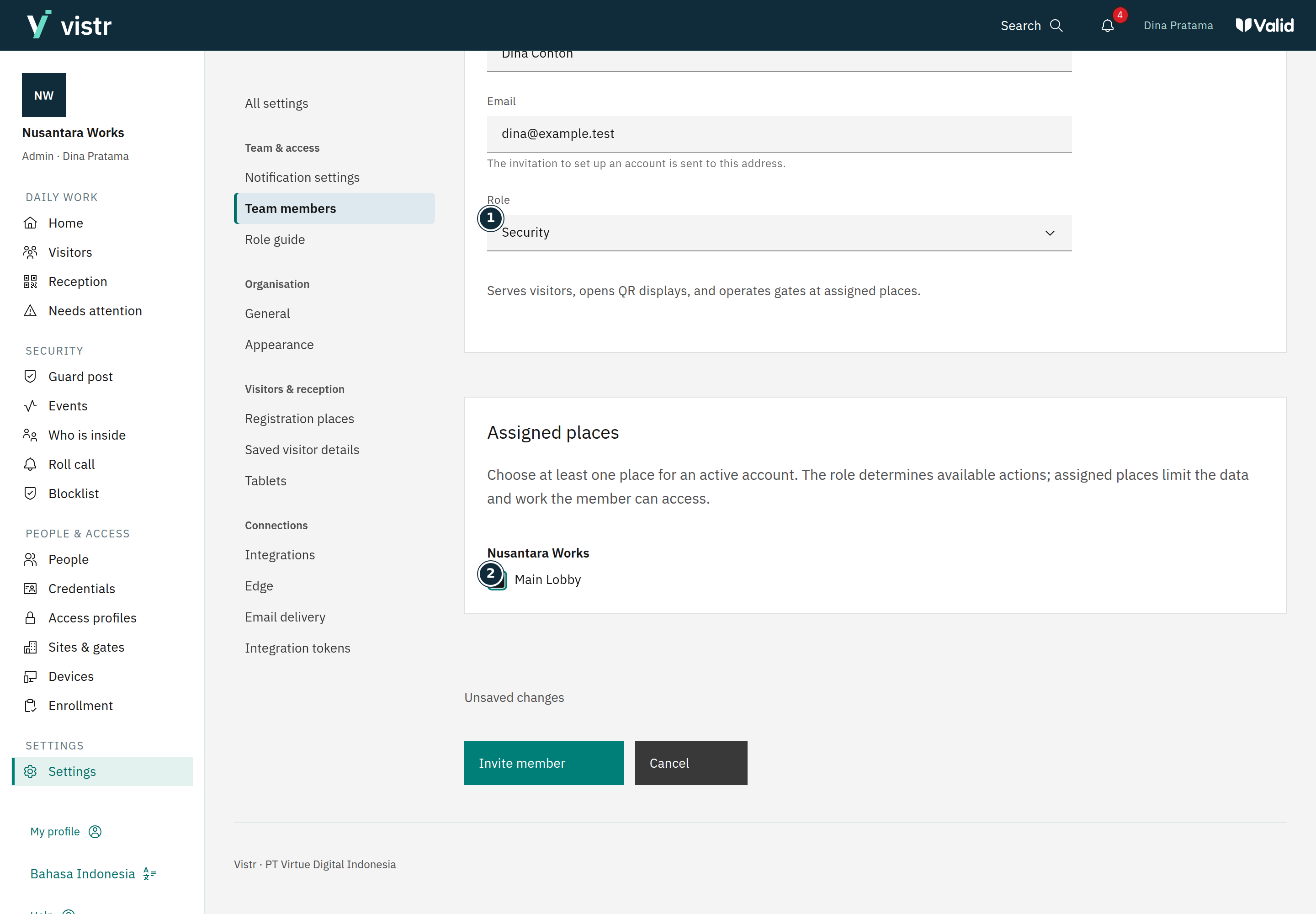
Enter a name and work email. The email receives the account invitation. Choose a role that matches the job.
 Enlarge image
Figure 2. Role and locations define the member’s work scope. - Role
- Main Lobby
Sample data · Admin · 2026-10-05 · 2880 × 2000 px
Check place scope. Admin and Operator have broad scope; other roles follow their location assignments and applicable host relationship.
Send the invitation and check status. Reopen the member to change access or disable the account when available.
What to enter and why
| Field | When needed | Purpose | Example |
|---|---|---|---|
| Member email | Required | The staff account address, not a guest email. | dina@example.test |
| Role | Required | Determines application menus and actions. | Security |
| Assigned locations | According to role | Limits location records the member can serve. | Main lobby |
Expected result
The member account has permissions based on its role and assignments. Inviting a member does not automatically grant physical gate access.
If something goes wrong
Member cannot see a location
Check the role and location assignments on the correct account. Changing permissions does not make every feature available to every role.
Roles are not gate access profiles
A role controls work in the application. A gate access profile controls a person’s gate permissions. Changing a role is not the same as issuing a credential.
Controls that cannot be changed
An existing member’s email is read-only. You cannot change your own account role and status in the member form. Do not use shared accounts to bypass these restrictions.