
User guide
Solve common problems
Use the relevant checks without creating duplicate records or losing answers.
Your organization settings and account permissions determine which options are available.
All screens use fictional data. QR images and setup codes are examples and cannot be used to register.
Before you start
Keep using the same visit while checking a problem. Note the state, time, destination, and last action without sharing secrets.
How the task works
Follow the main steps in order. Where a choice is shown, follow the branch that matches your situation.
- UserIdentify the affected step
- Cannot enter detailsCheck the link, browser, and camera permission
- Already submittedRead the same visit status
- Approved, unable to enterCheck timing and gate readiness
- UserTry the action suggested on screen
- UserAsk staff if unresolved
Screen examples
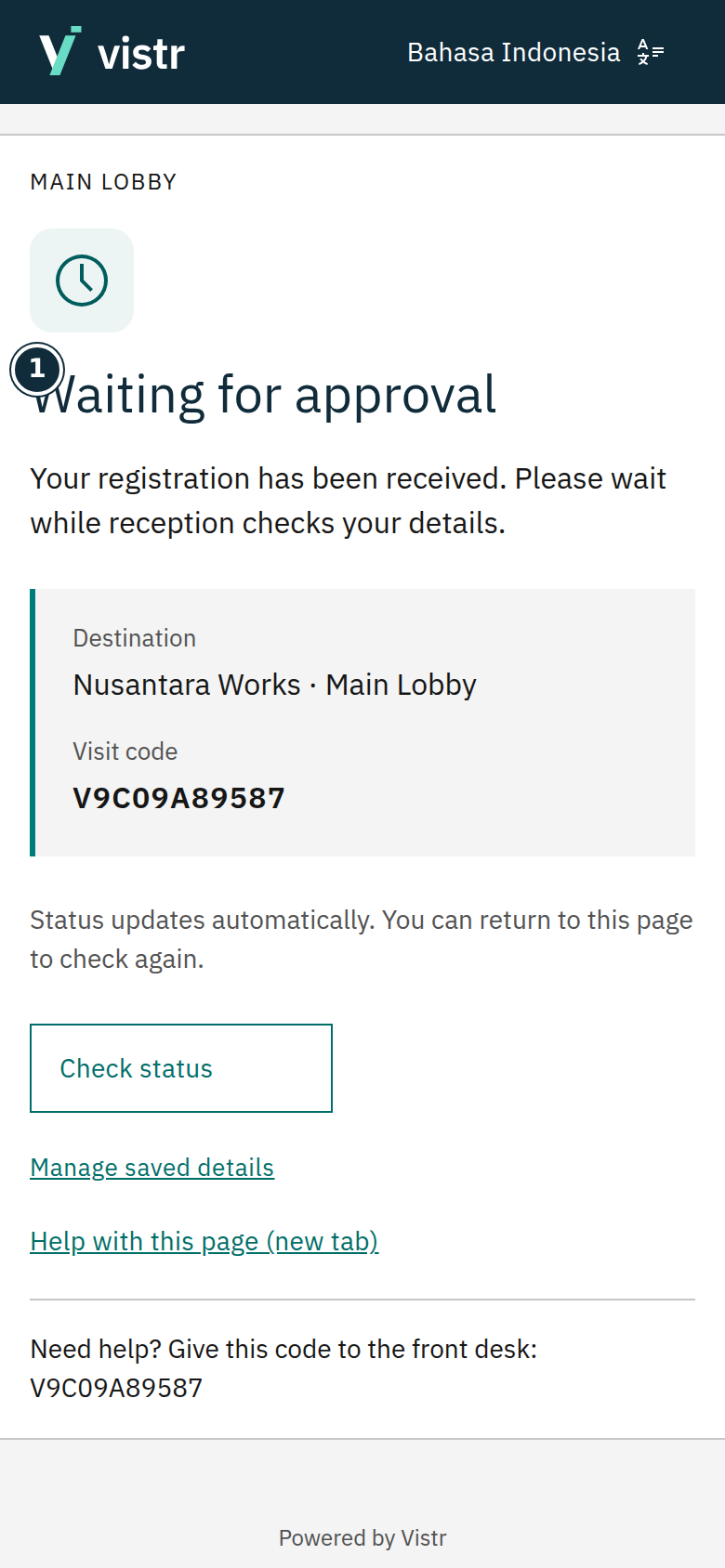 Enlarge image
- Waiting for approval
Sample data · Guest · 2026-10-05 · 780 × 1688 px
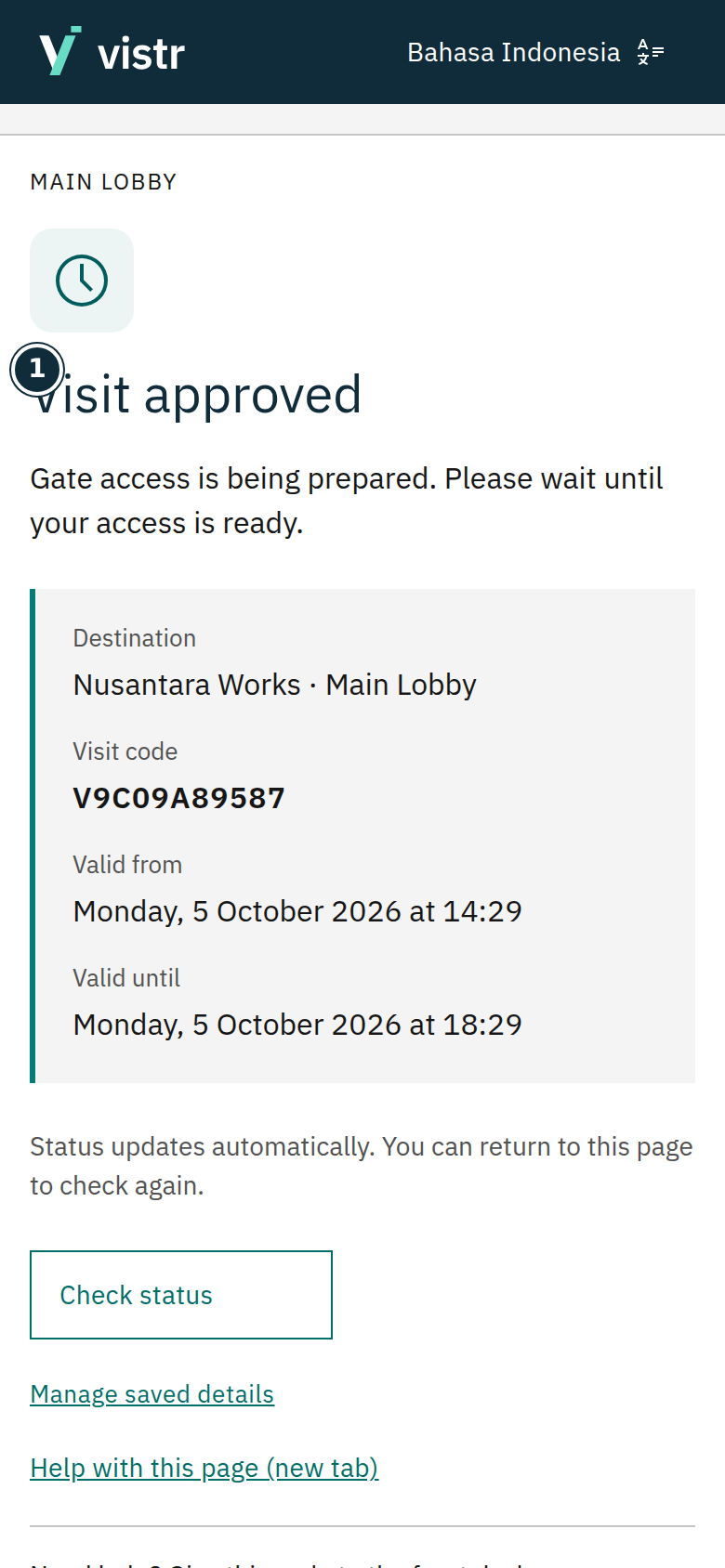 Enlarge image
- Visit approved
Sample data · Guest · 2026-10-05 · 780 × 1688 px
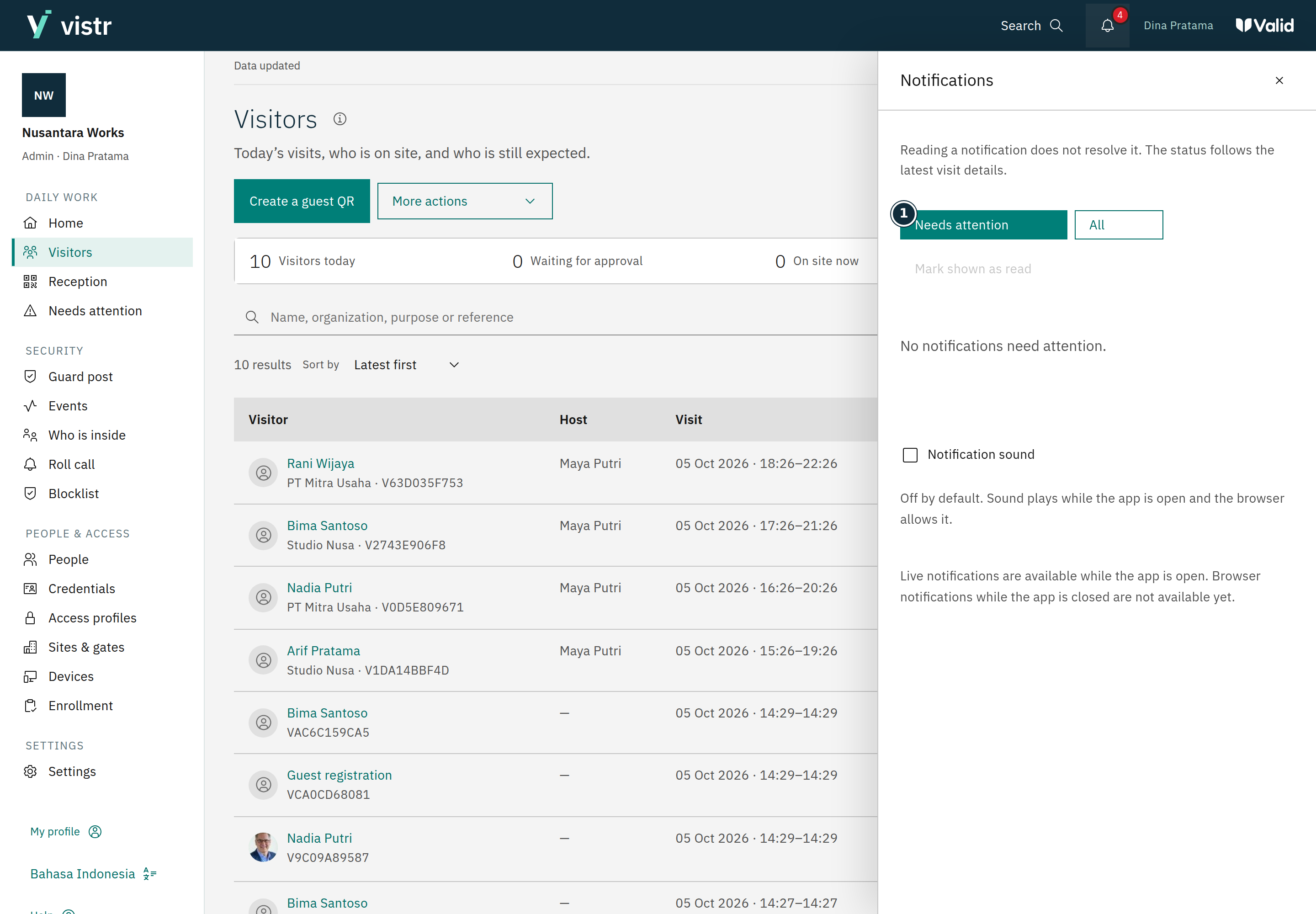 Enlarge image
- Show
Sample data · Admin · 2026-10-05 · 2880 × 2000 px
What to enter and why
| Field | When needed | Purpose | Example |
|---|---|---|---|
| Visit code | When available | Helps staff find the correct case. | Code on the status page |
| Issue message | Record as needed | Use the on-screen wording; avoid attaching documents or tokens. | The gate is not ready |
Expected result
Follow-up matches the issue and role permissions. Re-registering is not the first step for every problem.
If something goes wrong
QR no longer works
Use the latest tablet QR or ask staff to check the personal link. Do not use QR images from this guide.
Submission result is uncertain
Check status before repeating. If the screen offers Retry, use it in the same session to avoid duplicate visits.
Guest needs to enter but access failed
Staff check the visit, approval, timing, and device. Follow the organization assistance procedure; a registration QR is not a replacement credential.
Camera does not open
Check camera permission for this site in your browser. Close other applications using the camera, then retry. If available, upload a JPG, PNG, or WebP within the size limit. Ask staff for help if the camera or upload still fails.
Invitation not received
Staff check the destination, delivery method, and status on the same invitation. Guests check spam. With Share link, the sender must deliver the link themselves. Resend after reviewing status; do not create a new visit just to resend.
QR or link is no longer valid
Check the place name and ask staff for a fresh QR or link. For a dynamic QR, scan the one currently displayed. An already-open form does not need a new scan just because the screen QR changed.
Approved but the gate is not ready
Wait for access-ready status. Staff inspect visit details and refer device failures to an Operator or Admin. Approval is not proof the gate has applied the access data.
Connection lost or data delayed
Check your internet connection and update indicator. Keep the page open during recovery. If the session asks you to sign in again, use your organization site. After reconnecting, check the action result before resubmitting to avoid duplicates.
Menu, button, or result is missing
Check your role, assigned places, filters, and date range. Some features depend on organization settings. Contact an admin if access does not match your work; do not use another staff member’s account.
What to include when asking for help
Include the page, approximate time, place, steps taken, and error message. Do not send passwords, tokens, document photos, or active invitation links. Guests contact reception; staff use their organization’s support process.