
User guide
Use notifications and check updates
Distinguish in-app notices, sound, email, and data freshness.
Your organization settings and account permissions determine which options are available.
All screens use fictional data. QR images and setup codes are examples and cannot be used to register.
Before you start
Use the notification bell in an organization account. Messages follow role and location; Provider service settings are separate.
How the task works
Follow the main steps in order. Where a choice is shown, follow the branch that matches your situation.
- SystemVisit changes
- SystemMessage available to authorized recipients
- StaffOpen details from the message
- StaffHandle the task in the visit
- Message readTask status still follows the visit
Steps
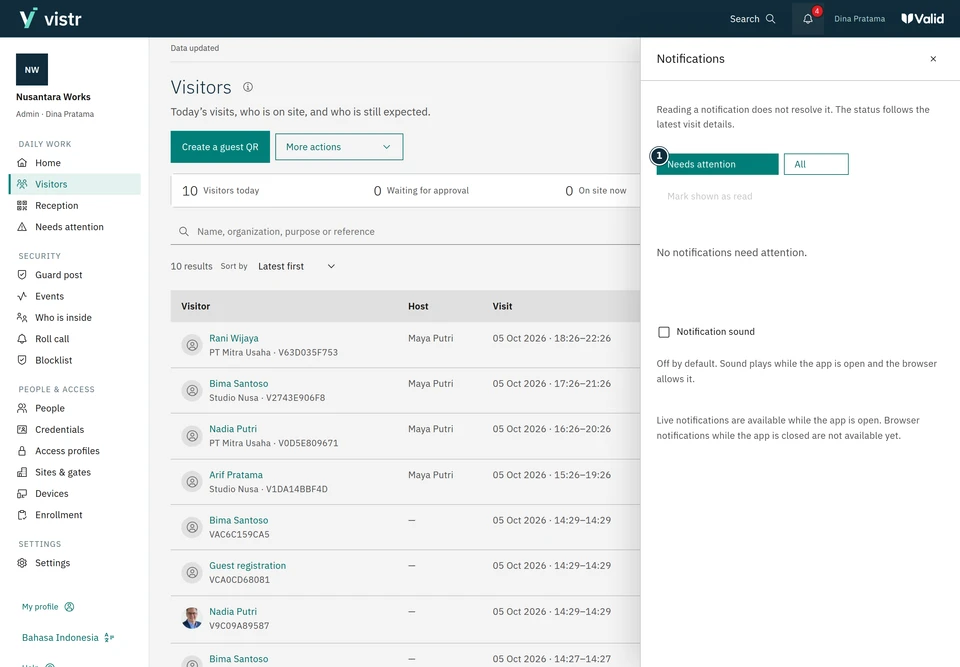
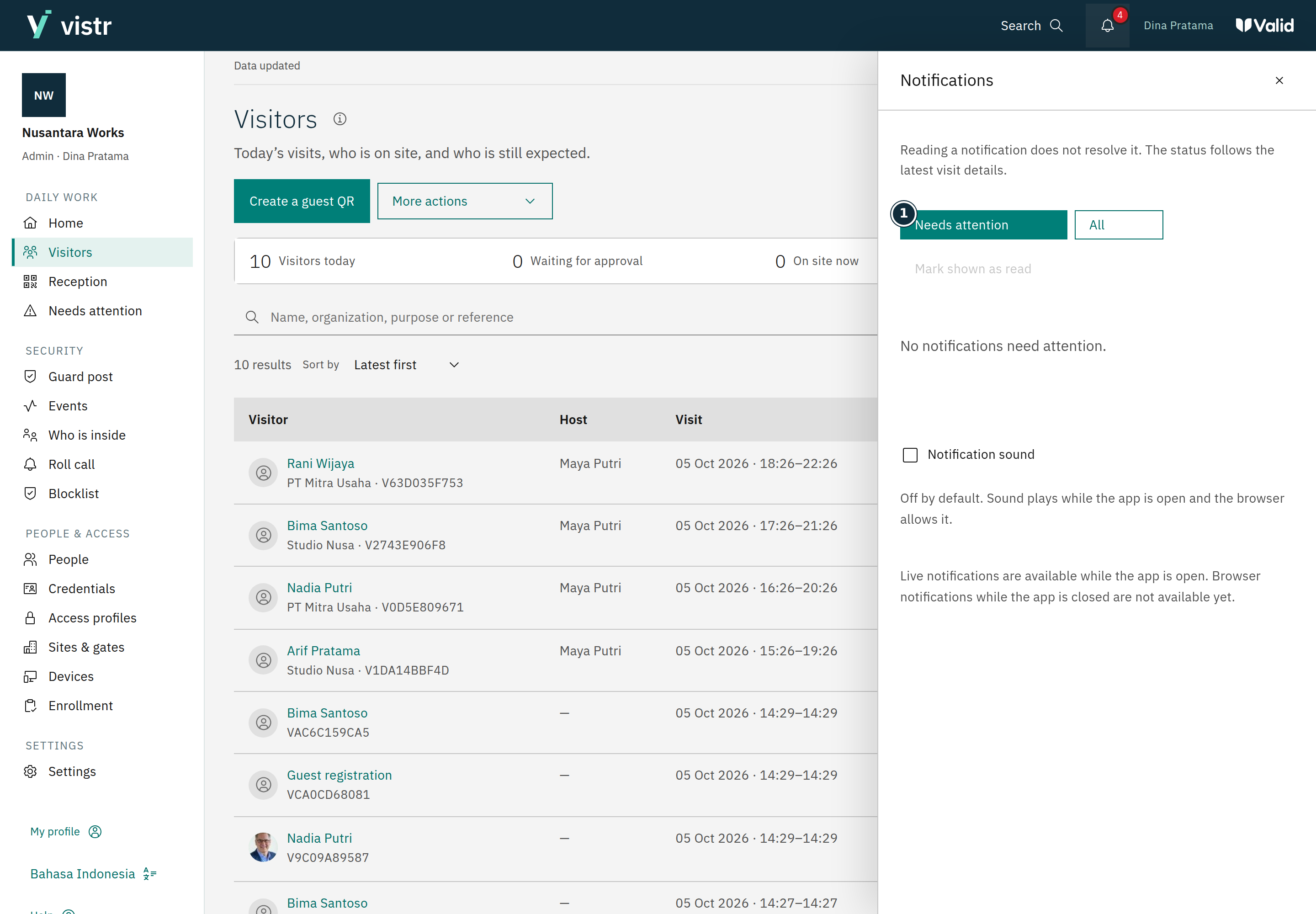
Open the notification list in the application. Select a notice to view the related visit or task.
Set sound as needed. Browser permissions and interaction can affect sound playback.
Check the data update indicator. If disconnected or updates are delayed, wait for recovery and check when data was last updated.
 Enlarge image
Figure 1. Open the visit from the message to handle its task. - Show
Sample data · Admin · 2026-10-05 · 2880 × 2000 px
Screen examples
 Enlarge image
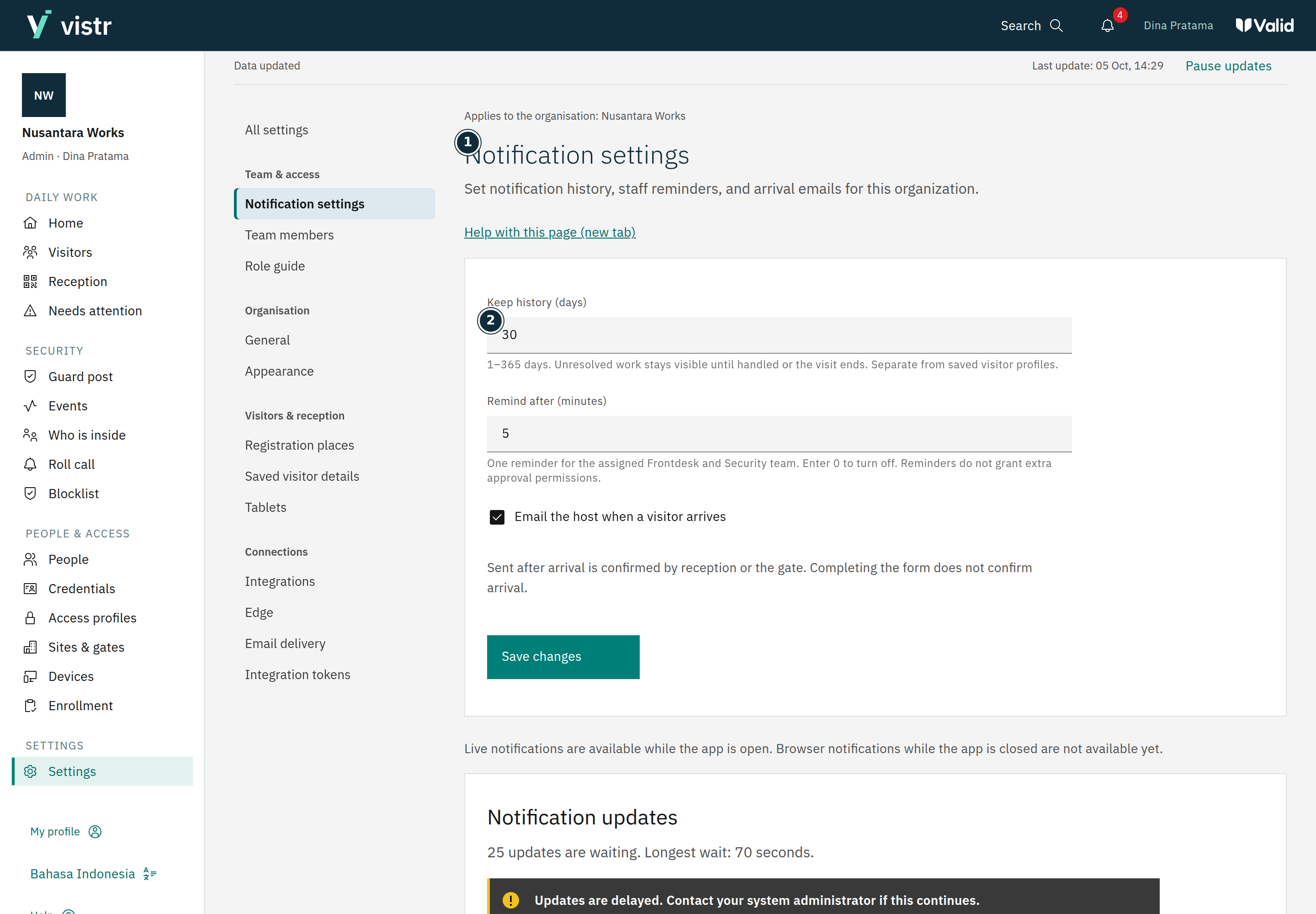
- Notification settings
- Keep history (days)
Sample data · Admin · 2026-10-05 · 2880 × 2000 px
What to enter and why
| Field | When needed | Purpose | Example |
|---|---|---|---|
| Needs attention / All | List filter | Separates tasks needing attention from all messages. | Needs attention |
| Sound | User preference | Sound depends on browser interaction and support; messages remain readable. | Enable when needed |
Expected result
Messages help you find tasks. Reading a notification does not approve a visit or repair access automatically.
If something goes wrong
Updates are waiting to be shown
While editing, updates may be deferred to protect your entries. Save or finish editing, then use the displayed update action.
Connection interrupted
Check the network and wait for connection recovery. Read the latest result before repeating an action that may already have saved.
Organization settings
An Admin configures notification retention, reminders, and arrival emails in notification settings. Retention accepts 1–365 days and reminders 0–1440 minutes. Read the form’s explanation of zero before saving.
Email delivery
Email delivery has its own status. Admins or Operators can inspect delivery jobs and available recovery actions; Viewers read. An active live connection does not prove an email was sent or that screen data is current.
Platform alerts
Platform operational alert recipients are managed by the Provider in a separate panel. That setting differs from sound and organization-account notification preferences.