
User guide
Find people and visits
Search from supported pages within your account permissions.
Your organization settings and account permissions determine which options are available.
All screens use fictional data. QR images and setup codes are examples and cannot be used to register.
Before you start
Sign in with a staff account. Results follow your organization, locations, and permissions; document search is not available to every role.
How the task works
Follow the main steps in order. Where a choice is shown, follow the branch that matches your situation.
- StaffOpen Search
- StaffChoose name/contact or document
- StaffReview results and match source
- StaffOpen the correct person or visit
Steps
Open global search in the staff application. Enter a name, contact detail, or visit code. Search options follow account permissions.
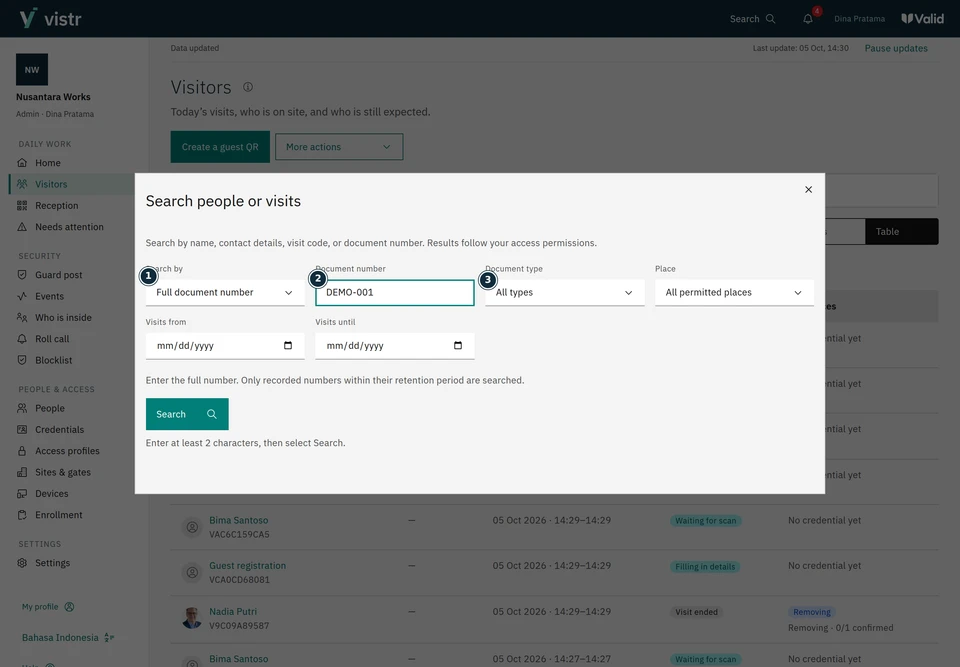
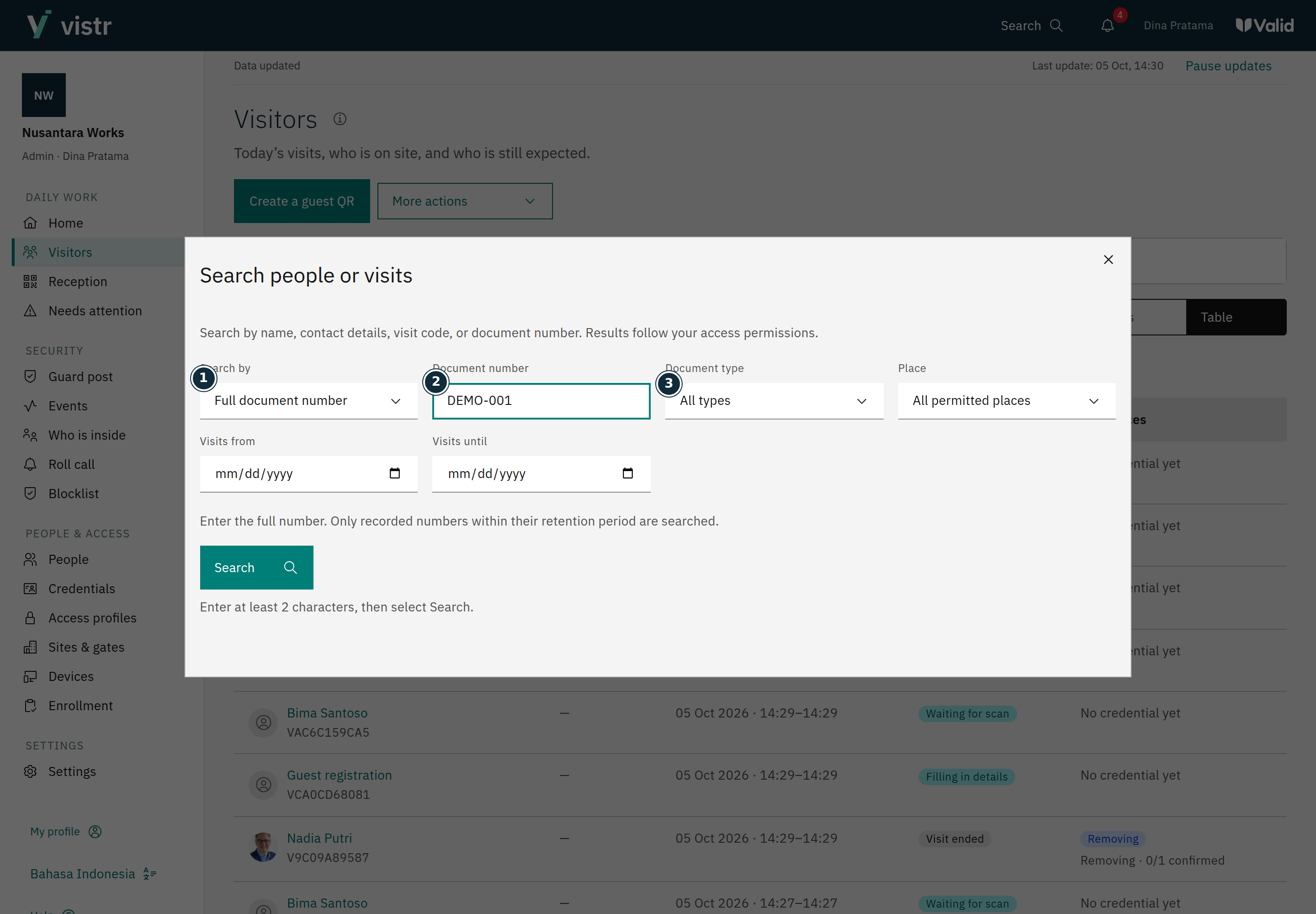
Admin, Operator, Frontdesk, and Security can search a complete document number. Host and Viewer accounts cannot use document-number search. Check the People or Visits result types available to your account.
 Enlarge image
Figure 1. Document mode is available only to authorized roles. The pictured number is fictional. - Search by
- Document number
- Document type
Sample data · Admin · 2026-10-05 · 2880 × 2000 px
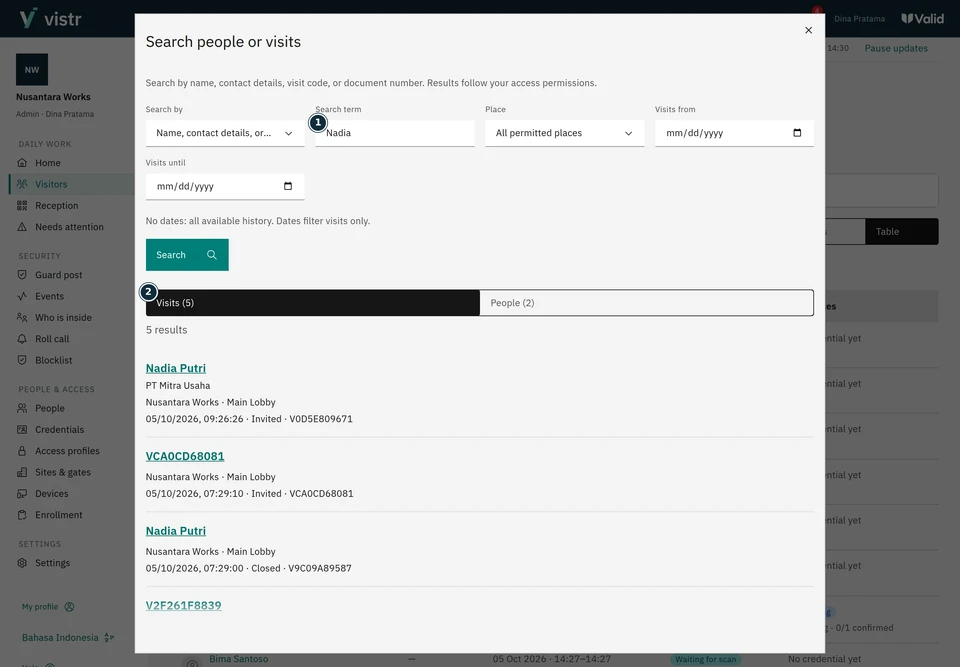
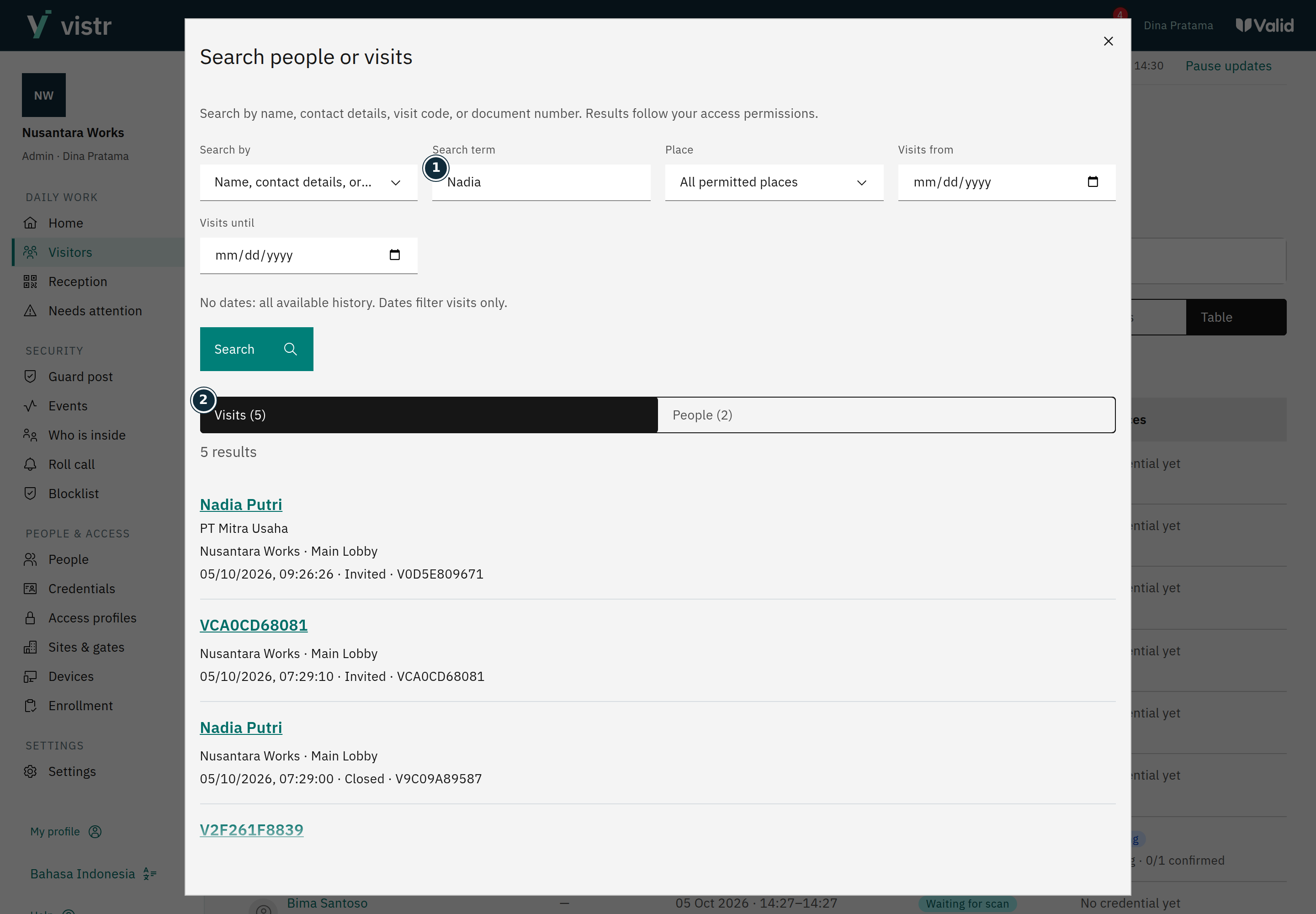
Check the date and location scope when there are no results. Open the matching result and confirm details before taking action.
 Enlarge image
Figure 2. Review results before opening a visit. - Search term
- Search people or visits
Sample data · Admin · 2026-10-05 · 2880 × 2000 px
What to enter and why
| Field | When needed | Purpose | Example |
|---|---|---|---|
| Search query | At least two characters | Name, contact, visit code, or document number according to the mode. | Nadia / DEMO-001 |
| Document type | For document mode | Distinguishes ID card, driving licence, passport, or another document. | SIM |
| Destination and dates | Optional | Narrows results; overly narrow filters may hide the desired record. | Assigned location |
Expected result
People and Visits results open details within your permissions. A document match helps the search; still check the identity and visit.
If something goes wrong
Document number not found
Check the mode, document type, number, and filters. A number is searchable only if stored in records you are allowed to see.
Results follow permissions
Accounts do not all see the same results. Hosts are limited to their visits; Security does not gain access to the People directory by searching for guests. A guest-entered document number may not yet have been checked by staff.
Table and card views
Visitors and People start in table view. Choose cards to see larger photos. Changing the view does not expand access permissions.