
User guide
Serve guests at reception
Use the queue, QR, and tablet tools from one workspace.
Your organization settings and account permissions determine which options are available.
All screens use fictional data. QR images and setup codes are examples and cannot be used to register.
Before you start
Sign in as an authorized Frontdesk, Security, Operator, or Admin. Choose your assigned destination before reviewing the queue.
How the task works
Follow the main steps in order. Where a choice is shown, follow the branch that matches your situation.
- StaffOpen Needs action
- StaffReview guest and details
- IncompleteHelp complete the same registration
- StaffMake an allowed decision
- StaffCheck access readiness
- Not ready / failedCheck the reason and contact an operator when needed
- StaffDirect the guest to the gate
Steps
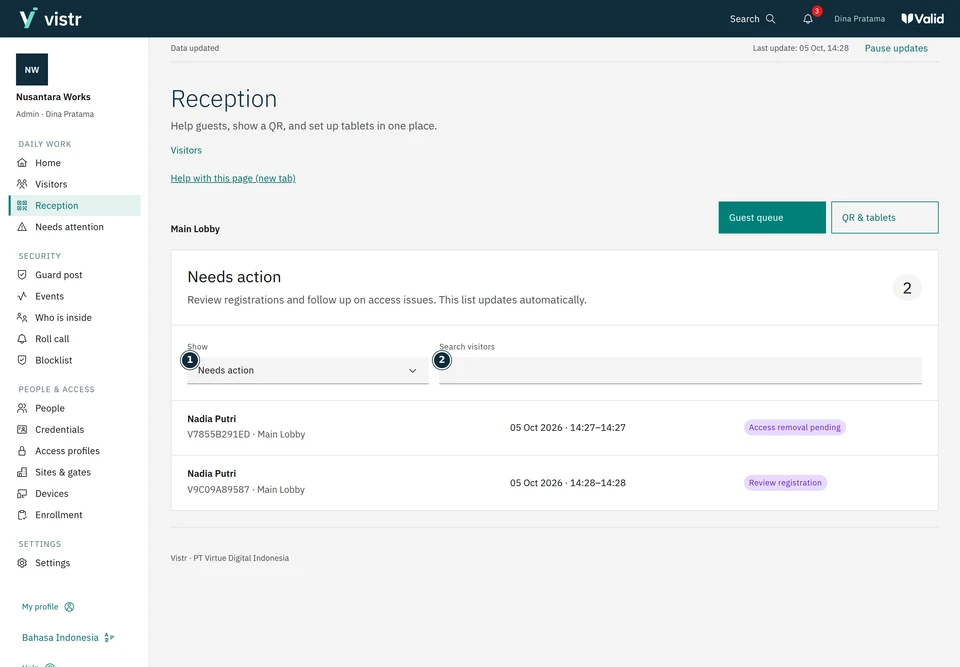
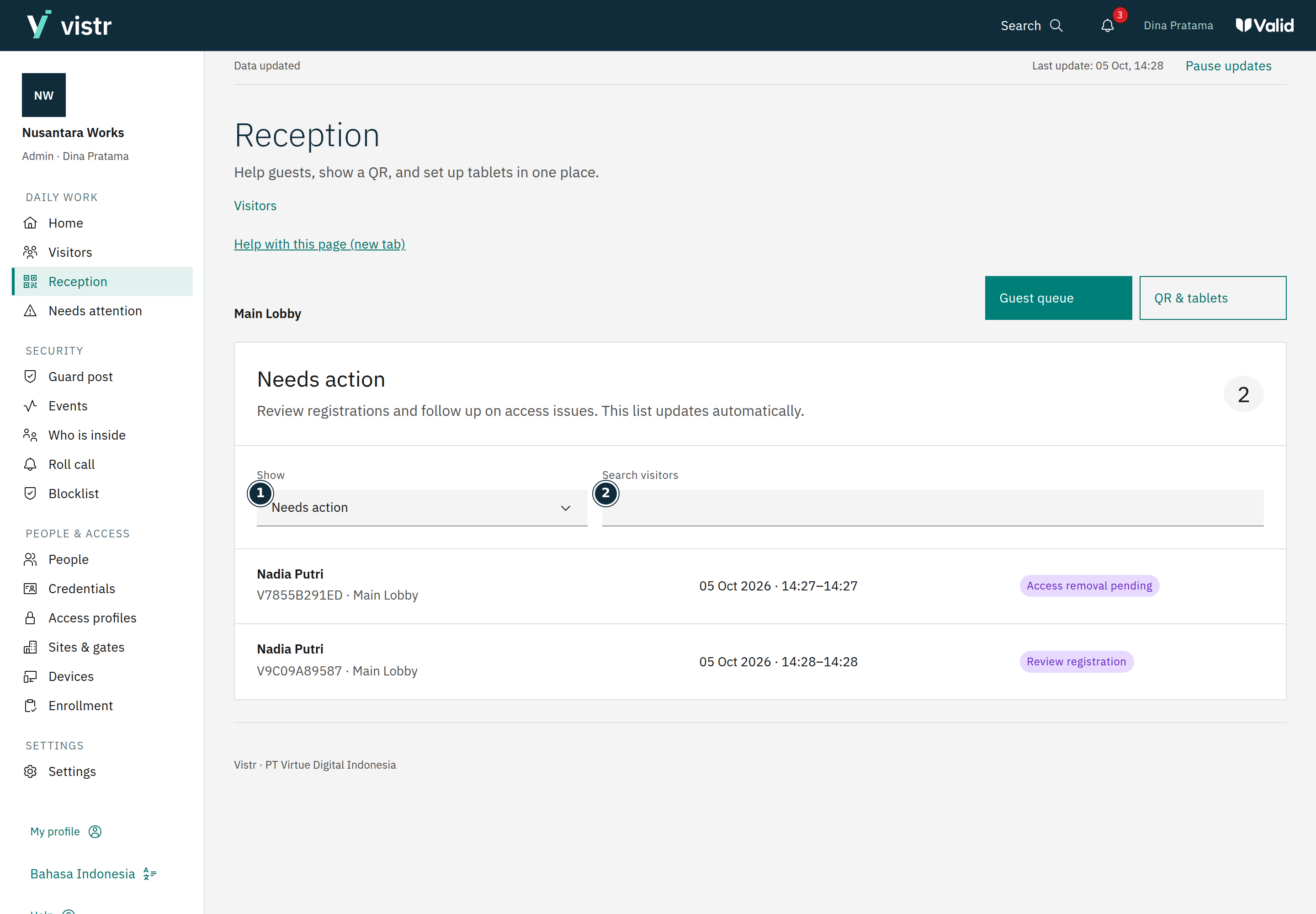
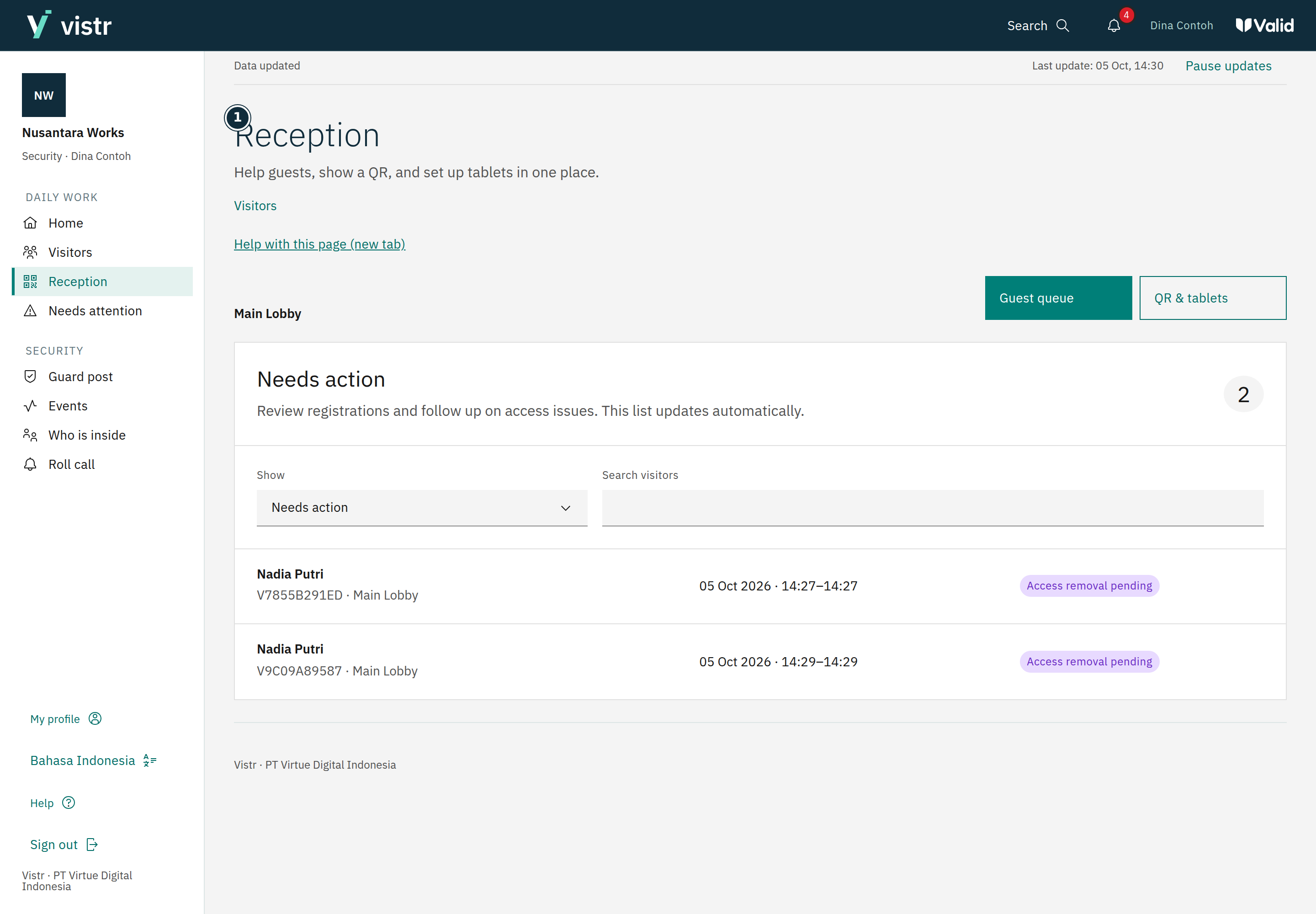
Open Reception and choose your assigned place. Start with Needs action to find registrations that need a decision.
 Enlarge image
Figure 1. The queue helps find registrations that need attention. - Show
- Search visitors
Sample data · Admin · 2026-10-05 · 2880 × 2000 px
Search by name or open All guests today if the guest is not in the initial queue.
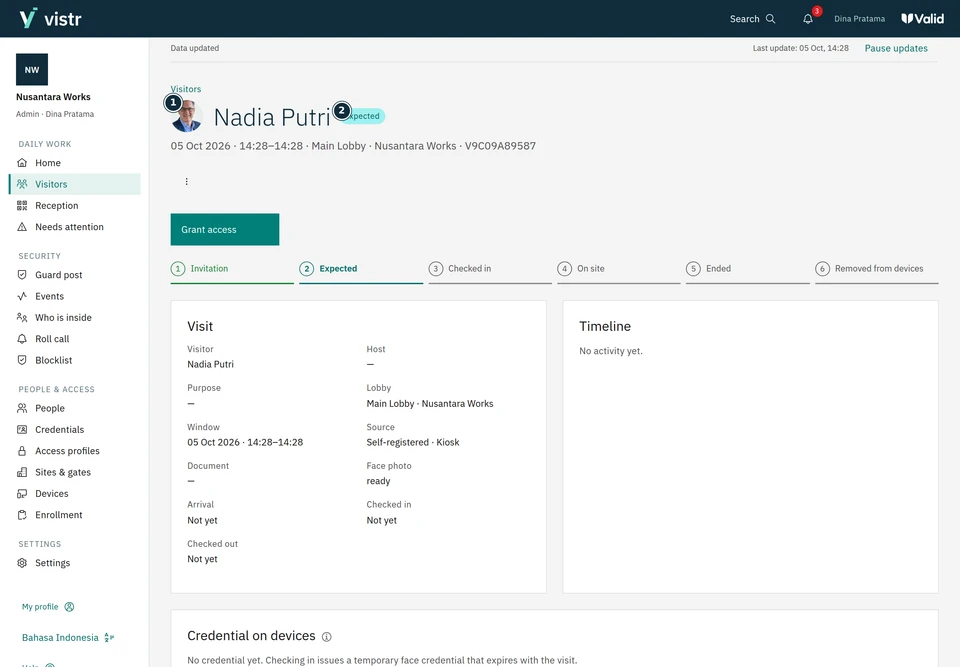
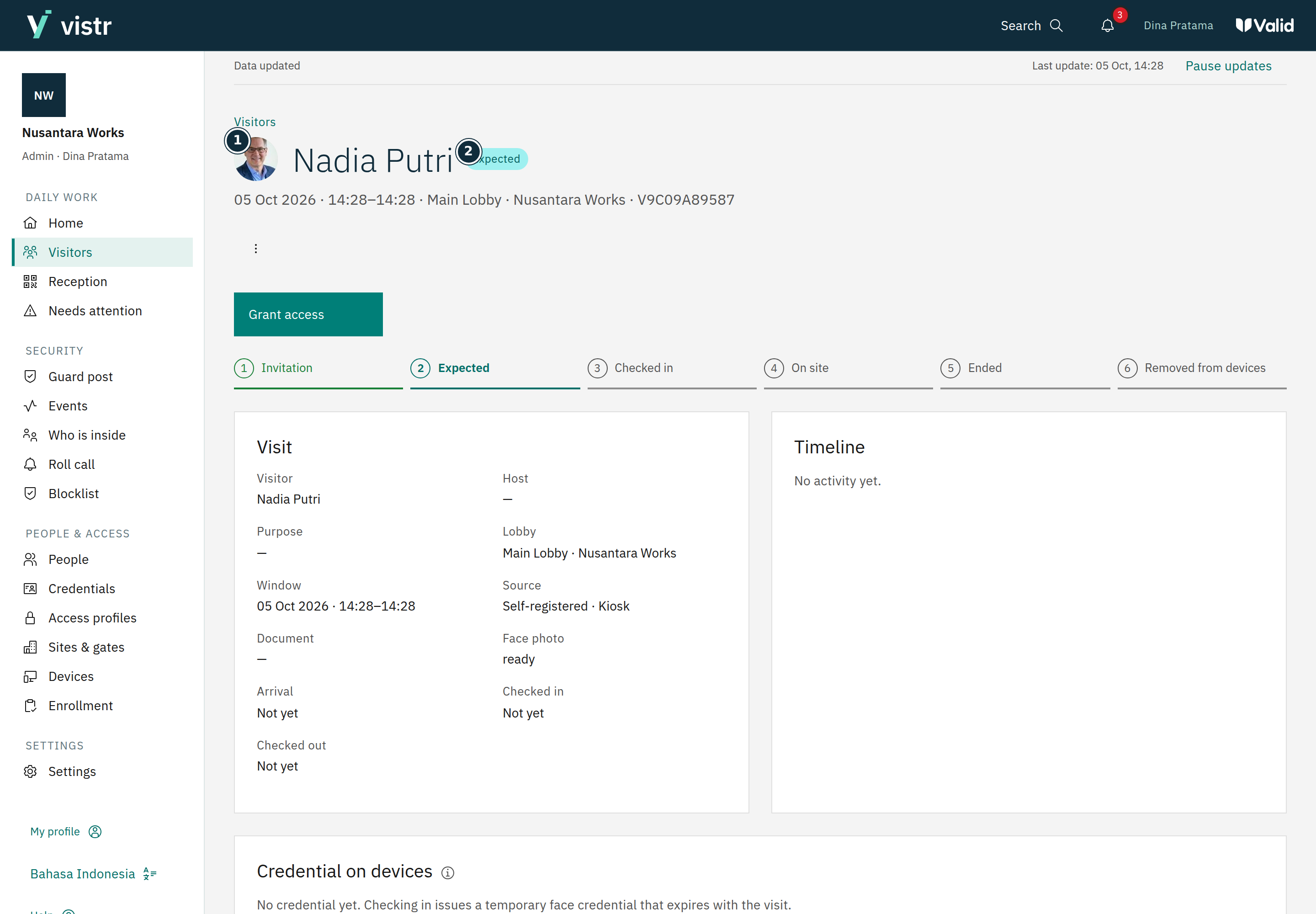
Select a guest to open the details. Check their information, photo, approval, and access readiness.
 Enlarge image
Figure 2. Review details, approval, and access for the same visit. - Nadia Putri
- Expected
Sample data · Admin · 2026-10-05 · 2880 × 2000 px
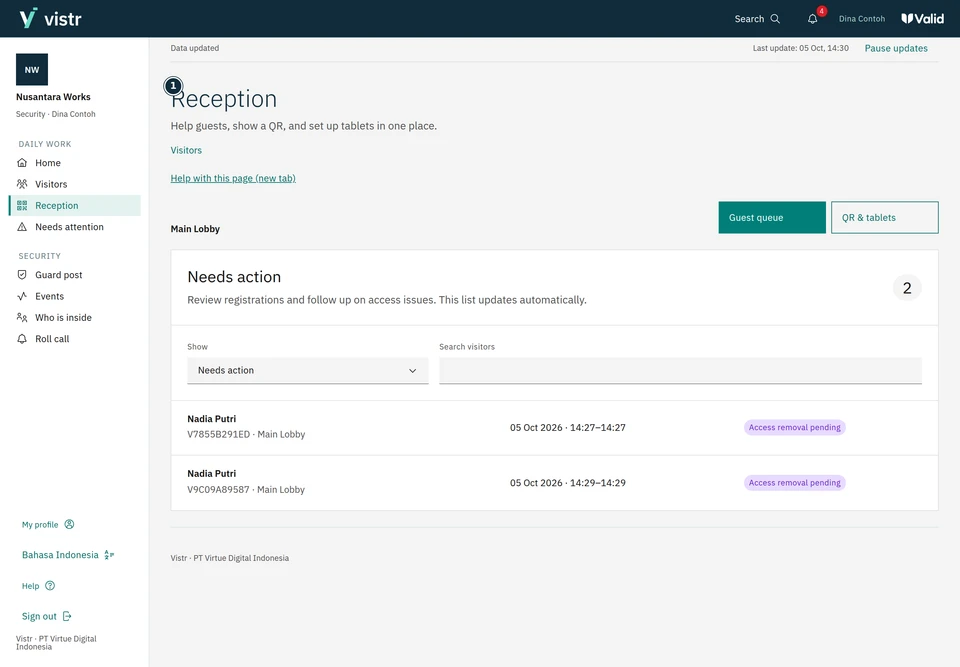
Use the available actions within your account permissions. After approval, check that access is ready before directing the guest to the gate.
 Enlarge image
Figure 3. Reception shown for a Security account; available actions follow its permissions. - Reception
Sample data · Security · 2026-10-05 · 2880 × 2000 px
What to enter and why
| Field | When needed | Purpose | Example |
|---|---|---|---|
| Destination | Within your assignment | Limits the queue you are serving. | Main lobby |
| Needs action / All today | Choose for your task | The decision queue differs from the full guest list. | Needs action |
Expected result
Guests are directed using the latest access status. Approving registration does not automatically record arrival.
If something goes wrong
Guest is missing from the queue
Check the destination filter, search by name, then open All guests today. Use global search for a broader search within your permissions.
Guests without an invitation
Display a place QR for self-registration, create a QR for one guest, or prepare a shared tablet. Staff can also use the visitor registration flow. Document requirements in the staff flow can differ from the QR flow.
Queue and history
The queue supports current service. Full history is available in Visitors. Searching the queue does not replace global search.