
User guide
Use the people directory
Distinguish person records, identities, credentials, and team accounts.
Your organization settings and account permissions determine which options are available.
All screens use fictional data. QR images and setup codes are examples and cannot be used to register.
Before you start
Make sure you are managing a person, not creating a team member account. Add person is available to Admin on this page.
How the task works
Follow the main steps in order. Where a choice is shown, follow the branch that matches your situation.
- StaffSearch existing records
- StaffReview identity and photo
- Admin / OperatorUse available editing actions
- StaffCheck access status separately
Steps
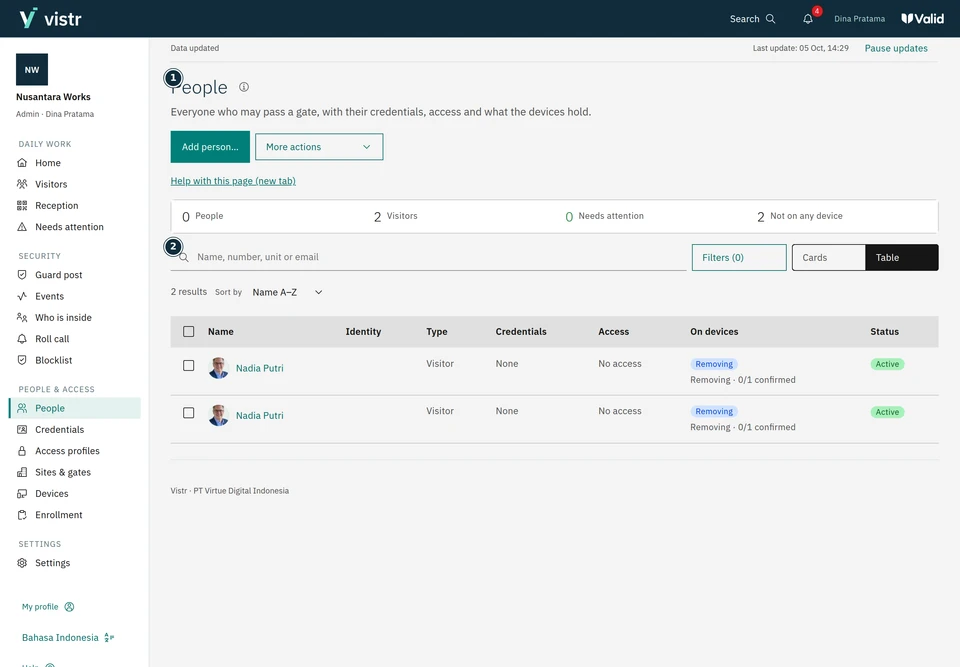
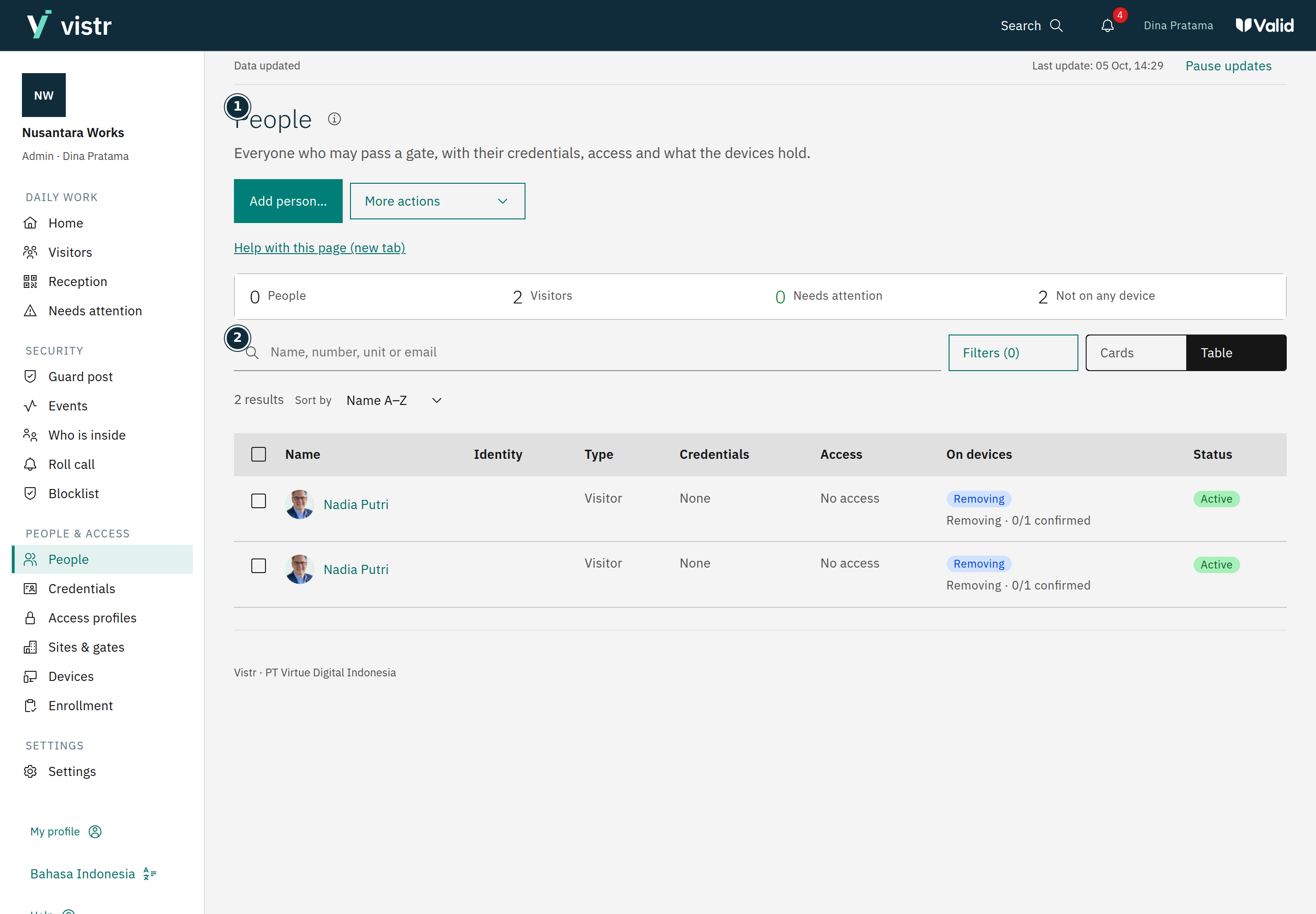
Open People and search by name or identity before adding a record. Use the table or cards to inspect results.
 Enlarge image
Figure 1. Use People to find an existing identity. - People
- Search people
Sample data · Admin · 2026-10-05 · 2880 × 2000 px
An Admin can add a person by entering their name, category, identity type, and matching identity number. Other accounts use actions available in details or visitor service flows.
Save, then open the details to check the photo, identities, credentials, and available access profiles.
What to enter and why
| Field | When needed | Purpose | Example |
|---|---|---|---|
| Identity | As required by the form | Distinguishes people with similar names. The document type determines the number format. | Employee ID DEMO-001 |
| Access profile | When access is needed | Connects a person with allowed gates; differs from an application account role. | Office staff |
Expected result
The person record is available in the list or details. Having a person record does not confirm credentials are ready on devices.
If something goes wrong
Photo is missing
Check whether a photo has been added and is still available. Review the details; initials are not an access photo.
Identity and access
An identity number distinguishes a person, such as a student number for a student. Do not use a real person’s details as sample data. Creating a person record does not create a login account or automatically grant gate access.
Editing limits
Viewers only read. Frontdesk has limits when editing existing profiles; category, organization, or email changes may require Admin or Operator. Use Team members to manage staff accounts.
Import data
If import is available, use the provided template, review validation before applying, and read each row’s result. Photos and identities must match the correct person. Do not upload sample data to a production organization.