
User guide
Set organization branding
Preview the name, logo, icon, and color before applying.
Your organization settings and account permissions determine which options are available.
All screens use fictional data. QR images and setup codes are examples and cannot be used to register.
Before you start
Use an organization Admin account. Prepare a clear logo and the name guests should see; check both languages in the preview.
How the task works
Follow the main steps in order. Where a choice is shown, follow the branch that matches your situation.
- AdminPrepare organization identity
- AdminUpload logo and choose a color
- AdminReview the preview
- AdminSave and check guest pages
Steps
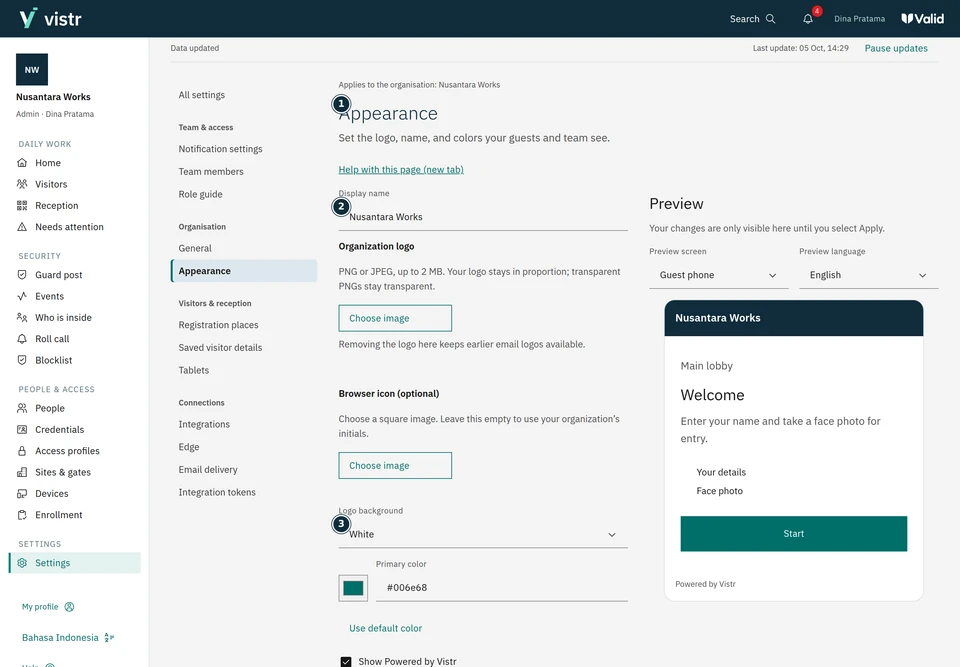
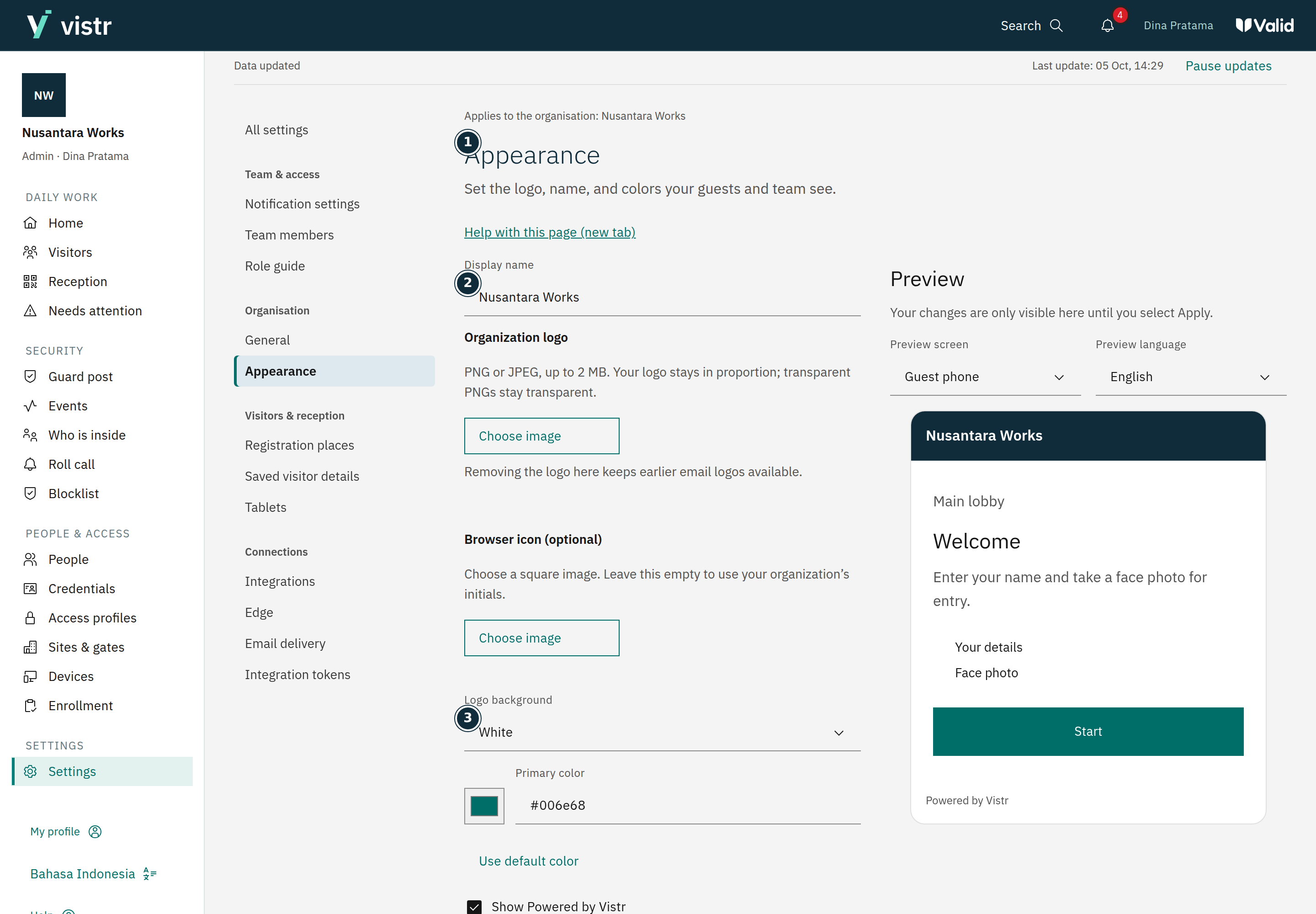
Open Settings, then Appearance. Enter the organization display name.
Upload a logo and optional icon. Use PNG or JPEG, up to 2 MB per file. The icon must be square.
Choose the logo background and a primary color accepted by the form. Check phone, tablet, staff application, and email previews.
 Enlarge image
Figure 1. Review the identity in the preview before saving. - Appearance
- Display name
- Logo background
Sample data · Admin · 2026-10-05 · 2880 × 2000 px
Apply when the preview is correct. If another edit causes a conflict, load the latest version before editing again.
What to enter and why
| Field | When needed | Purpose | Example |
|---|---|---|---|
| Logo | Optional | Displayed without cropping; a square icon is a separate asset when provided. | Organization logo |
| Primary color | As configured | Affects interface elements. Check text and button readability. | A color with sufficient contrast |
Expected result
Branding applies within the organization. Sent emails retain their original identity version; this setting does not change the domain or SMTP address.
If something goes wrong
Logo appears too small
Check whitespace in the logo file and the preview. Use a clear file without tiny unreadable text.
Organization-wide branding
Branding follows the organization, not each location. Place names remain visible. The main logo is not cropped into the browser-tab icon; a separate icon is available.
Earlier emails
Sent emails retain the branding used when sent. Removing the active logo does not automatically remove earlier email versions. Appearance settings do not change the domain or sender email address.