
User guide
Check integrations and site connections
Understand integrations, Edge, and source-data tokens.
Your organization settings and account permissions determine which options are available.
All screens use fictional data. QR images and setup codes are examples and cannot be used to register.
Before you start
Use an account allowed to view integrations and Edge. Do not share tokens or connection secrets in support screenshots.
How the task works
Follow the main steps in order. Where a choice is shown, follow the branch that matches your situation.
- OperatorChoose integration or Edge
- OperatorCheck state and update time
- OperatorCheck related locations/devices
- OperatorFollow up with authorized staff
Steps
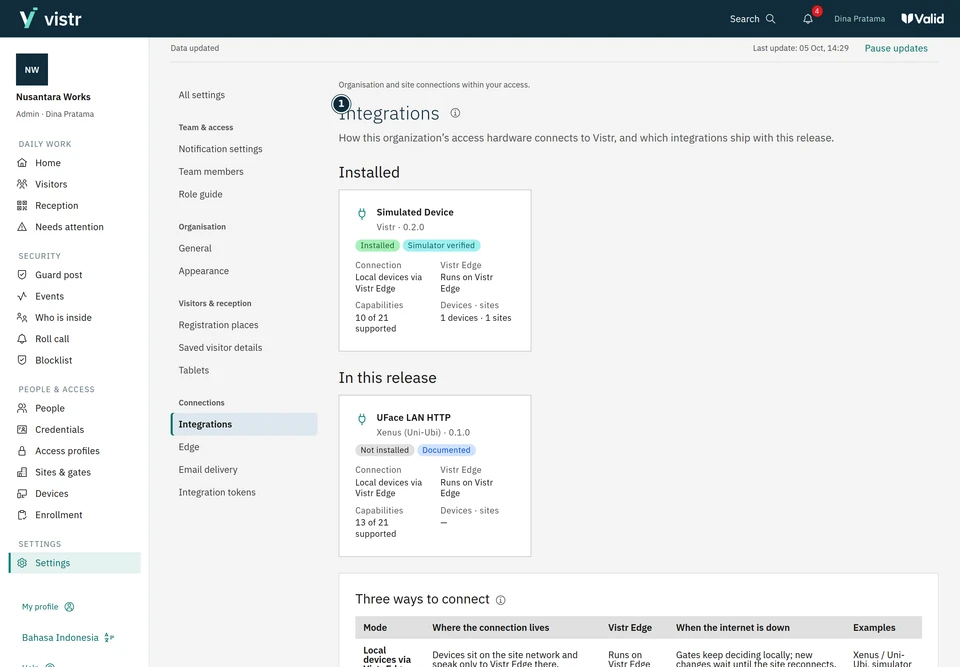
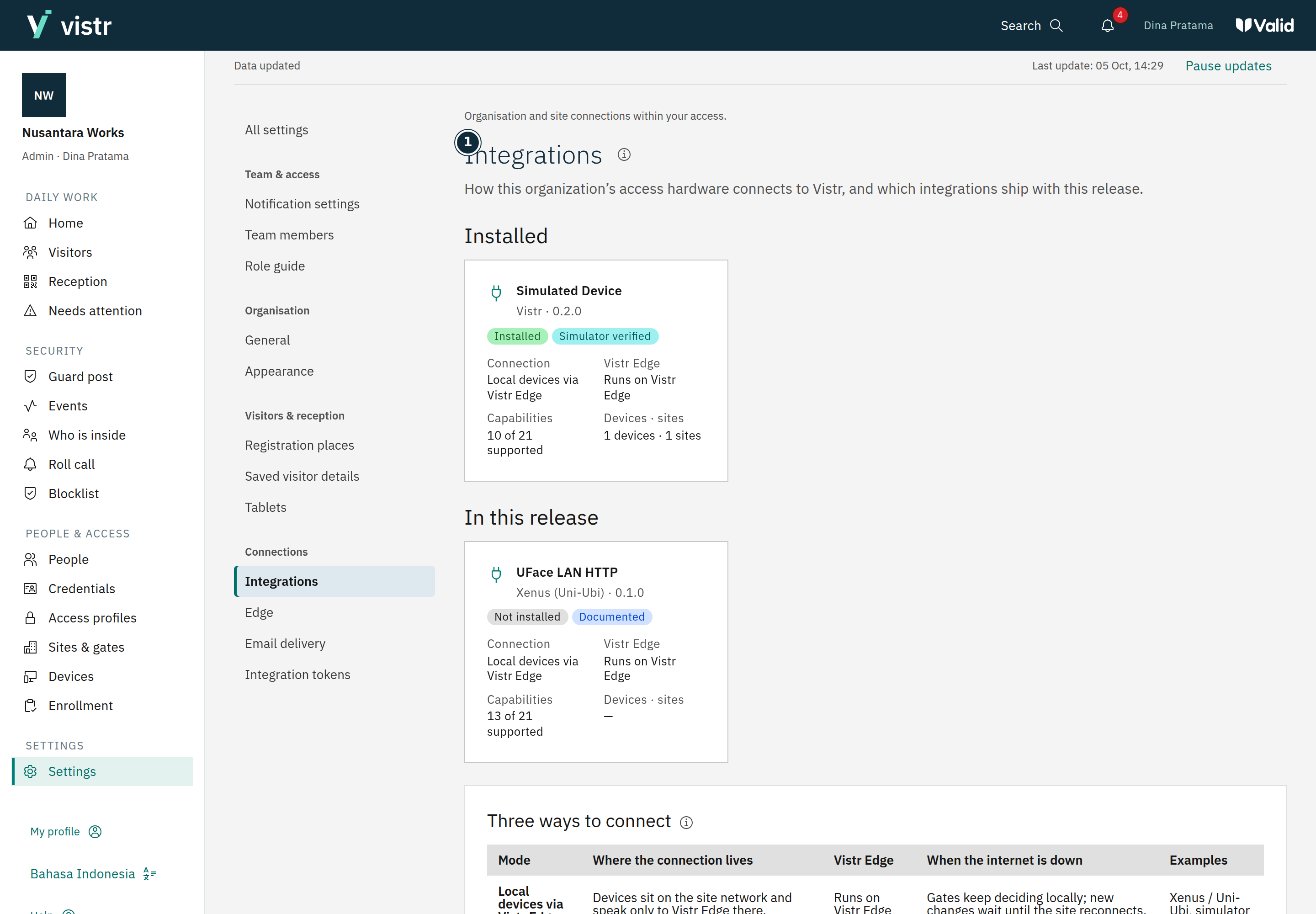
Open Settings and choose Integrations or Edge for the connection being checked. Select the correct site.
 Enlarge image
Figure 1. Read the support description for each integration. - Integrations
Sample data · Admin · 2026-10-05 · 2880 × 2000 px
Check status, related devices, and recent job results. Give the technical team the place, time, and visible message when reporting a problem.
An Admin performs available installation or configuration changes. Operators handle permitted operational actions; Viewers read status.
What to enter and why
| Field | When needed | Purpose | Example |
|---|---|---|---|
| Integration status | System information | Shows support or connection; read the description to distinguish planned integrations from active features. | Available / Planned |
| Edge | When used by the location | Connects location devices with the service. | Location Edge |
Expected result
Identify the affected system and location. A connected integration does not prove every credential is confirmed.
If something goes wrong
Device is not receiving updates
Review Edge state and the device queue in the available pages. Escalate without copying connection secrets.
Integration tokens
An Admin can create and revoke source-data tokens. The token secret is shown once; store it using the organization’s secure process. Do not put tokens in articles, screenshots, or support messages. Revocation stops that token from being used.
Edge and devices
Edge connects the service with site devices. Changes to discovery networks, versions, or enrollment require technical-team coordination. This public guide does not include environment server addresses or credentials.