
User guide
Reuse details from a previous visit
Verify saved details, review them, then complete a new visit.
Your organization settings and account permissions determine which options are available.
All screens use fictional data. QR images and setup codes are examples and cannot be used to register.
Before you start
Previous details are available only if you chose to save them and retention has not ended. Have access to the email used for verification.
How the task works
Follow the main steps in order. Where a choice is shown, follow the branch that matches your situation.
- GuestChoose to use saved details
- GuestVerify email
- Cannot verifyAsk staff for help or enter details again
- GuestReview valid saved details
- GuestMeet the destination requirements
- GuestSend a new visit
Steps
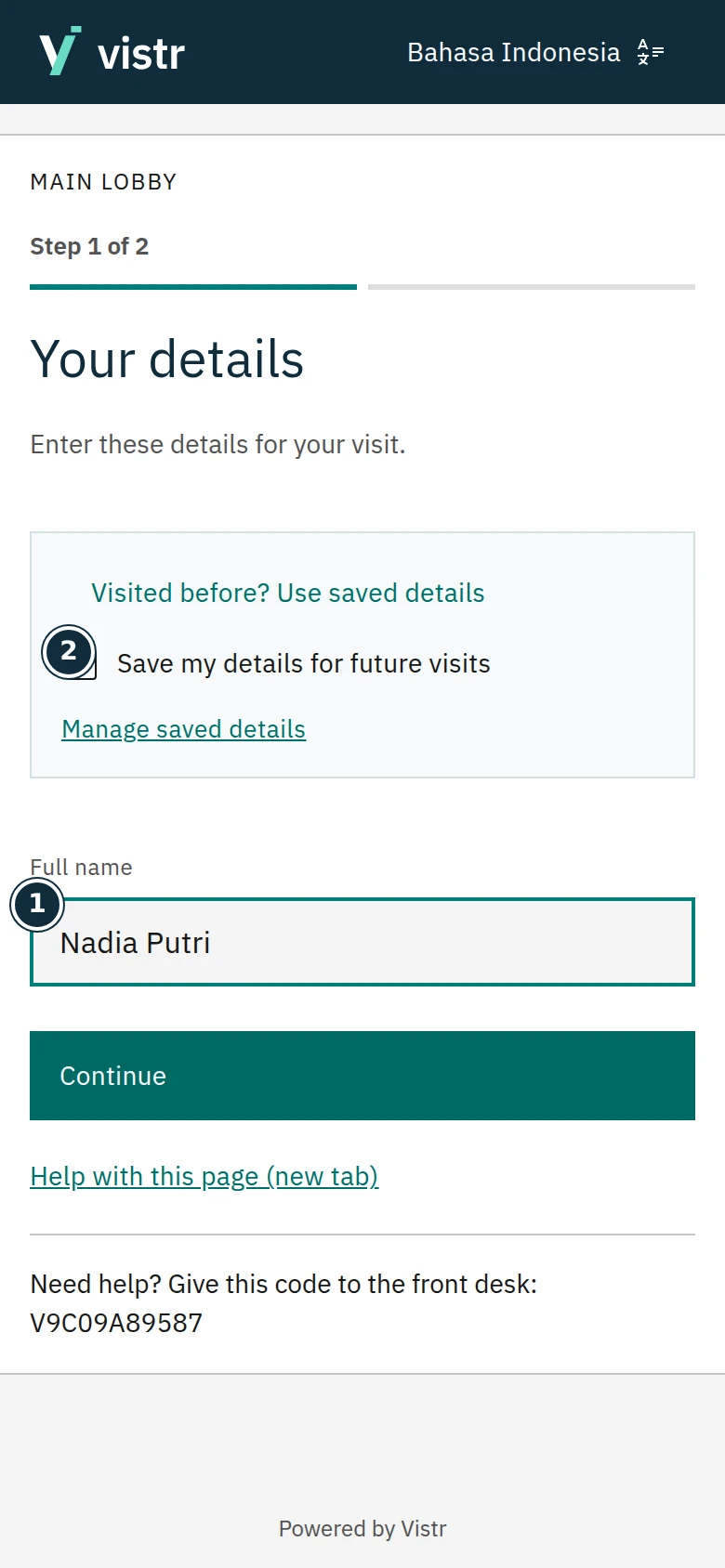
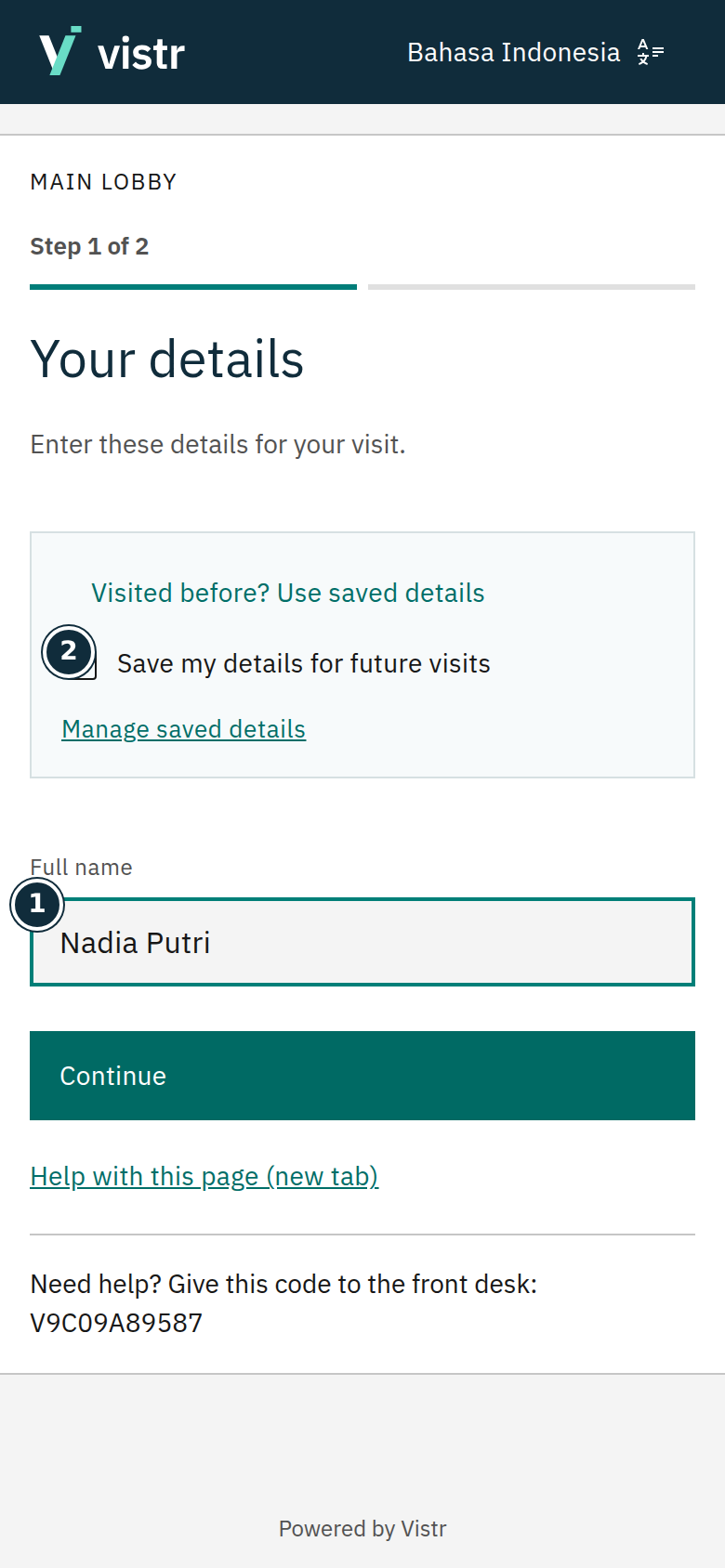
In registration, use the saved-details option if you previously agreed to save your details.
 Enlarge image
Figure 1. Saving a profile is optional. - Full name
- Save my details for future visits
Sample data · Guest · 2026-10-05 · 780 × 1688 px
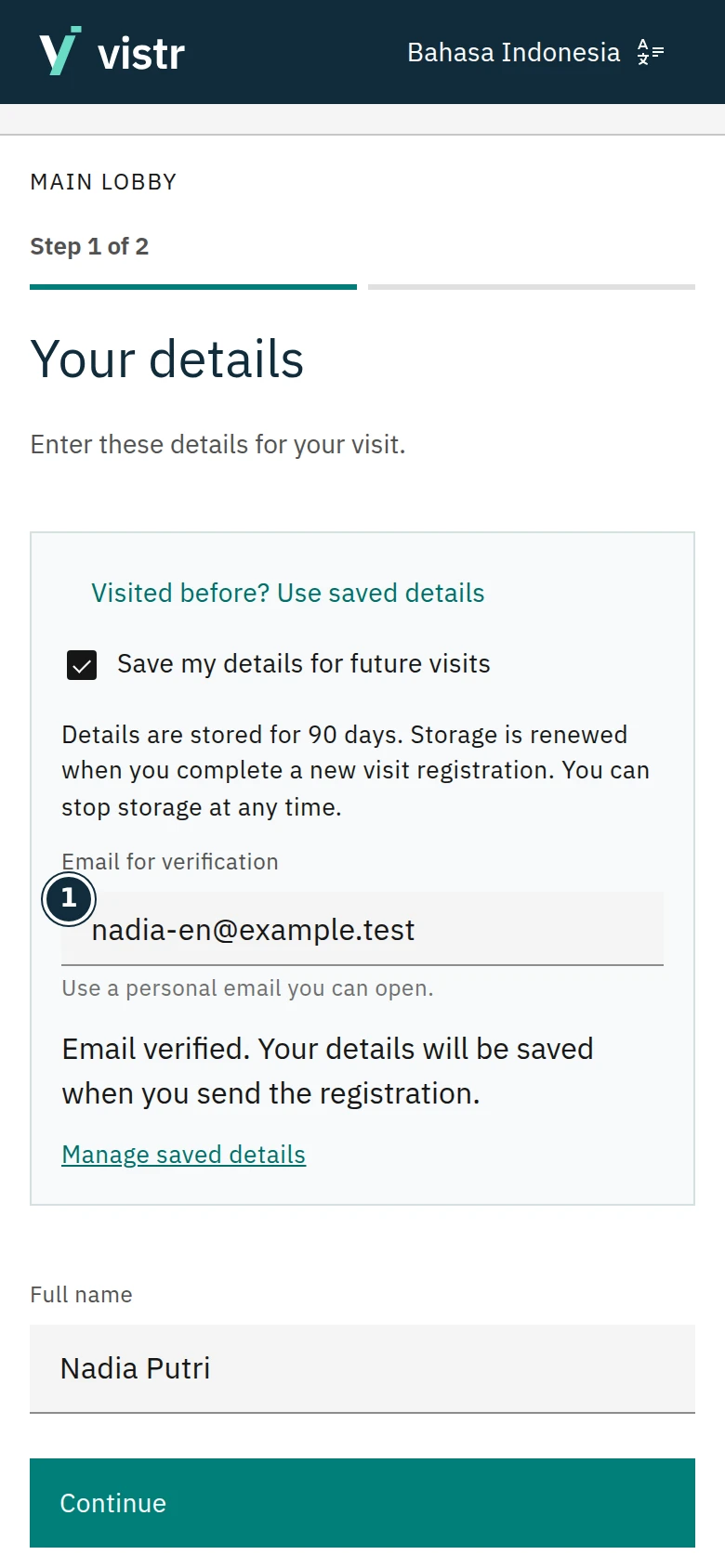
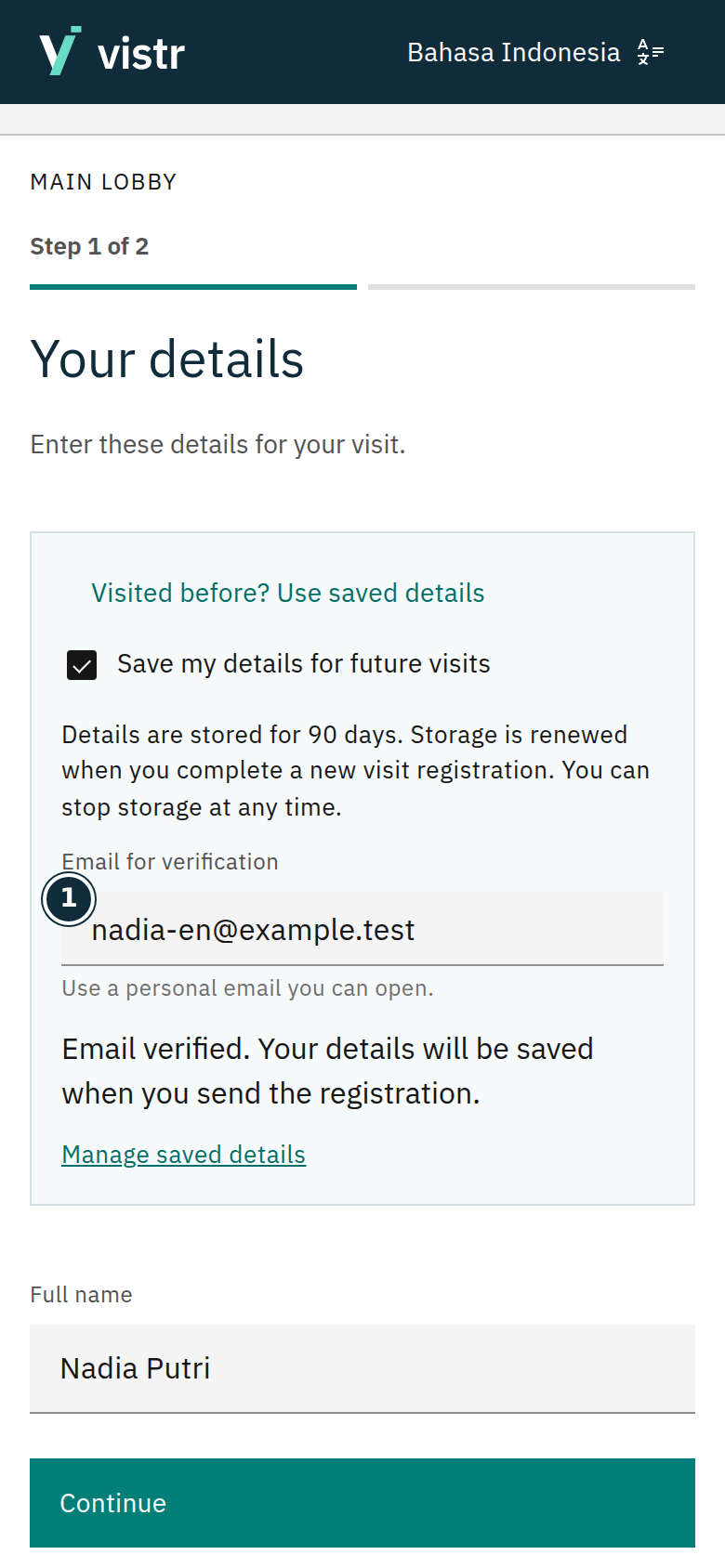
Verify using the email linked to the profile. Follow the email and verification-page instructions.
 Enlarge image
Figure 2. Verification happens before saved details are reused. - Email for verification
Sample data · Guest · 2026-10-05 · 780 × 1688 px
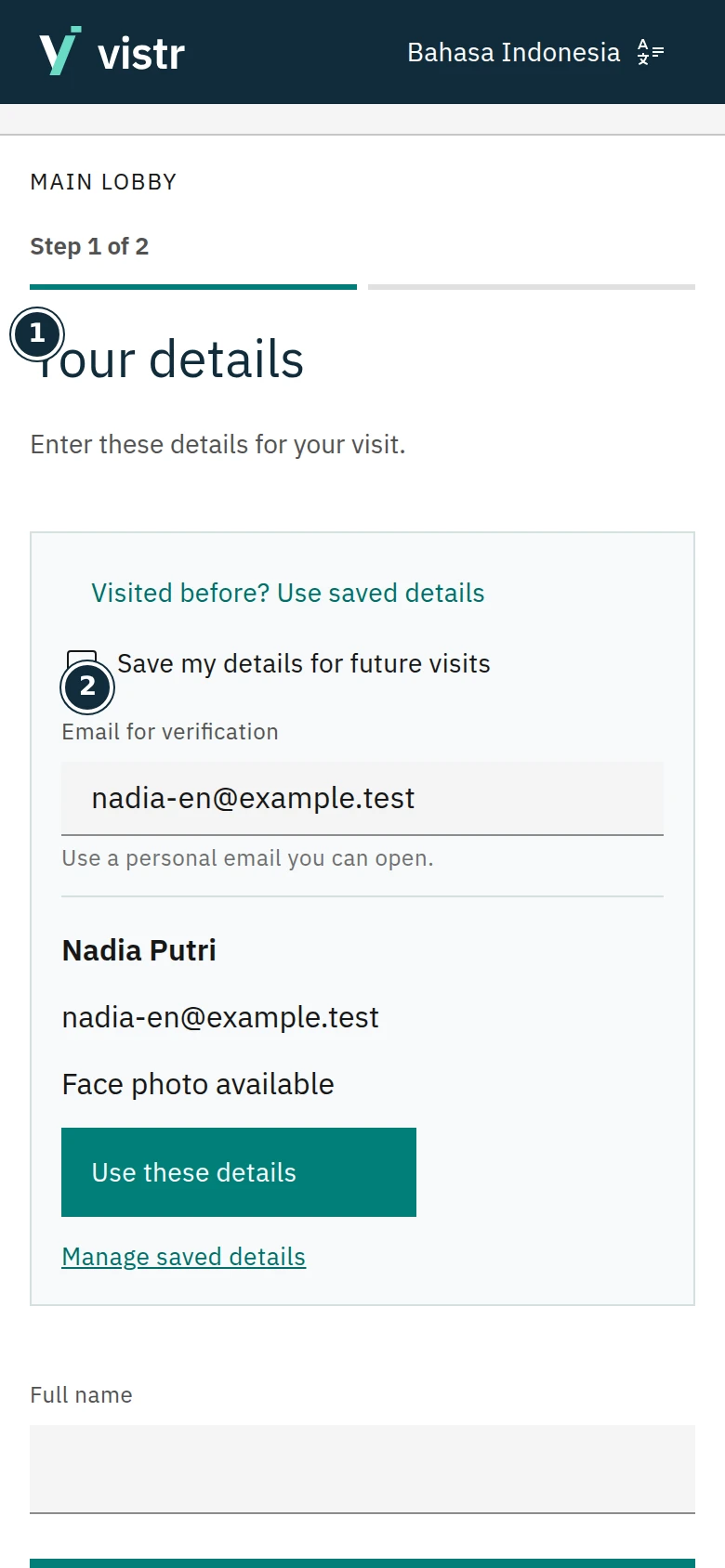
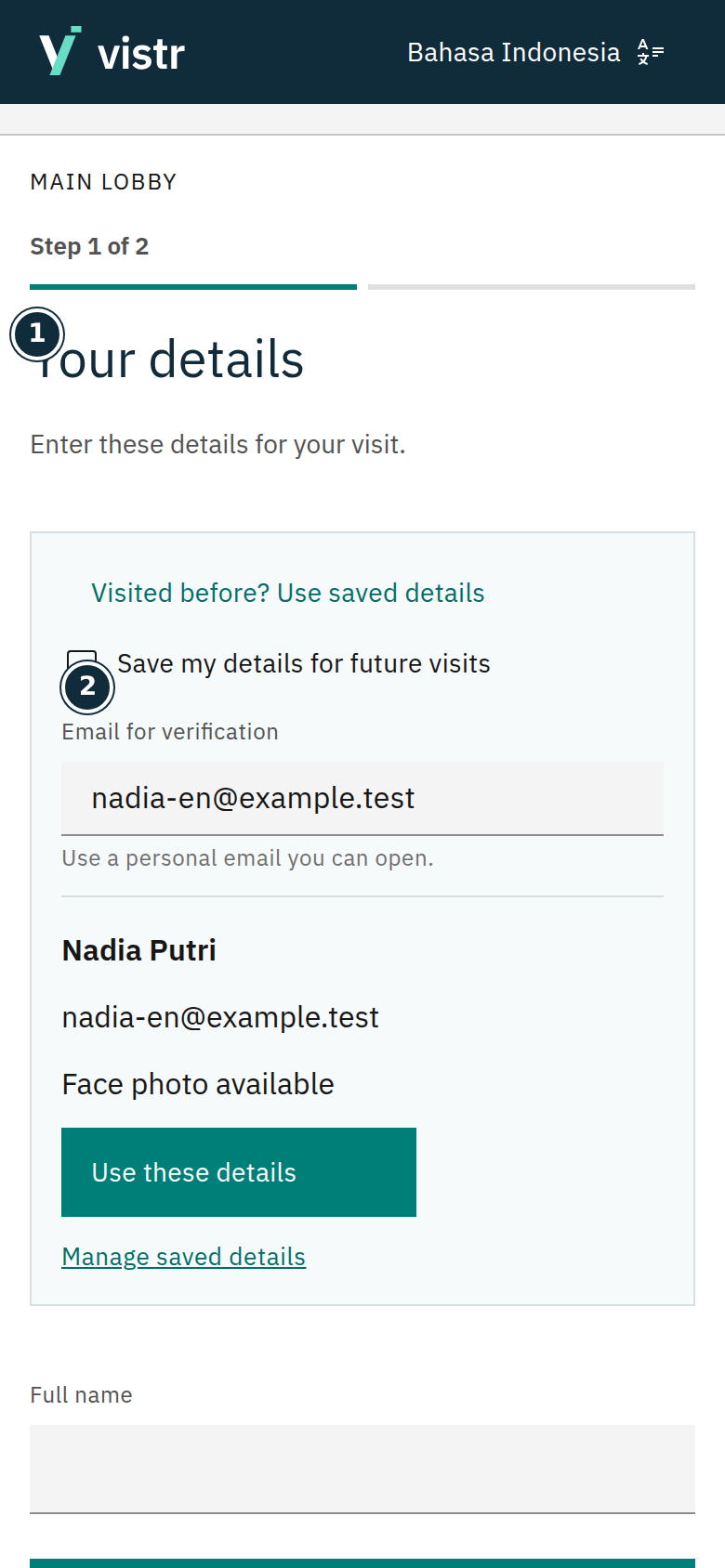
Review the name, contact details, photo, and documents still available. Update changed information or complete what the destination requires.
 Enlarge image
Figure 3. Review the details before selecting Use these details. - Your details
- Save my details for future visits
Sample data · Guest · 2026-10-05 · 780 × 1688 px
Give consent to use the photo for this visit and send the registration.
What to enter and why
| Field | When needed | Purpose | Example |
|---|---|---|---|
| Verification email | For self-service profile reuse | Confirms the saved details belong to the guest, without creating a user account. | nadia@example.test |
| Photo consent | For every new visit | Separate from profile storage and access approval. | Read before sending |
Expected result
Valid name, contact, and photo details can be reused. A new meeting still has its own schedule and approval; retention is extended under the agreed rule.
If something goes wrong
Photo or document is unavailable
Complete the requested parts. Deleted details or information that does not meet the place rules cannot be treated as valid.
Storage and entry permission
Saving details is optional. The default 90 days can be changed by an admin; check the period shown. Storage is renewed after a new registration completes with a verified profile. Every visit still has its own schedule and permission.
Cannot verify
The verification link lasts 15 minutes. Request a new one if it expires, or ask staff for help. Missing photos or documents must be supplied again. Profiles are reused only within the same organization.