
User guide
Set up a shared tablet
Use a tablet browser for QR scanning or direct registration.
Your organization settings and account permissions determine which options are available.
All screens use fictional data. QR images and setup codes are examples and cannot be used to register.
Before you start
Prepare a tablet browser and a staff account on a separate device so staff can keep monitoring the queue. Check the connection and camera.
How the task works
Follow the main steps in order. Where a choice is shown, follow the branch that matches your situation.
- TabletOpen /tablet and start setup
- StaffEnter the code in Reception
- StaffChoose place and activate
- GuestChoose how to register
- Personal phoneScan the QR and use your phone
- Shared tabletSelect Register on this tablet
- Already invitedShow QR for tablet from the same invitation
- GuestFinish the tablet session
Steps
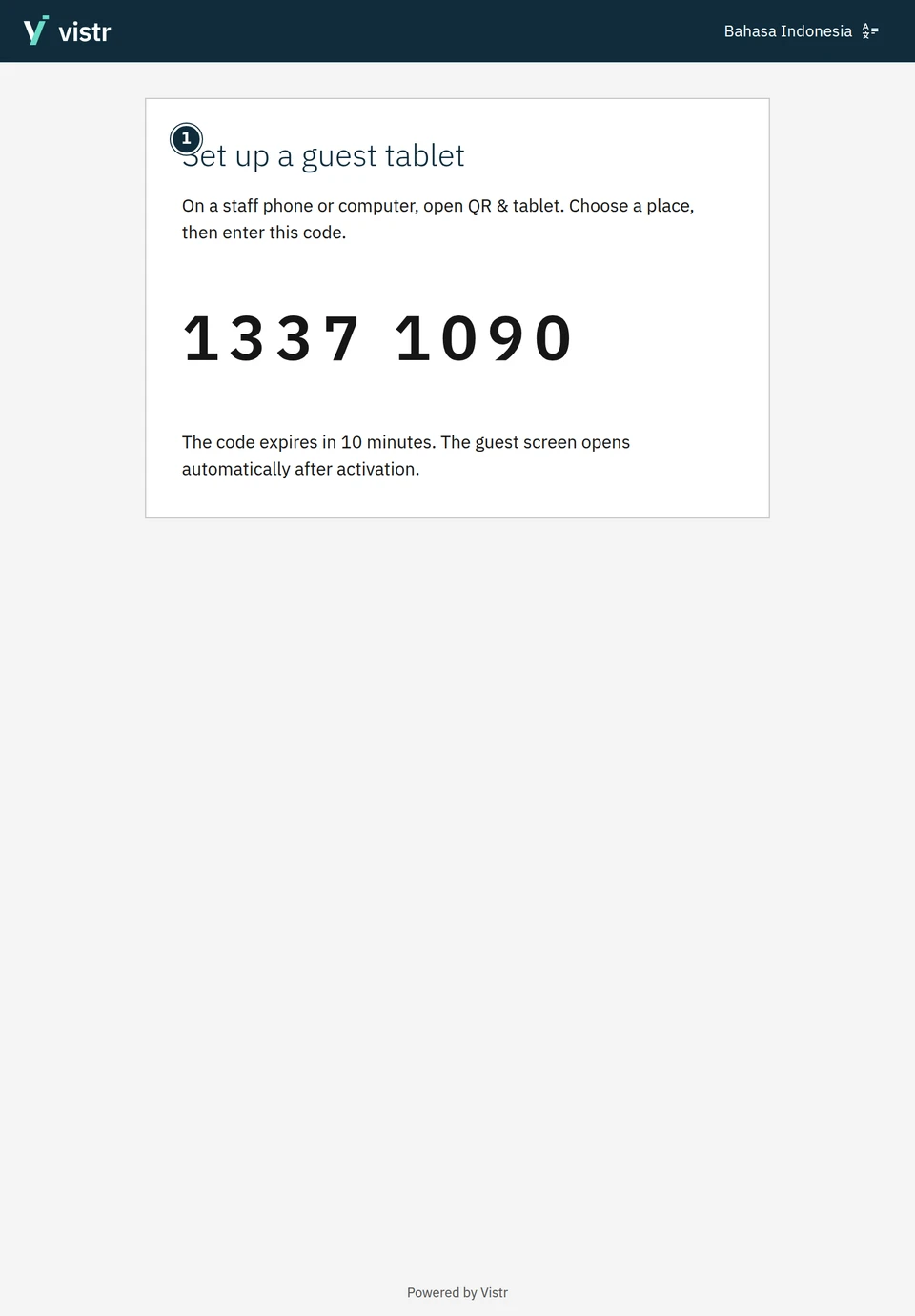
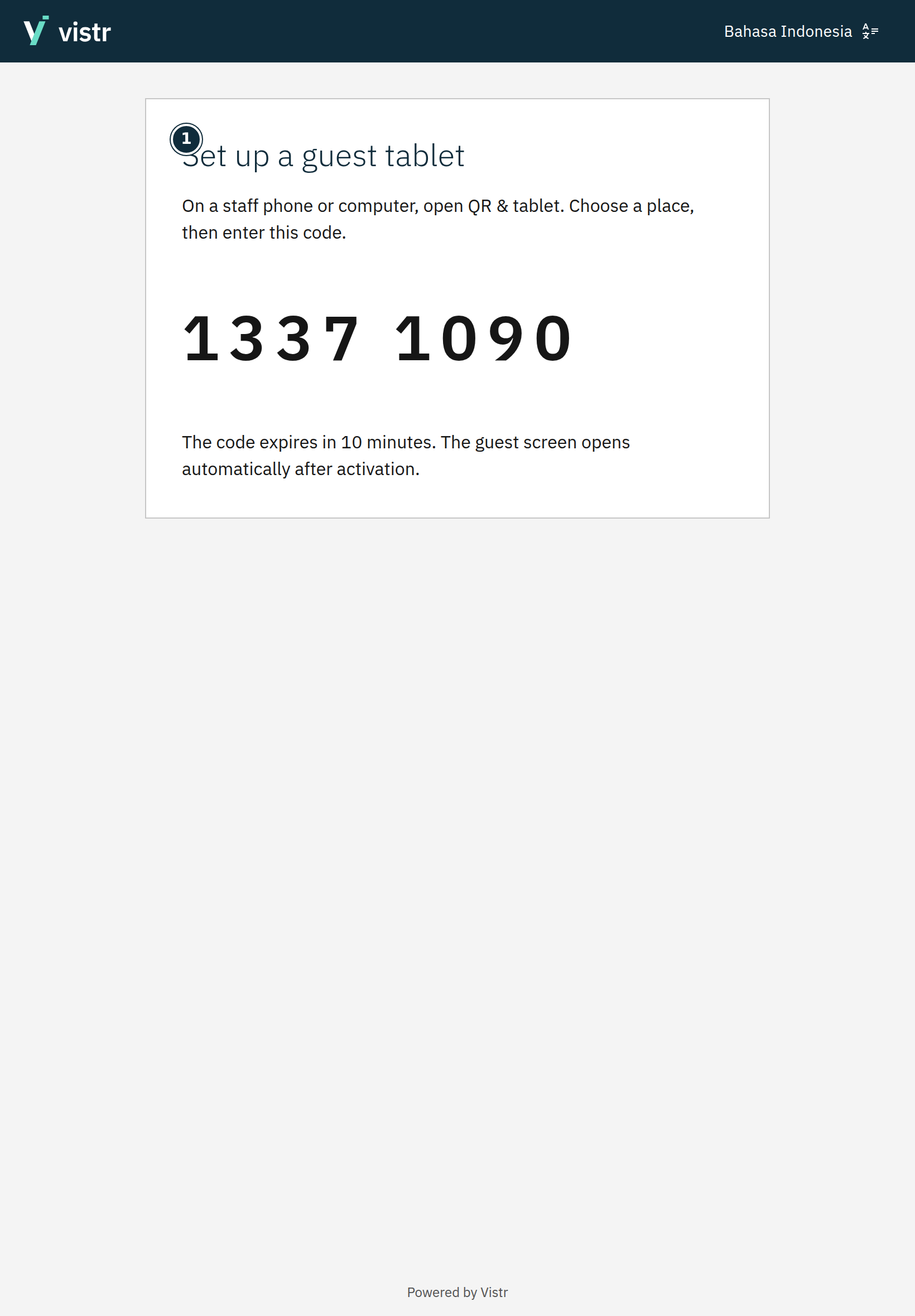
Prepare the place in Reception. For another device, open /tablet on your organization application site in the tablet browser.
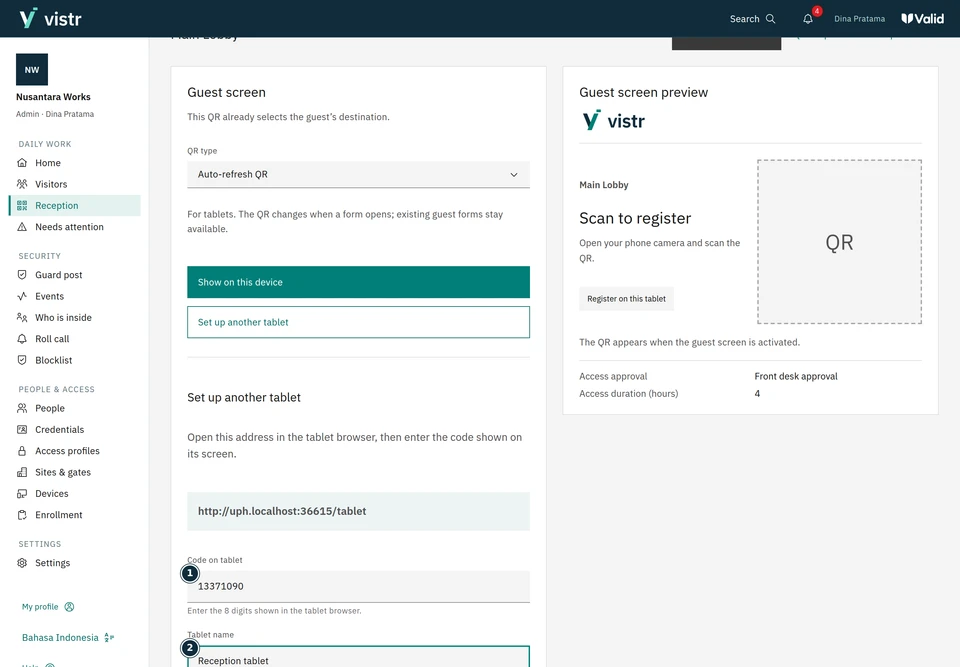
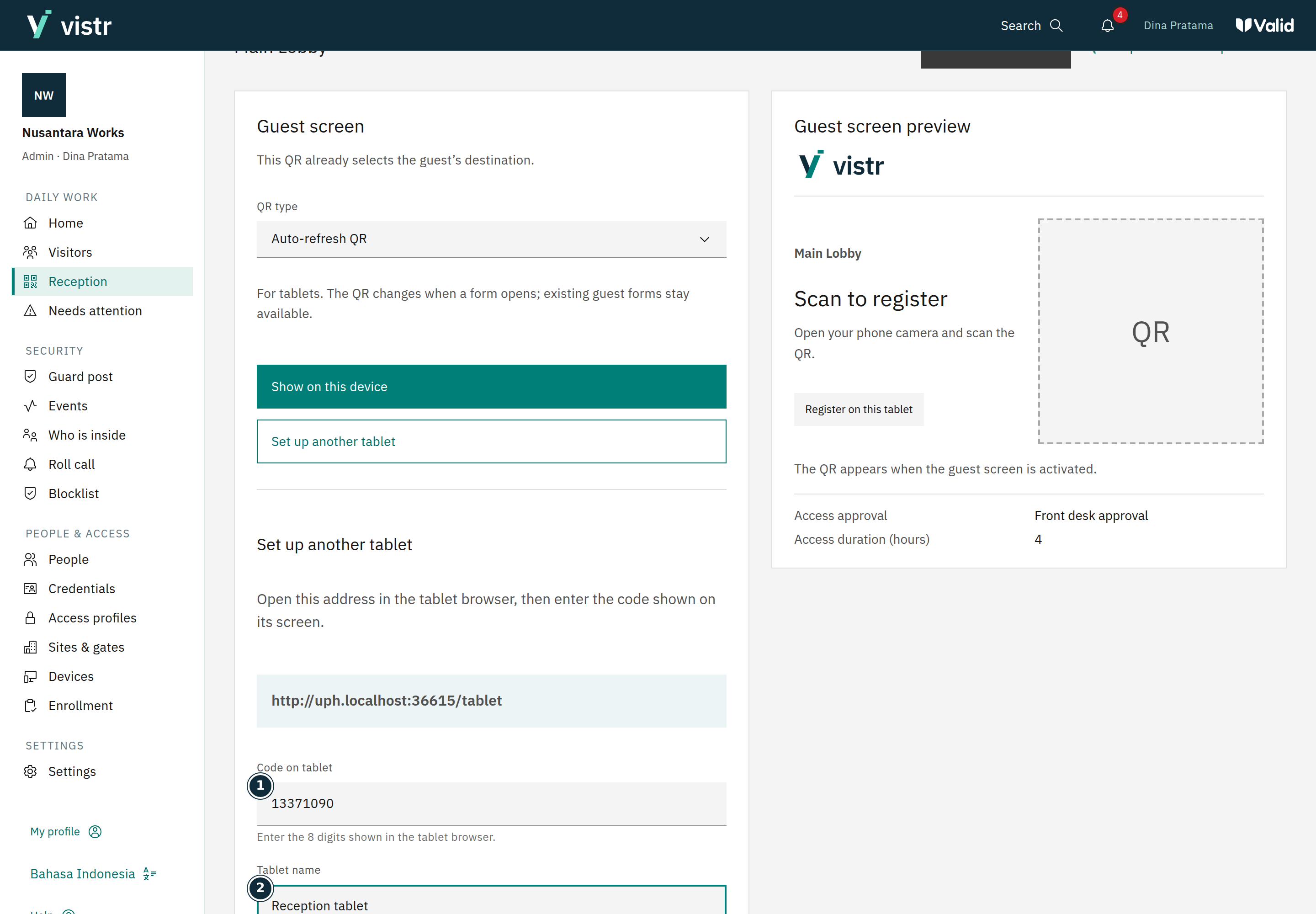
Use the 8-digit pairing code shown on the tablet in the Reception pairing flow. Give it a recognizable name, such as Floor 1 reception.
 Enlarge image
Figure 1. This sample only shows where to find the setup code. - Set up a guest tablet
Sample data · Guest · 2026-10-05 · 1640 × 2360 px
 Enlarge image
Figure 2. Enter the code on the staff device and name the tablet. - Code on tablet
- Tablet name
Sample data · Admin · 2026-10-05 · 2880 × 2000 px
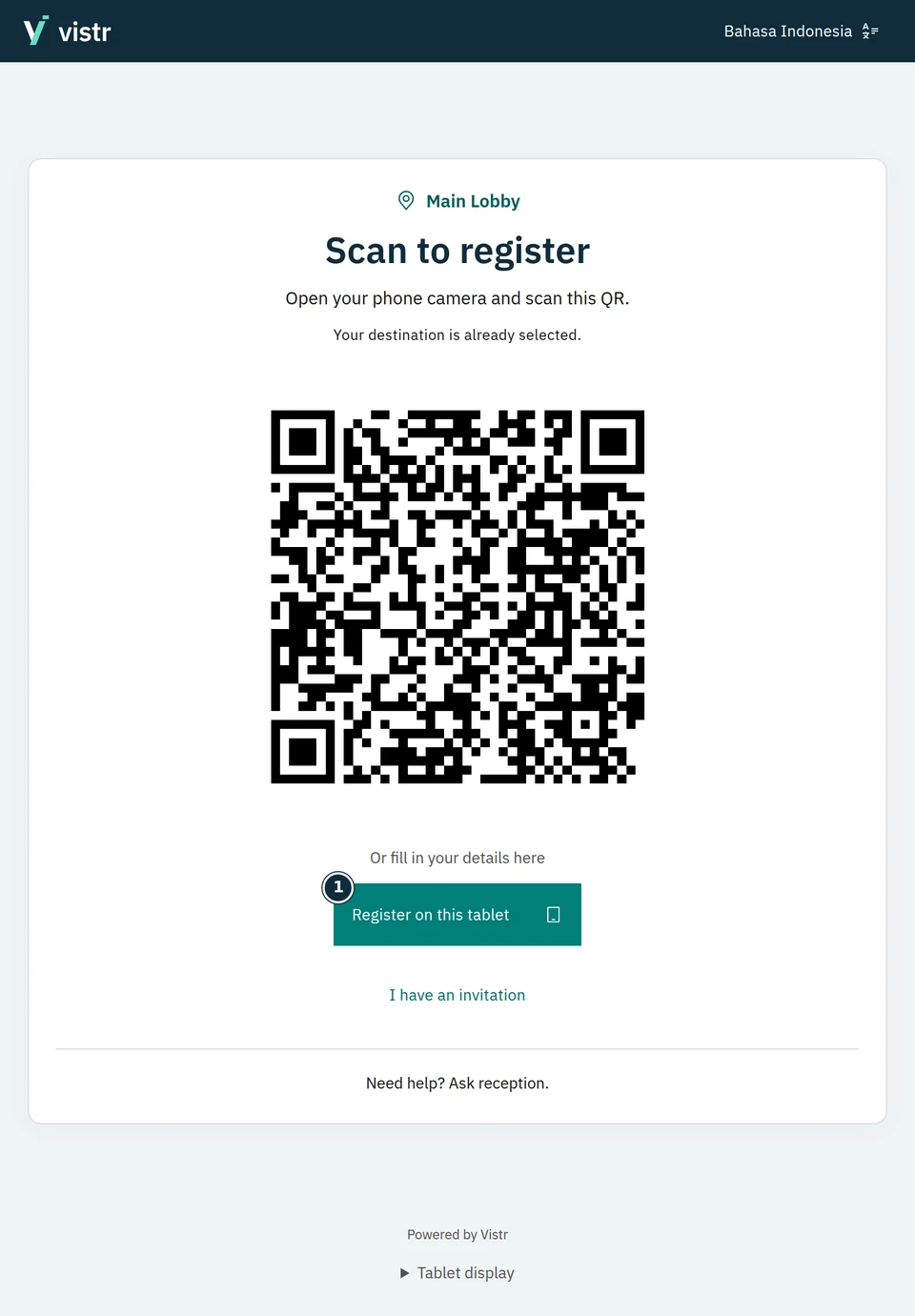
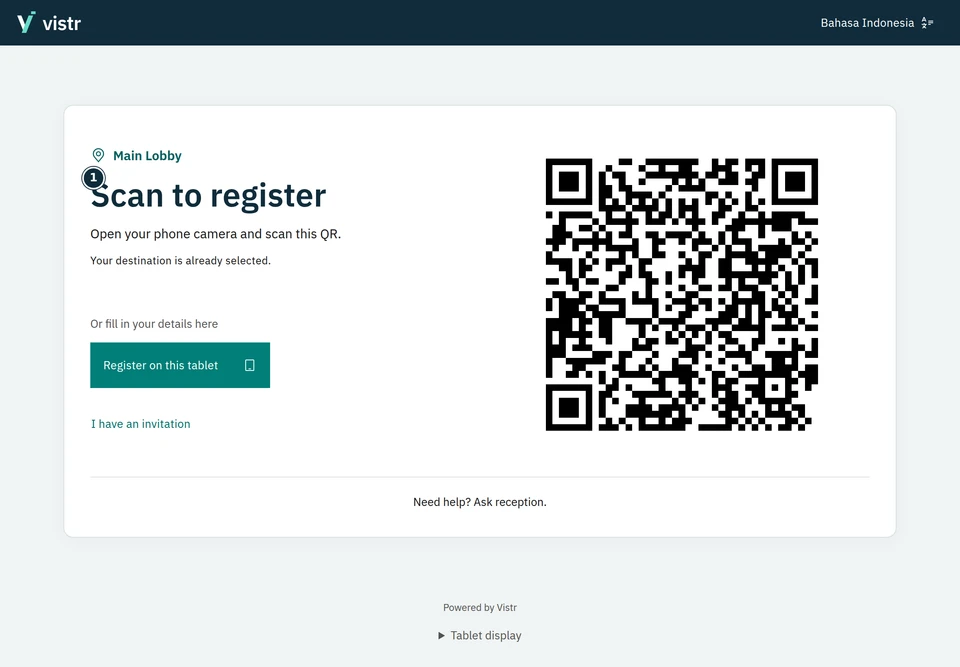
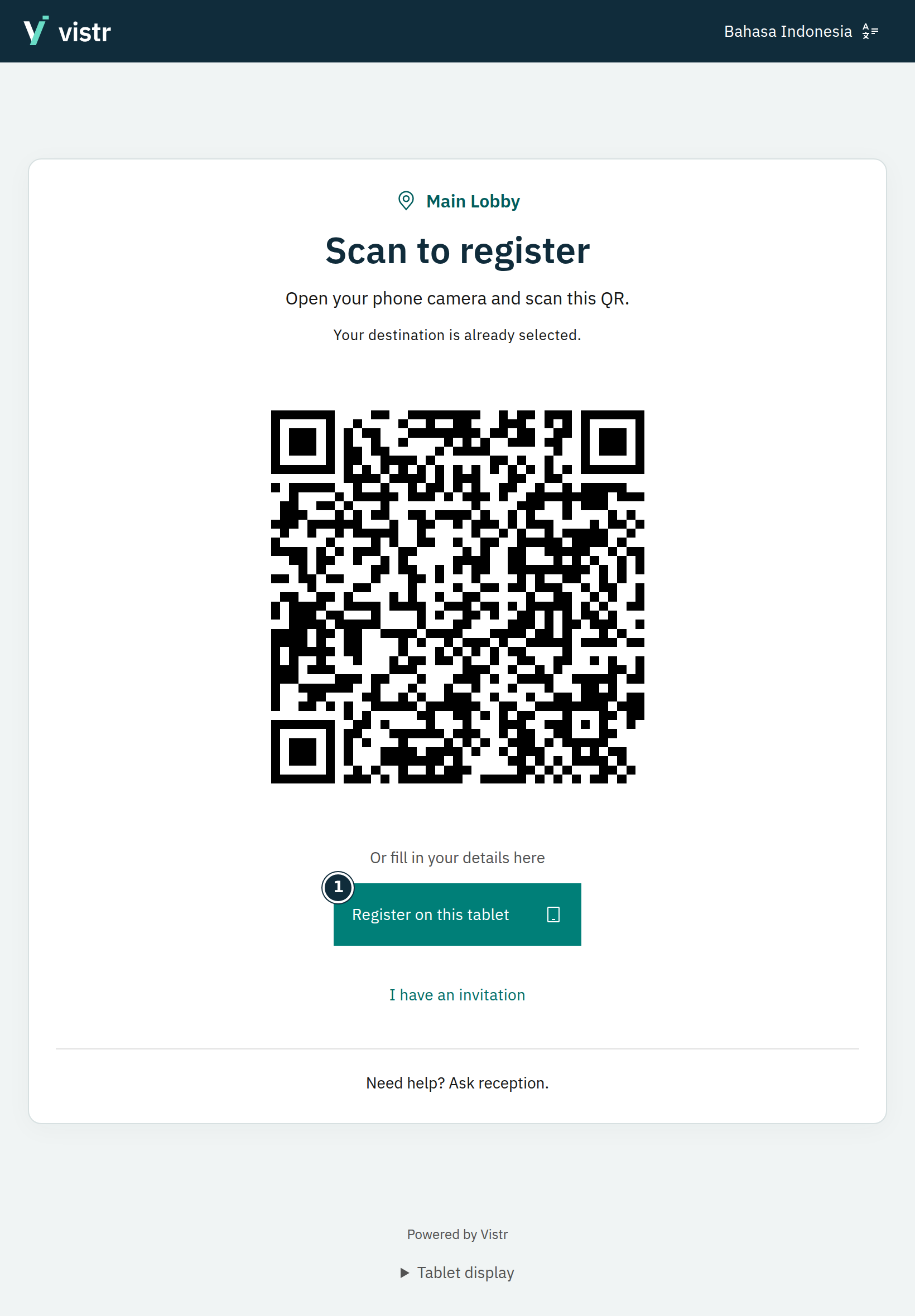
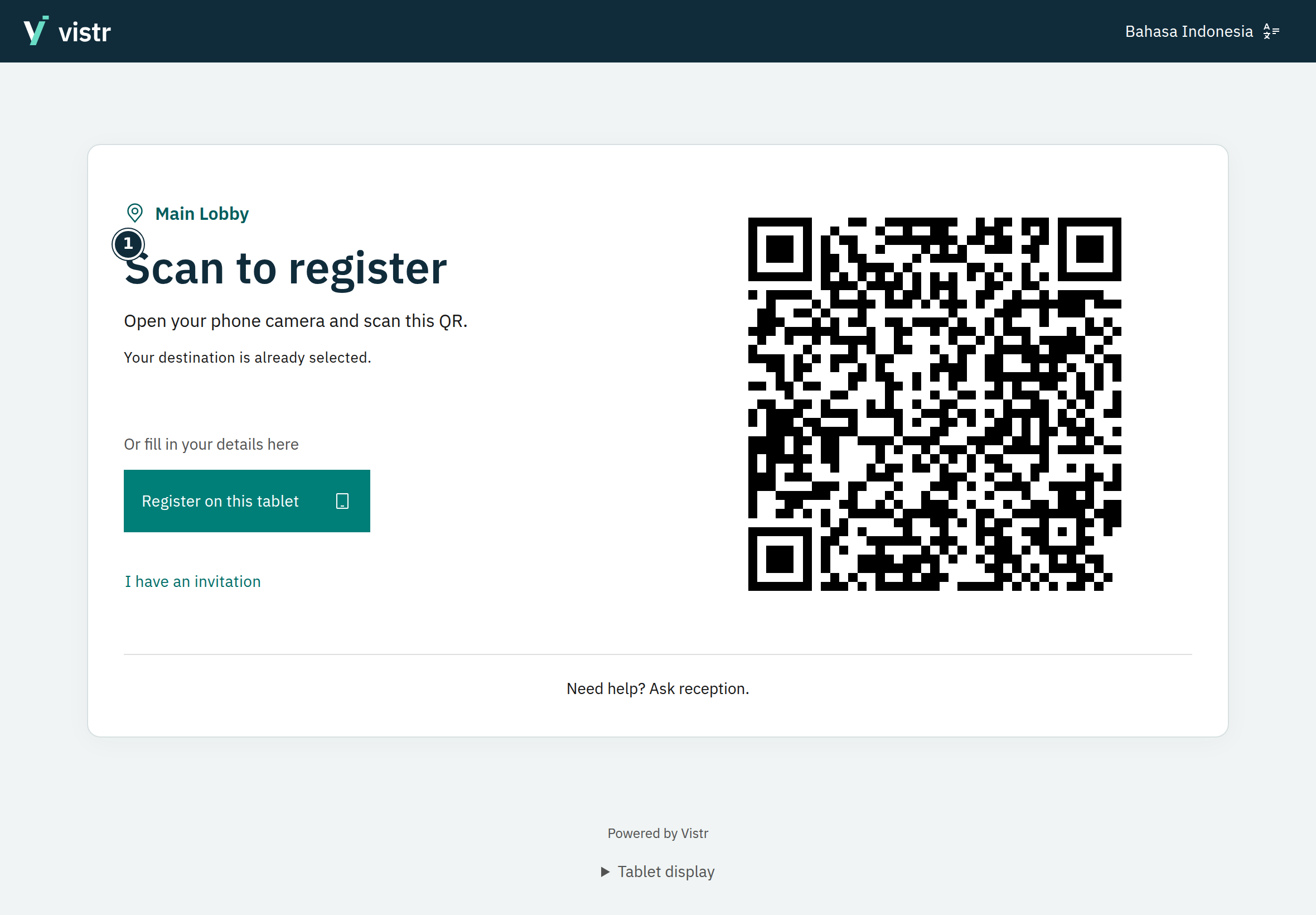
Choose the place and QR mode, then check the tablet display. Guests can scan with their phone or select Register on this tablet.
 Enlarge image
Figure 3. Portrait view offers a QR and direct registration. - Register on this tablet
Sample data · Guest · 2026-10-05 · 1640 × 2360 px
Test a sample registration, then finish the session. Confirm the screen is ready for the next guest without showing previous details.
 Enlarge image
Figure 4. Landscape view adapts to the tablet browser. - Scan to register
Sample data · Guest · 2026-10-05 · 2360 × 1640 px
What to enter and why
| Field | When needed | Purpose | Example |
|---|---|---|---|
| Setup code | Required for pairing | Eight-digit code from the tablet, not a guest visit code. | The code displayed on the tablet |
| Tablet name | Required | Helps identify a device to stop or relocate. | Floor 1 reception |
Expected result
The tablet shows the assigned destination and is ready for the next guest after the session ends. Browser fullscreen is not a device lock.
If something goes wrong
Setup code rejected
Check the eight digits on the tablet, code validity, and connection. Start setup again if the code expired.
Previous guest details are visible
End the session using the available Done action and confirm the welcome screen returns before handing it to another guest.
The guest already has an invitation
Use I have an invitation. The guest opens the invitation on their phone, selects Show QR for tablet under Continue on a tablet, and shows the transfer QR to the tablet camera. This continues the same visit. If the link cannot be opened, ask staff for help.
Fullscreen and shared devices
Fullscreen and keeping the screen awake depend on browser support. Fullscreen is not a device lock. Browser or device lockdown is managed by IT. Do not use a personal browser profile on a shared tablet.