
User guide
Display a QR for a place
One QR directs guests to the selected place.
Your organization settings and account permissions determine which options are available.
All screens use fictional data. QR images and setup codes are examples and cannot be used to register.
Before you start
An admin must prepare an active place and its access rules. Its registration QR sets the destination without asking the guest to choose again.
How the task works
Follow the main steps in order. Where a choice is shown, follow the branch that matches your situation.
- StaffChoose a place
- StaffChoose fixed or dynamic QR
- FixedPrint or display the place QR
- DynamicActivate a tablet display to rotate the QR
- GuestScan and open registration
- GuestComplete the opened form
- Display QR changesThe guest can continue the form already opened
Steps
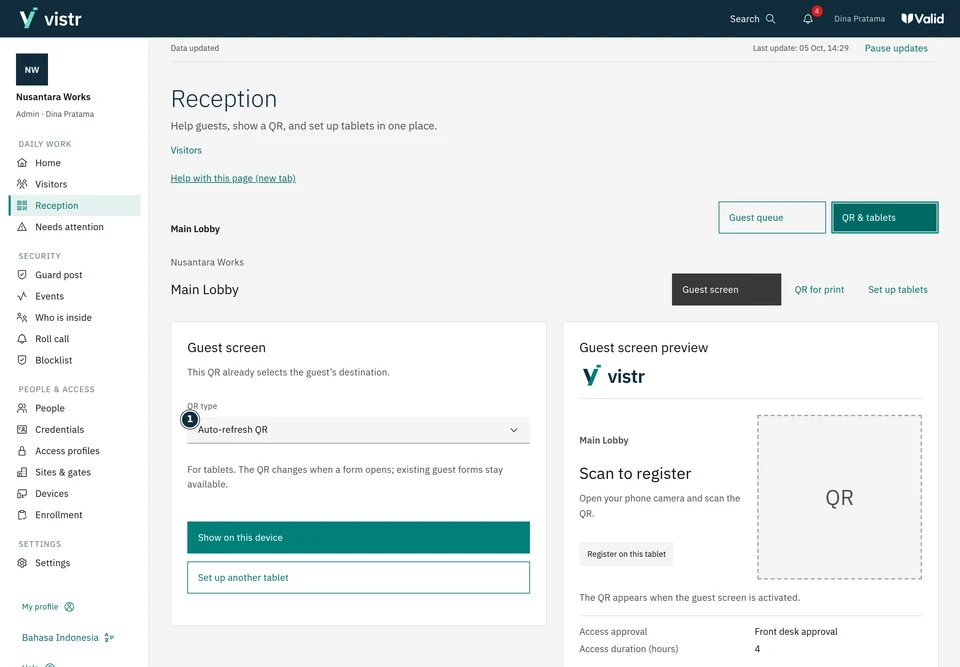
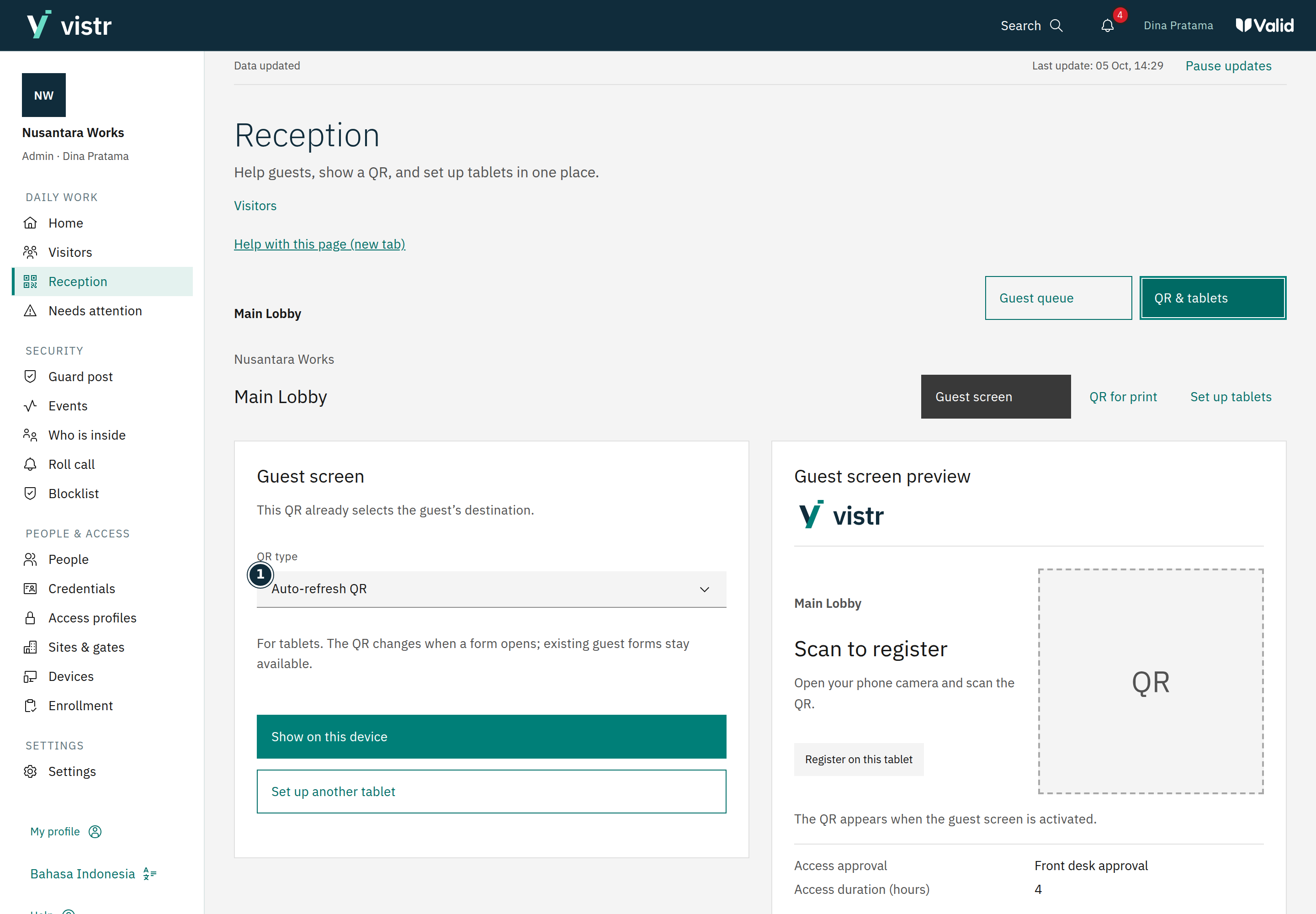
Open Reception, then the QR and tablet options. Choose the place receiving guests.
 Enlarge image
Figure 1. Staff choose the place and mode. Every QR in this guide is a local example only. - QR type
Sample data · Admin · 2026-10-05 · 2880 × 2000 px
Choose a static QR for printing, or a dynamic QR for an active display.
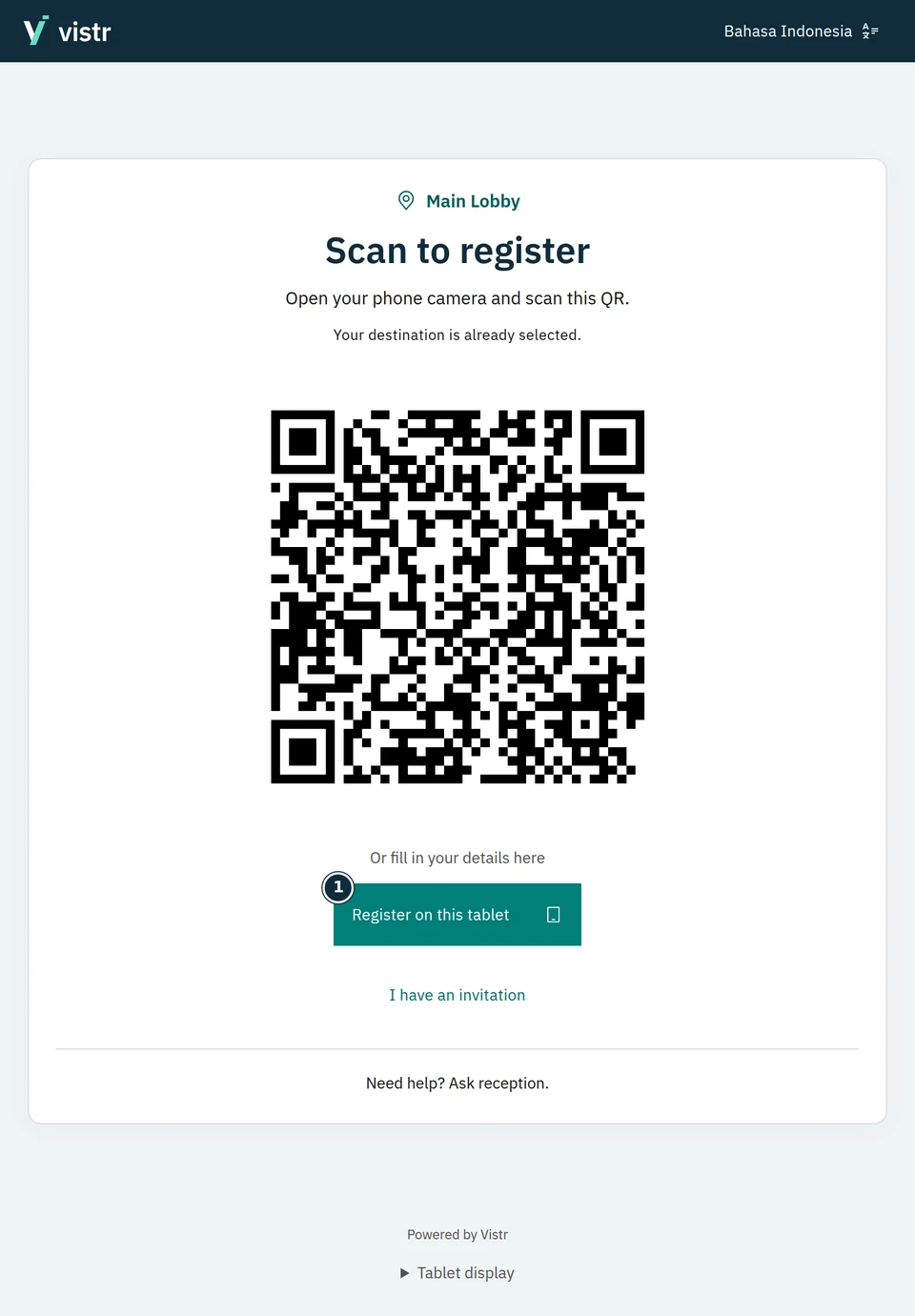
Display the QR with a clear place name. For a static QR, download the image or QR sign as needed.
 Enlarge image
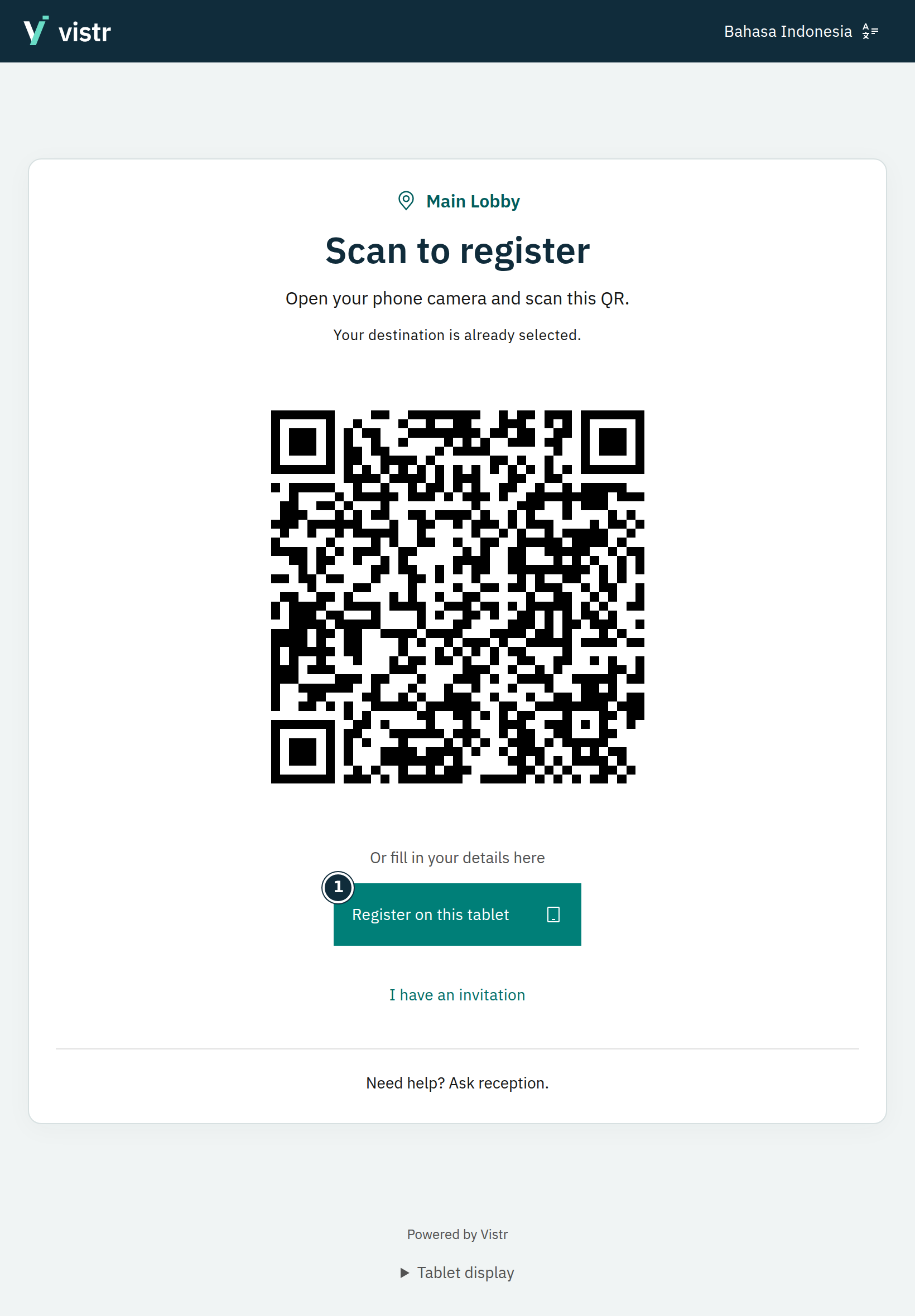
Figure 2. Guests scan the QR on the active tablet display. - Register on this tablet
Sample data · Guest · 2026-10-05 · 1640 × 2360 px
Test with a phone: confirm registration opens the correct place and the QR scans easily.
What to enter and why
| Field | When needed | Purpose | Example |
|---|---|---|---|
| Destination | Required | Sets the destination and registration rules. | Main lobby |
| QR mode | Choose one | Fixed for printing; dynamic for a refreshed display. | Fixed / Dynamic |
Expected result
The QR opens registration for the correct destination. It is not a gate-opening credential.
If something goes wrong
The dynamic preview cannot be scanned
Open the activated tablet display. The settings preview is not a live dynamic QR.
Static and dynamic
A static QR can serve multiple guests. A dynamic QR changes after a form is opened; guests who already opened a form can still finish it. Do not print a dynamic QR as a permanent sign.
The place is already selected
Guests do not choose the place again. This QR opens registration; it does not grant gate access. If a place is missing, ask an admin to check registration settings and your location assignment.