
User guide
Check access profiles and credentials
Gates, schedules, and credentials must align before a person can enter.
Your organization settings and account permissions determine which options are available.
All screens use fictional data. QR images and setup codes are examples and cannot be used to register.
Before you start
Use an Admin or Operator account for permitted settings. Confirm the destination, lane, and gates are set up.
How the task works
Follow the main steps in order. Where a choice is shown, follow the branch that matches your situation.
- Admin / OperatorPrepare a gate profile
- Admin / OperatorAssign the profile to a person
- Admin / OperatorPrepare credentials
- System / OperatorCheck device enrollment
- Waiting or failedCheck the cause before calling access ready
Steps
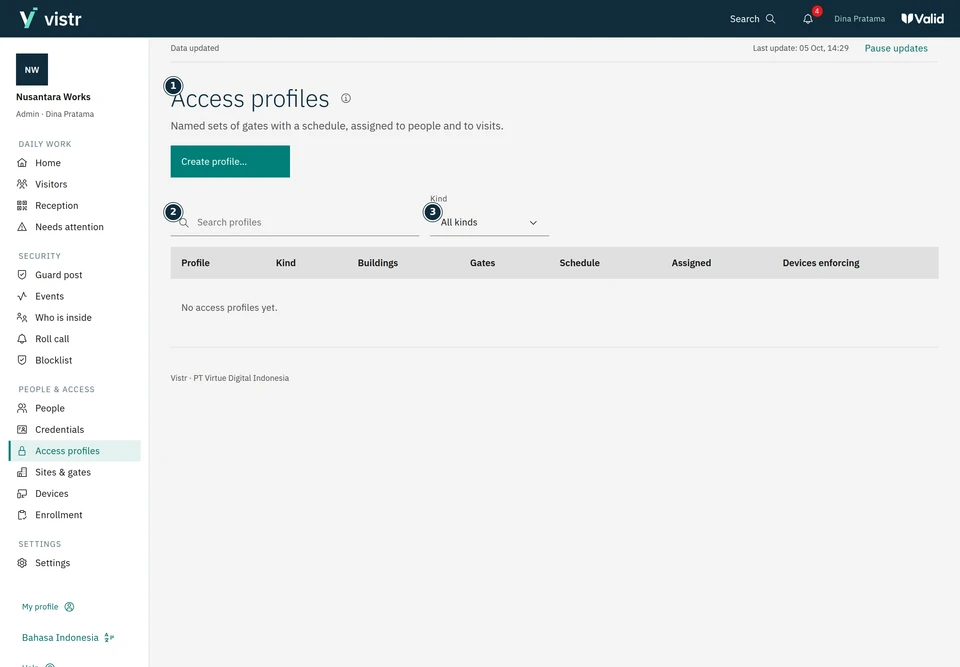
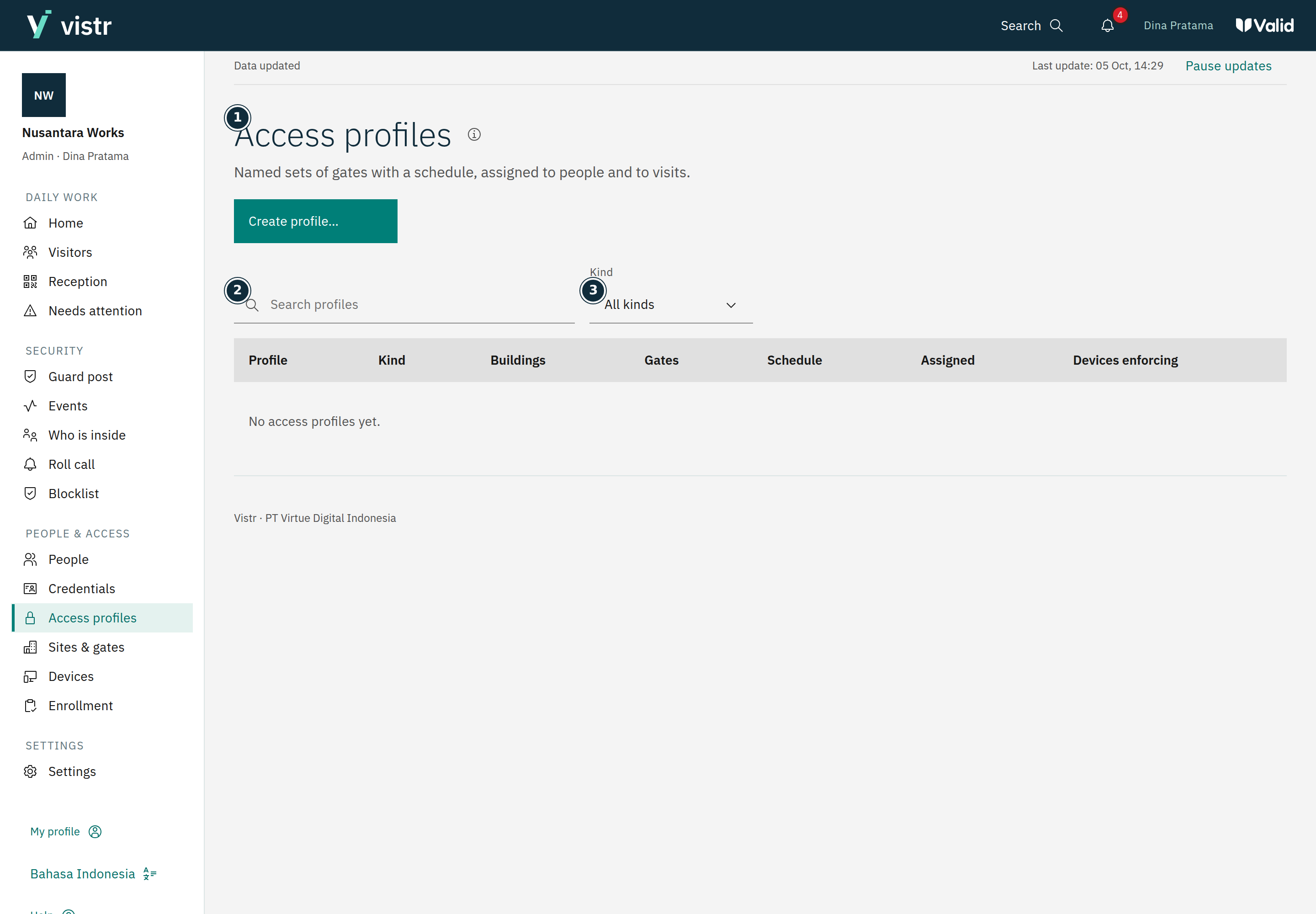
An Admin or Operator opens Access profiles to review gates, schedules, and assignments. An Admin creates or edits profiles.
 Enlarge image
Figure 1. Access profiles define gates, not application-menu permissions. - Access profiles
- Search profiles
- Kind
Sample data · Admin · 2026-10-05 · 2880 × 2000 px
The Admin selects the required gates, including suitable entry and exit directions. Set days, hours, or a validity period if needed.
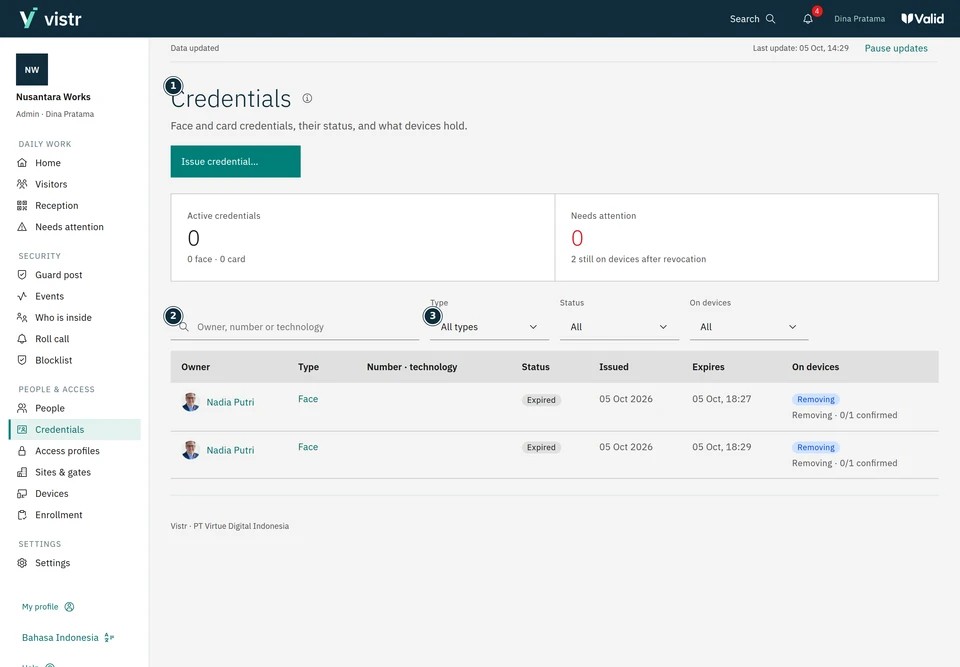
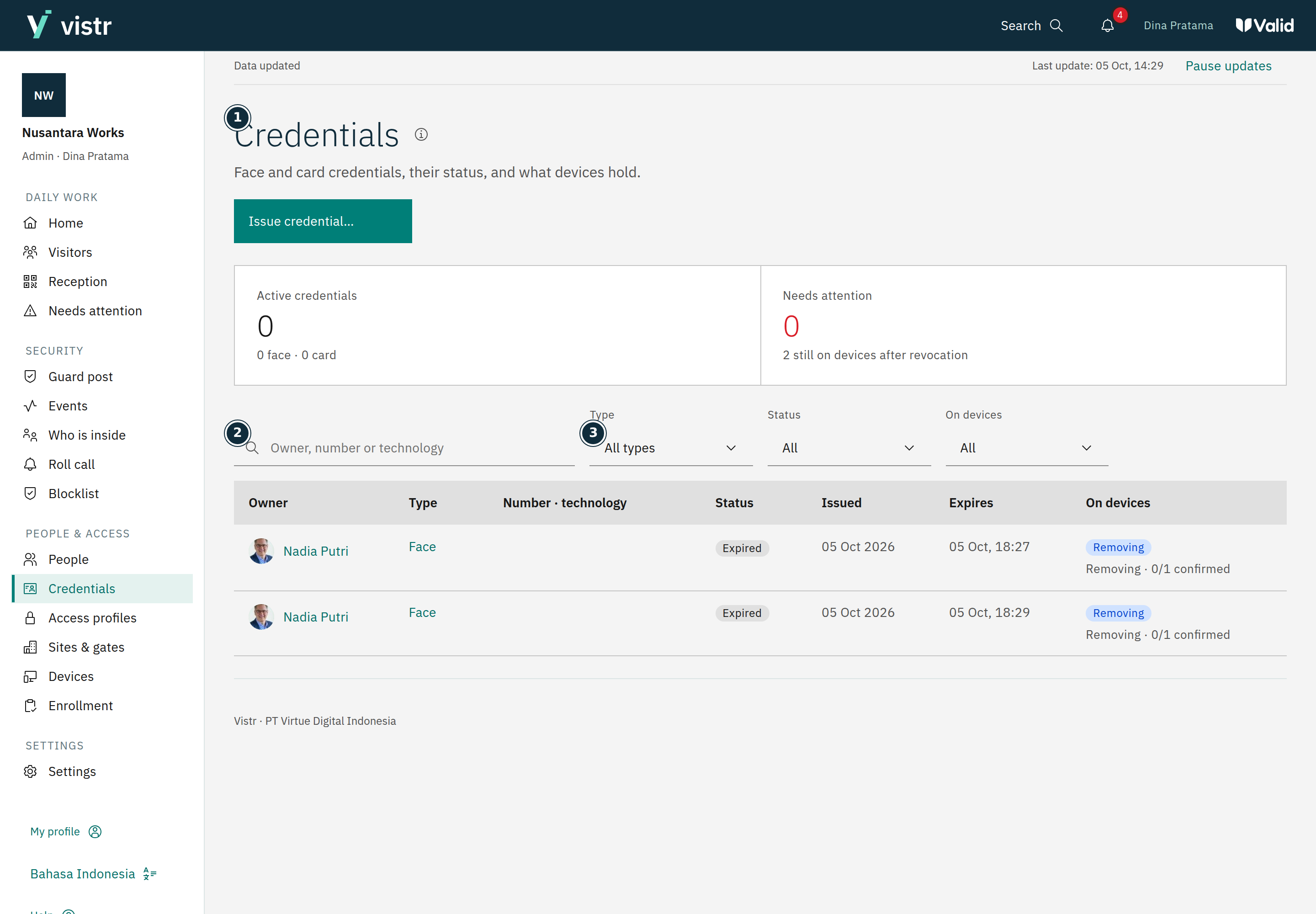
Check assigned profiles in the person details. In Credentials, inspect the owner, type, and credential status within your permissions.
 Enlarge image
Figure 2. Credentials are managed separately from access profiles. - Credentials
- Search credentials
- Type
Sample data · Admin · 2026-10-05 · 2880 × 2000 px
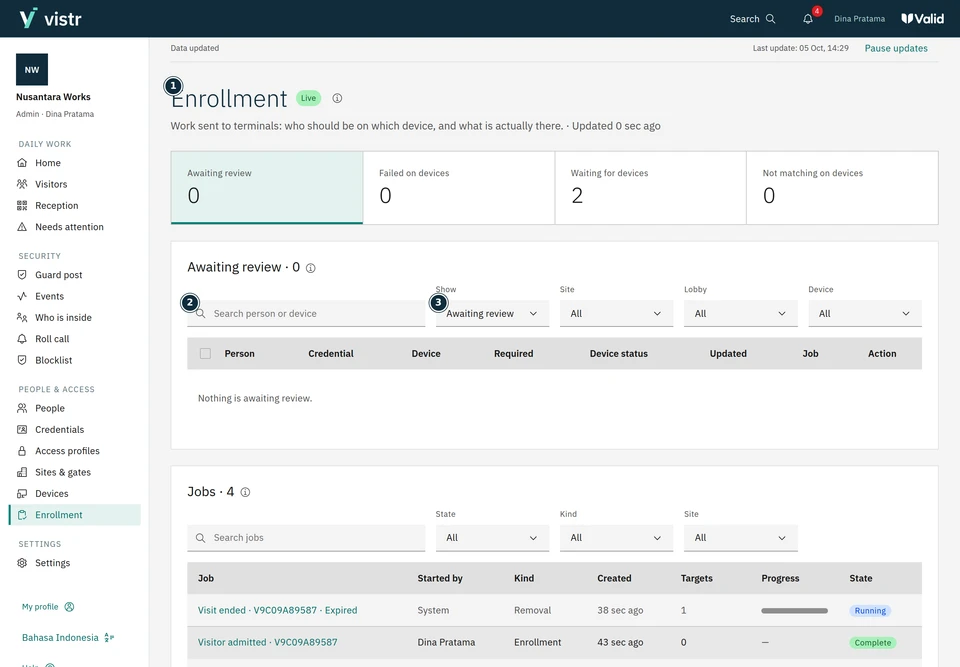
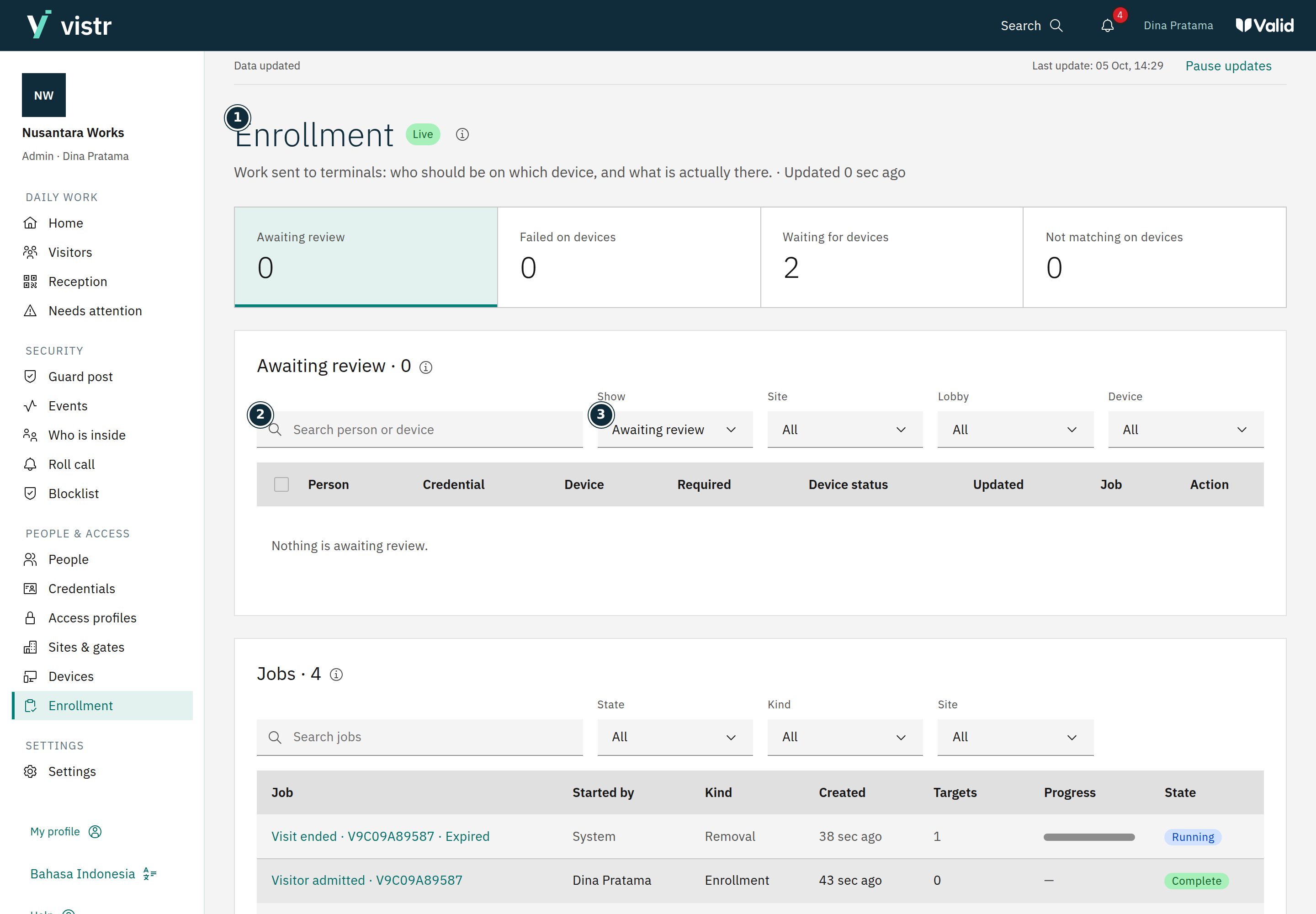
Check distribution to devices if access is not ready. Do not assume a stored photo is already available at every gate.
 Enlarge image
Figure 3. Enrollment shows the state of data delivery to devices. - Enrollment
- Search person or device
- Show
Sample data · Admin · 2026-10-05 · 2880 × 2000 px
What to enter and why
| Field | When needed | Purpose | Example |
|---|---|---|---|
| Access profile | When configuring allowed gates | A group of gates allowed for a person. | Office staff |
| Credential | As supported by device and policy | Face or card used for recognition. | Face photo |
Expected result
Check device status after saving an assignment. A successful save is not confirmation on every gate.
If something goes wrong
Assignment saved but access not ready
Open Enrollment and the relevant device. Check queued work, failures, or review needs before retrying.
Effect of changes
Changing a profile can affect many assigned people. Read the assignment count and confirmation. A Viewer can read credentials but cannot open the access profile editor.