
User guide
Create a QR for one guest
Prepare one registration and continue serving the next guest.
Your organization settings and account permissions determine which options are available.
All screens use fictional data. QR images and setup codes are examples and cannot be used to register.
Before you start
Use a personal QR for one guest visit. For a QR shared by many guests, use a place QR.
How the task works
Follow the main steps in order. Where a choice is shown, follow the branch that matches your situation.
- StaffChoose destination and duration
- StaffCreate a guest QR
- GuestOpen and complete registration
- StaffSelect Next guest
- First guest still filling inThe first registration can continue
Steps
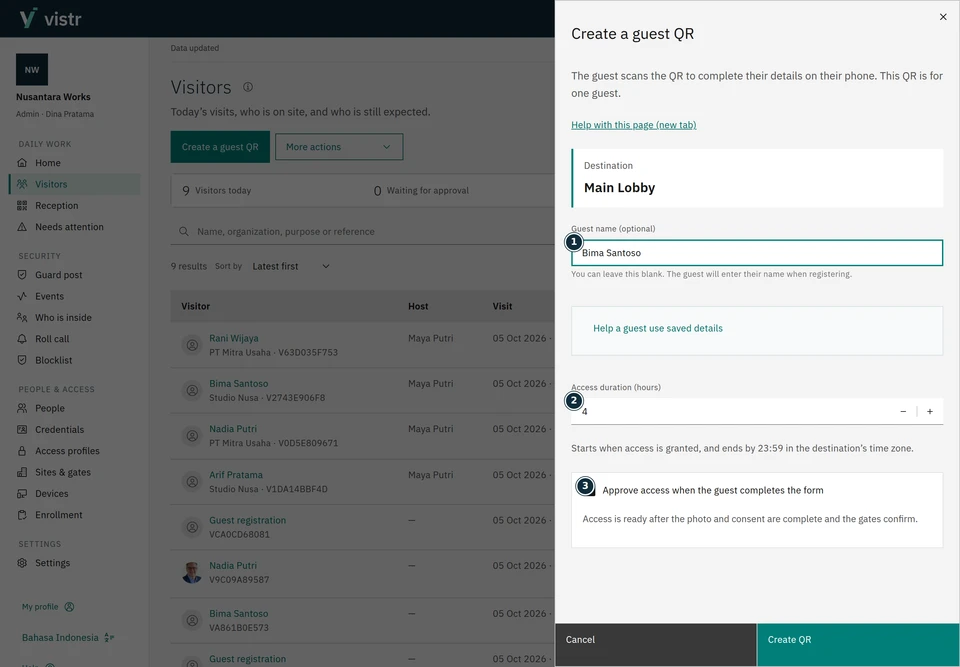
Select Create a guest QR, then choose the place. The name may be blank; the guest can enter it during registration.
 Enlarge image
Figure 1. Name, duration, and advance approval have different purposes. - Guest name (optional)
- Access duration (hours)
- Approve access when the guest completes the form
Sample data · Admin · 2026-10-05 · 2880 × 2000 px
Check the access duration. Use a value appropriate to the visit and within organization limits.
At a place with manual review, check the advance approval option. Automatic places follow their configured rule.
 Enlarge image
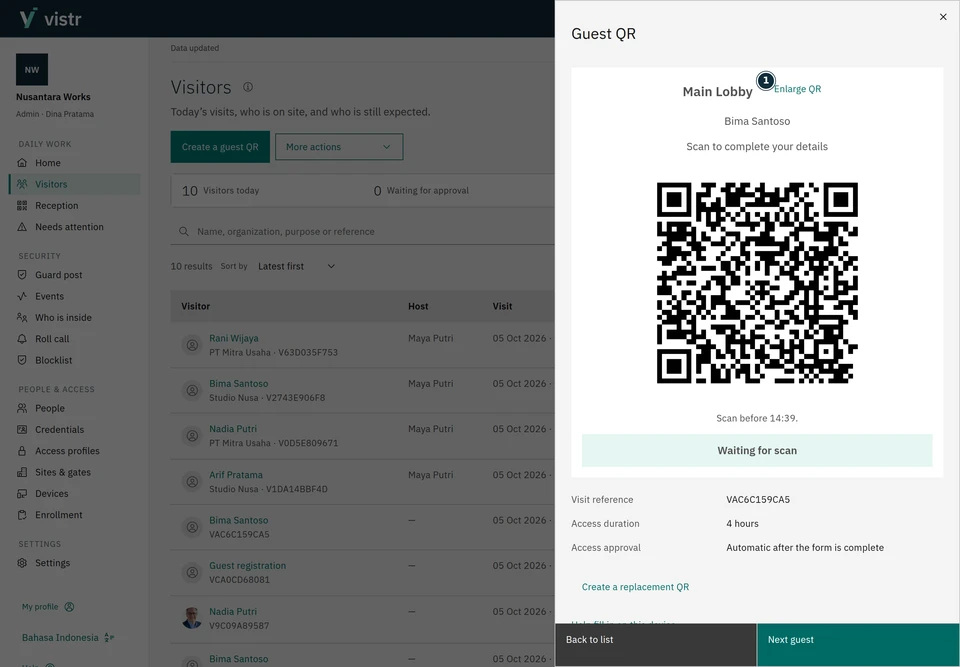
Figure 2. One QR for one guest; Next guest starts the next reception task. - Enlarge QR
Sample data · Admin · 2026-10-05 · 2880 × 2000 px
Create the QR and ask the guest to scan it. Follow registration status. Select Next guest when ready to serve another person.
What to enter and why
| Field | When needed | Purpose | Example |
|---|---|---|---|
| Guest name | Optional when creating the QR | Helps label the visit. The guest confirms the name during registration. | Bima Santoso |
| Access duration | Required, limited by policy | Defaults follow the place; its closing limit still applies. | 4 hours |
| Approval in advance | When available | At a manual place, staff may approve in advance. Automatic places follow their rule. | As decided by staff |
Expected result
The QR and status belong to the created visit. Next guest opens a new form for another guest.
If something goes wrong
Link already used or expired
Check the visit status. If replacement is available, read its confirmation; the old link stops working after replacement.
Two time limits
The personal QR for starting registration lasts 10 minutes. This differs from access duration after approval. The place closing time can limit access end time. Next guest does not cancel a form already opened by the previous guest.