
User guide
Monitor gates and occupancy
Use event records and occupancy status for your assigned places.
Your organization settings and account permissions determine which options are available.
All screens use fictional data. QR images and setup codes are examples and cannot be used to register.
Before you start
Sign in as Security or staff assigned to the location. Confirm the displayed location matches your post.
How the task works
Follow the main steps in order. Where a choice is shown, follow the branch that matches your situation.
- SecurityChoose your location
- SecurityReview guest or event
- SecurityCompare records with the situation on site
- SecurityRecord arrival or follow-up as permitted
Steps
Open Events or Who is inside, then use the available place filters. A time range can be selected in Events.
 Enlarge image
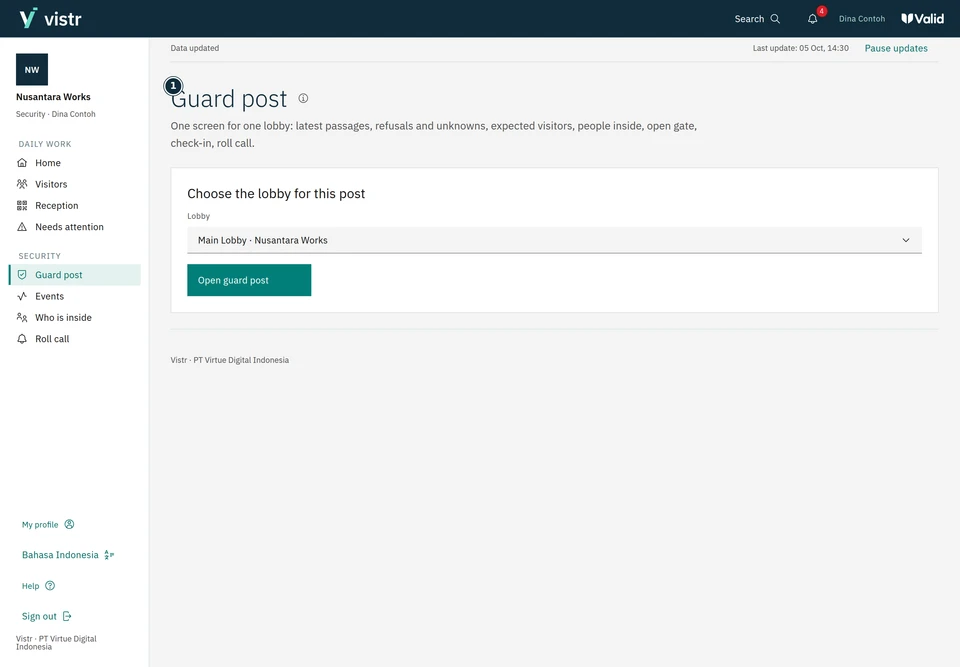
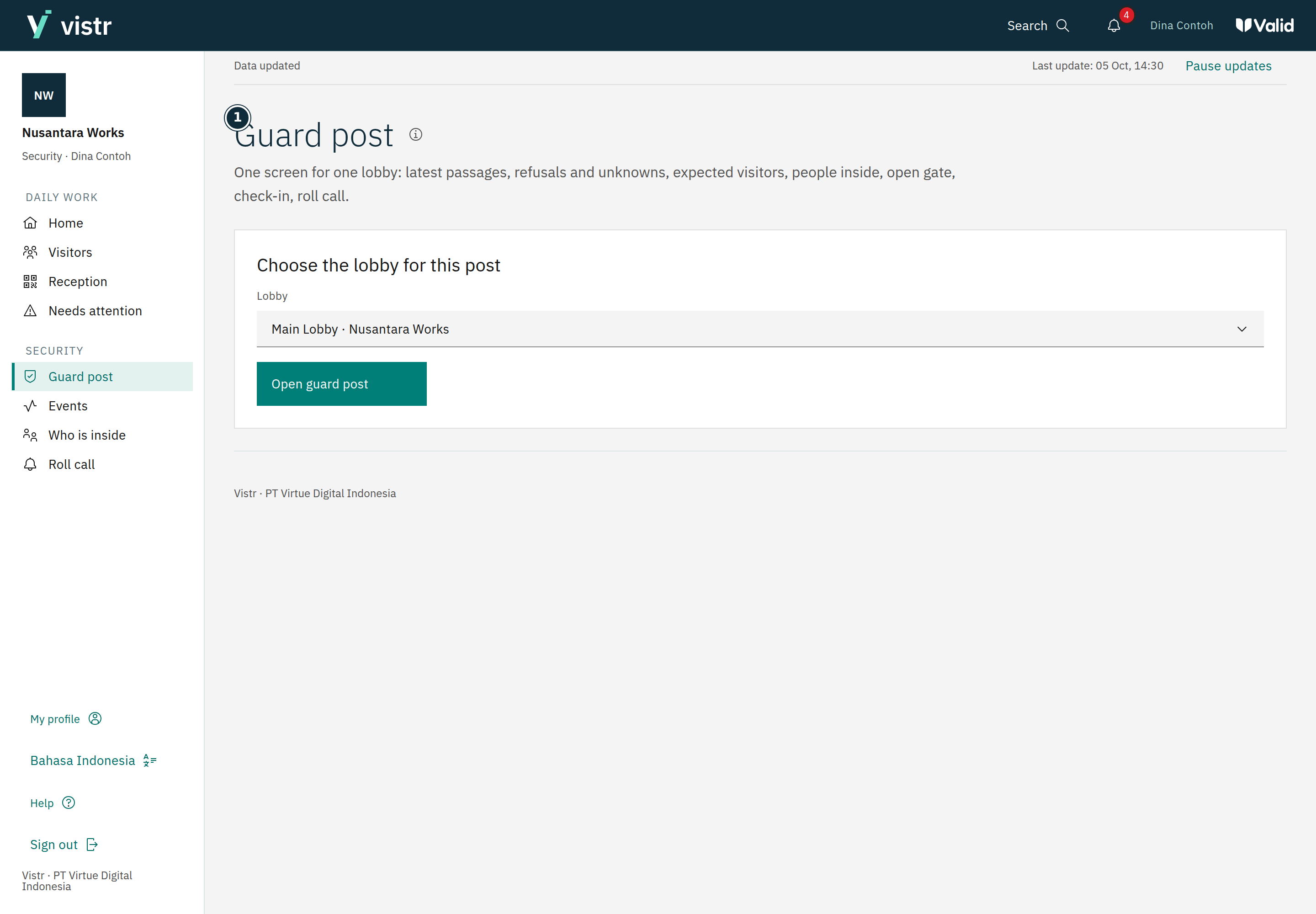
Figure 1. Guard post opens within the Security account’s assignment. - Guard post
Sample data · Security · 2026-10-05 · 2880 × 2000 px
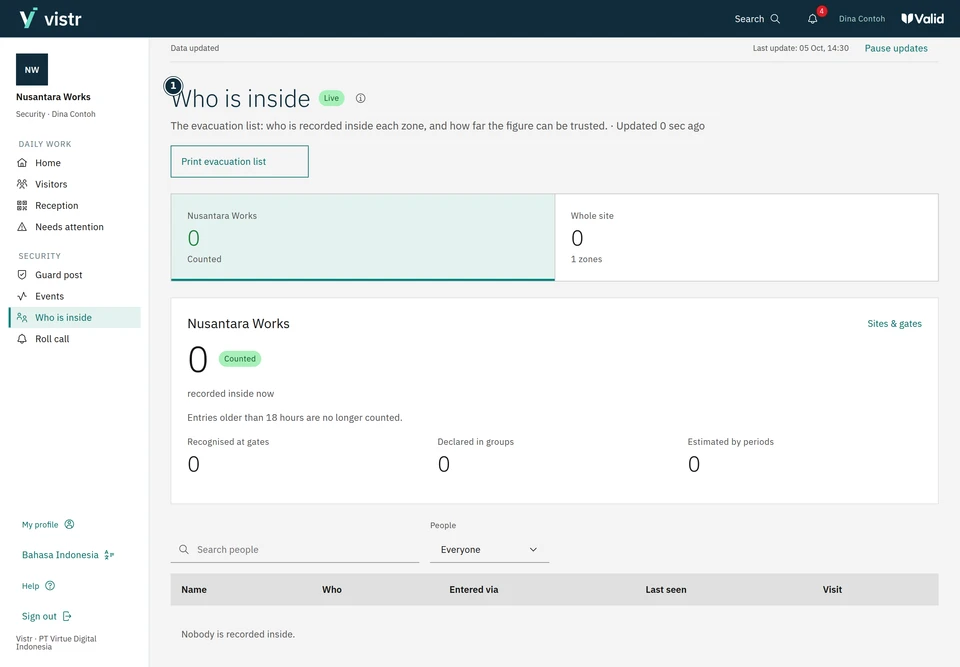
Check the event time, gate direction, and data certainty information. Compare with on-site conditions if they differ.
 Enlarge image
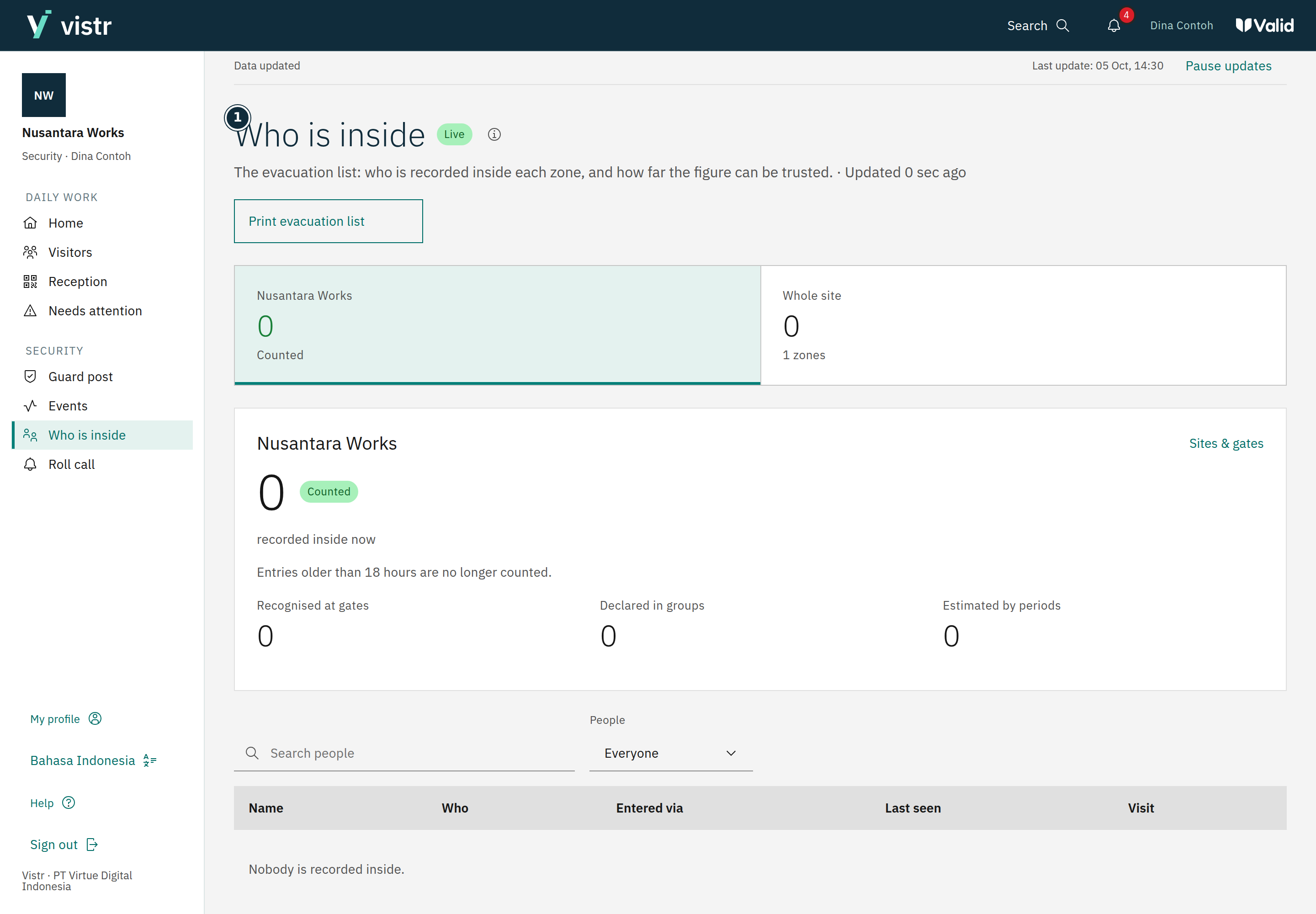
Figure 2. Read the inside list as a system record. - Who is inside
Sample data · Security · 2026-10-05 · 2880 × 2000 px
Accounts with Guard post can open the screen for their assigned place and use available actions under organization procedures.
What to enter and why
| Field | When needed | Purpose | Example |
|---|---|---|---|
| Location | Within your assignment | Limits visible visits and events. | Main lobby |
| Who is inside | Operational information | Based on arrival/exit records; compare with the real situation. | Occupancy list |
Expected result
Staff have current records to support reception. Digital lists and roll call do not replace direct observation in an emergency.
If something goes wrong
Inside count differs from reality
Review entry/exit events and confirm on site. Follow your organization procedure for authorized record corrections.
Roll call
An Admin or Operator can start and close a roll call. Open an active list to see who has not been recorded safe. Mark someone safe only when the action is available and the person has been checked. Viewers read the results.
System records and on-site conditions
Occupancy comes from recorded events; periods of unrecorded access can reduce certainty. Follow organization safety procedures and do not treat the digital list as a physical check of every person.