
User guide
The guest journey, from invitation to entry
See who does what, then open the guide for the step you need.
Your organization settings and account permissions determine which options are available.
All screens use fictional data. QR images and setup codes are examples and cannot be used to register.
Before you start
Choose the guide for your role. Guests do not need to understand gate settings to complete registration.
How the task works
Follow the main steps in order. Where a choice is shown, follow the branch that matches your situation.
- Host / StaffSet the visit destination
- Invitation existsContinue the visit in the invitation link
- Walk-in guestUse a place QR or tablet
- GuestComplete and send registration
- System / StaffApply the approval rule
- ManualStaff review and decide
- AutomaticSystem applies the destination rule
- SystemPrepare access for the schedule
- Not ready / failedStaff assist with the same visit
- GuestUse the gate when access is ready
- Staff / Gate eventRecord arrival / visit ending
Steps
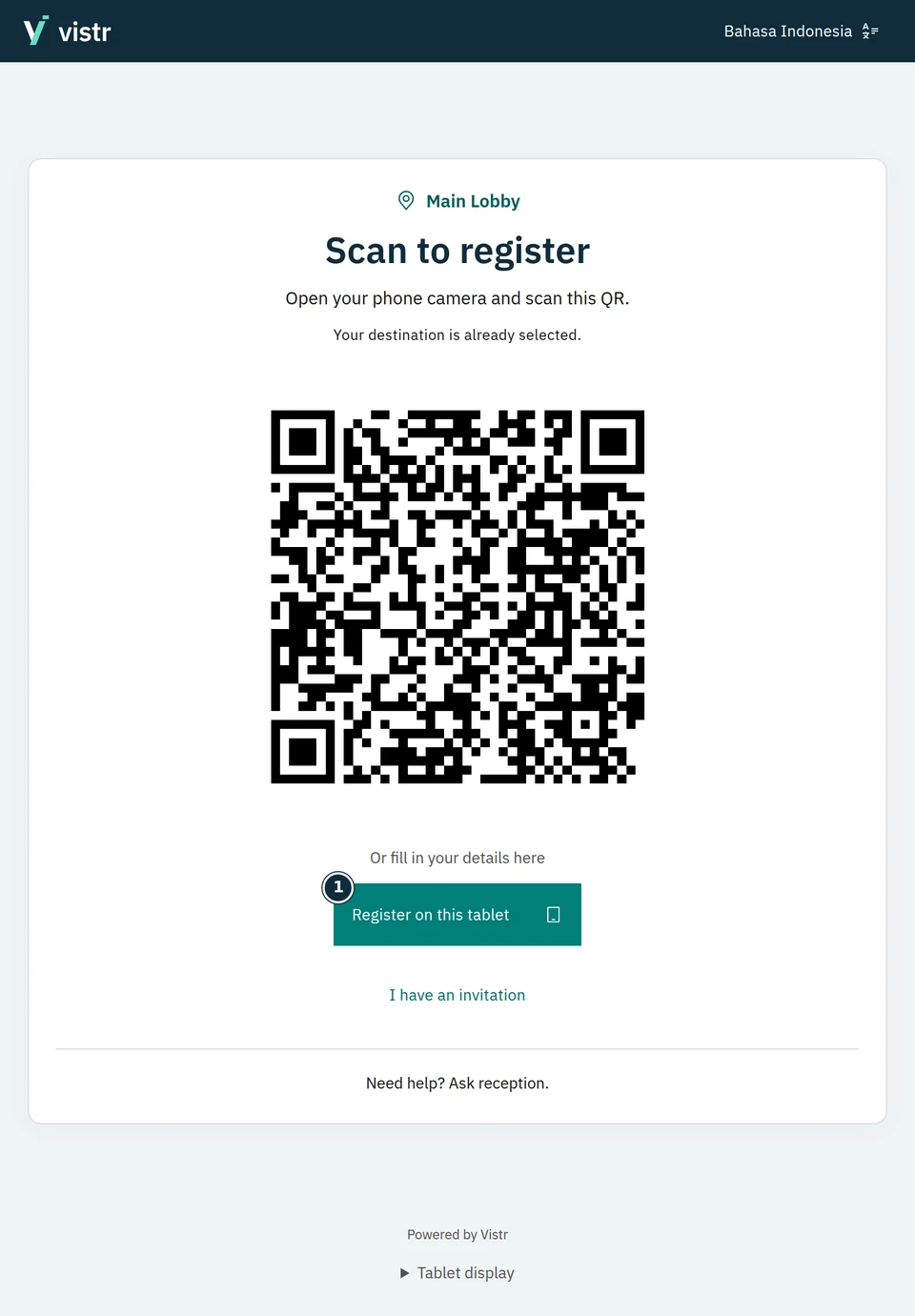
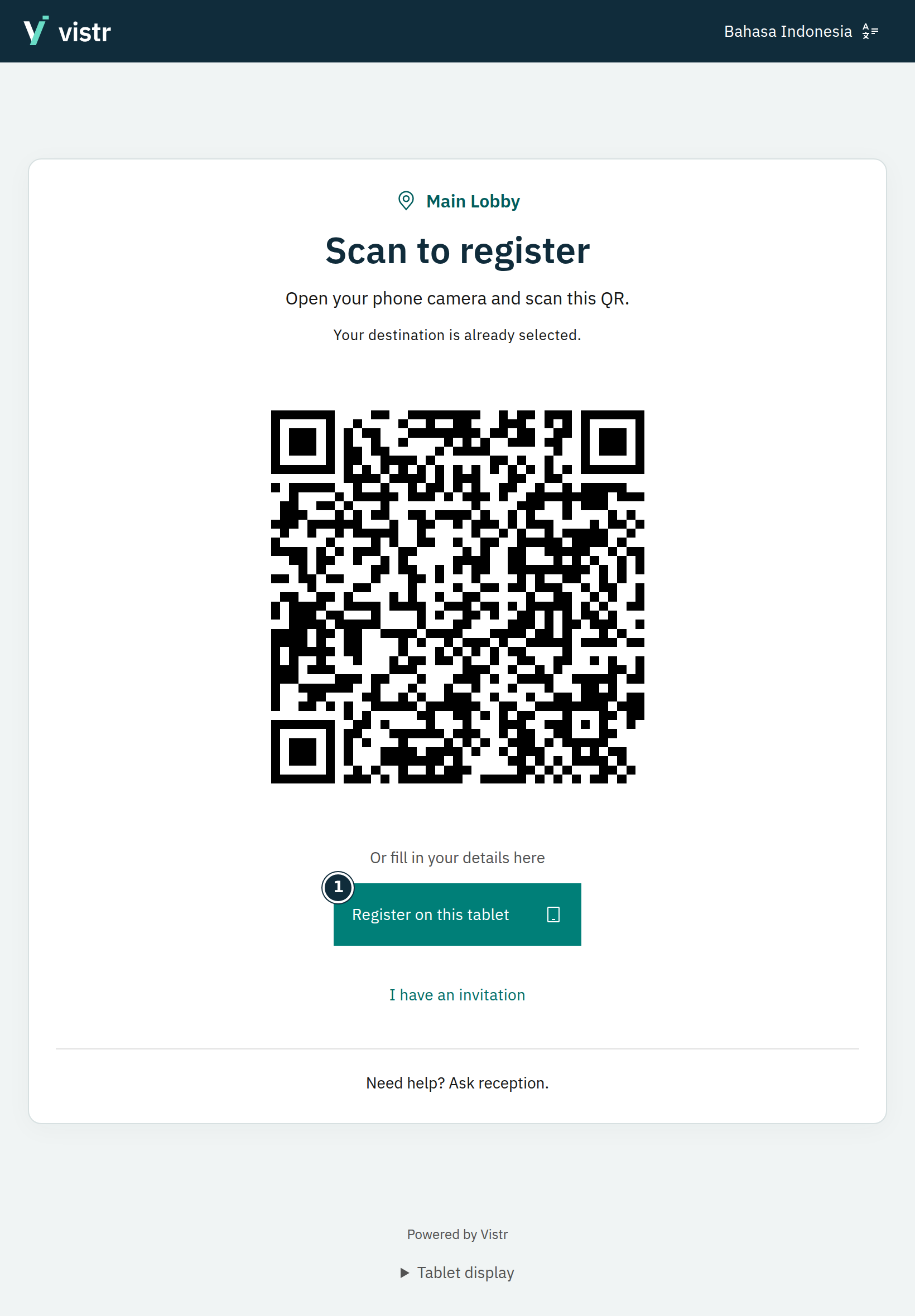
Start with an existing invitation, or a place QR/tablet for a walk-in guest.
 Enlarge image
Figure 1. QR/tablet helps walk-in guests start. - Register on this tablet
Sample data · Guest · 2026-10-05 · 1640 × 2360 px
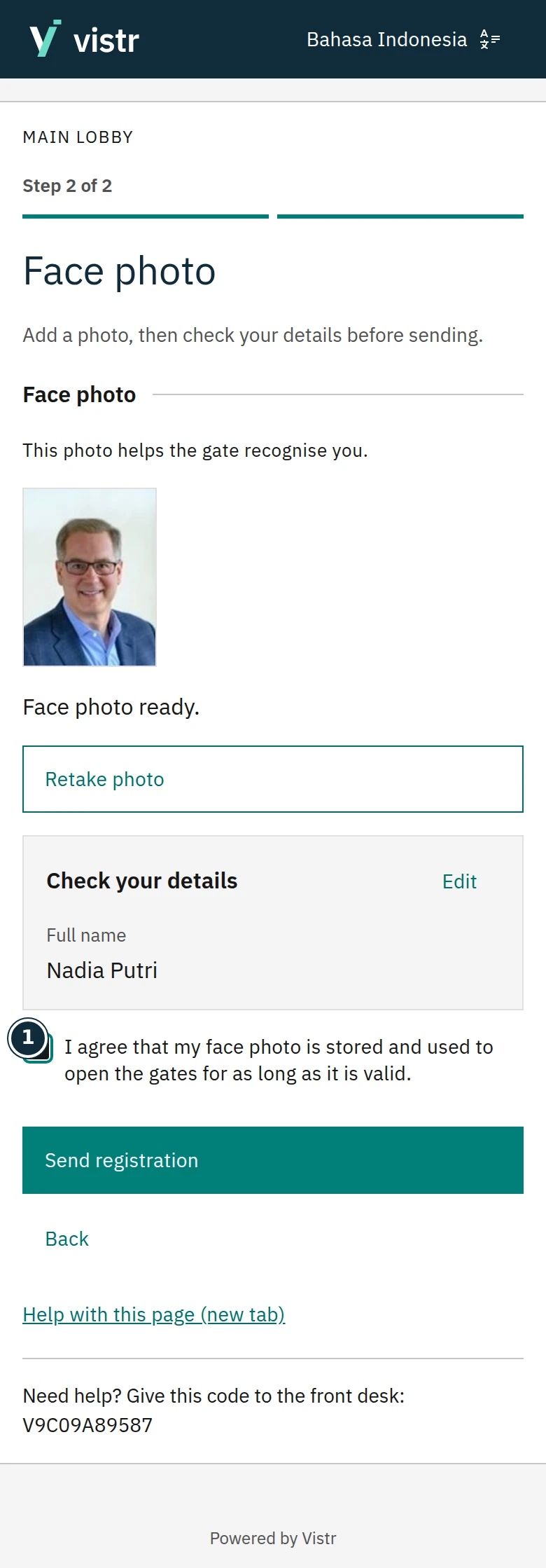
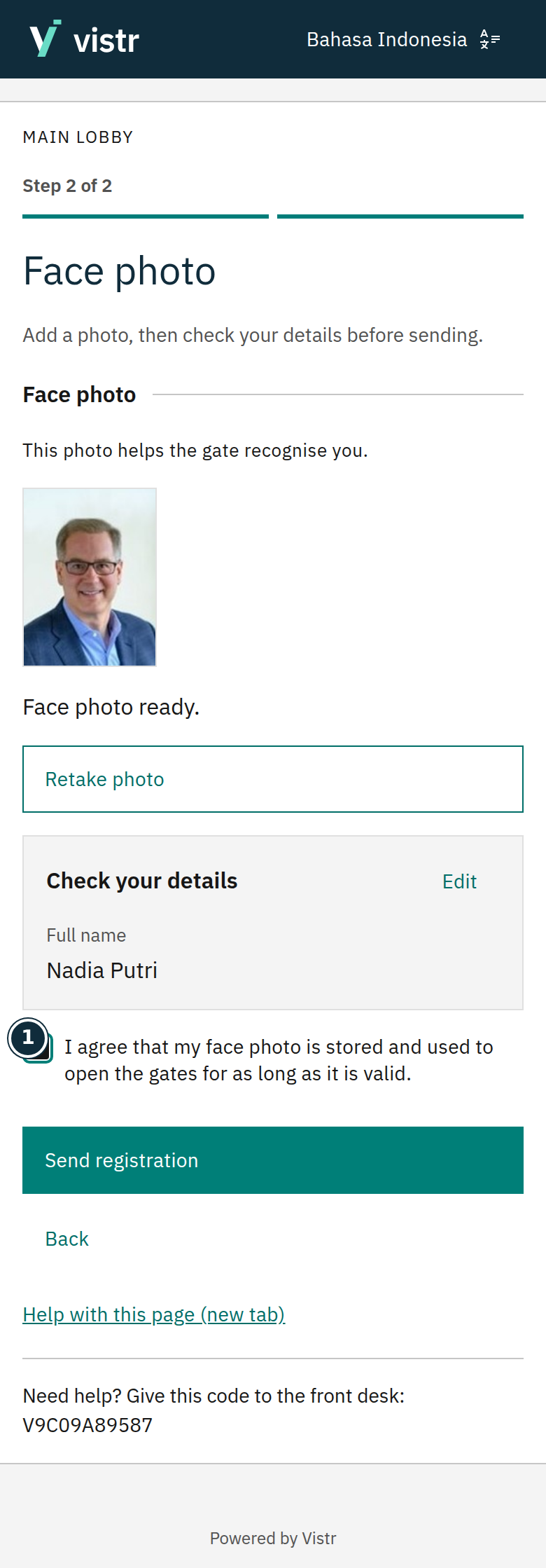
The guest checks the destination, enters required details, adds a photo, and submits.
 Enlarge image
Figure 2. Guests review their details before sending. - I agree that my face photo is stored and used to open the gates for as long as it is valid.
Sample data · Guest · 2026-10-05 · 780 × 2238 px
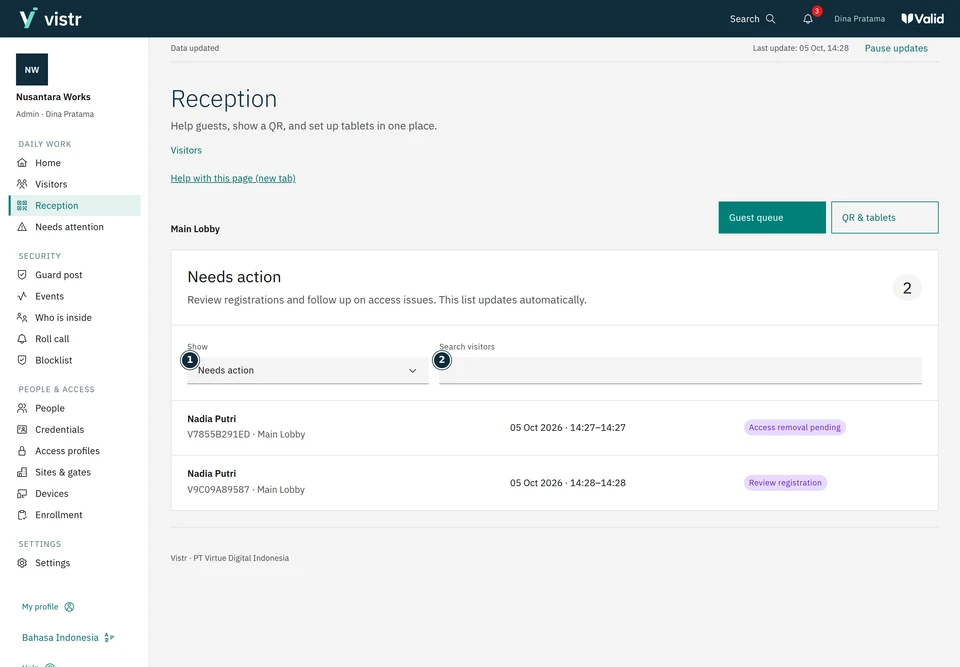
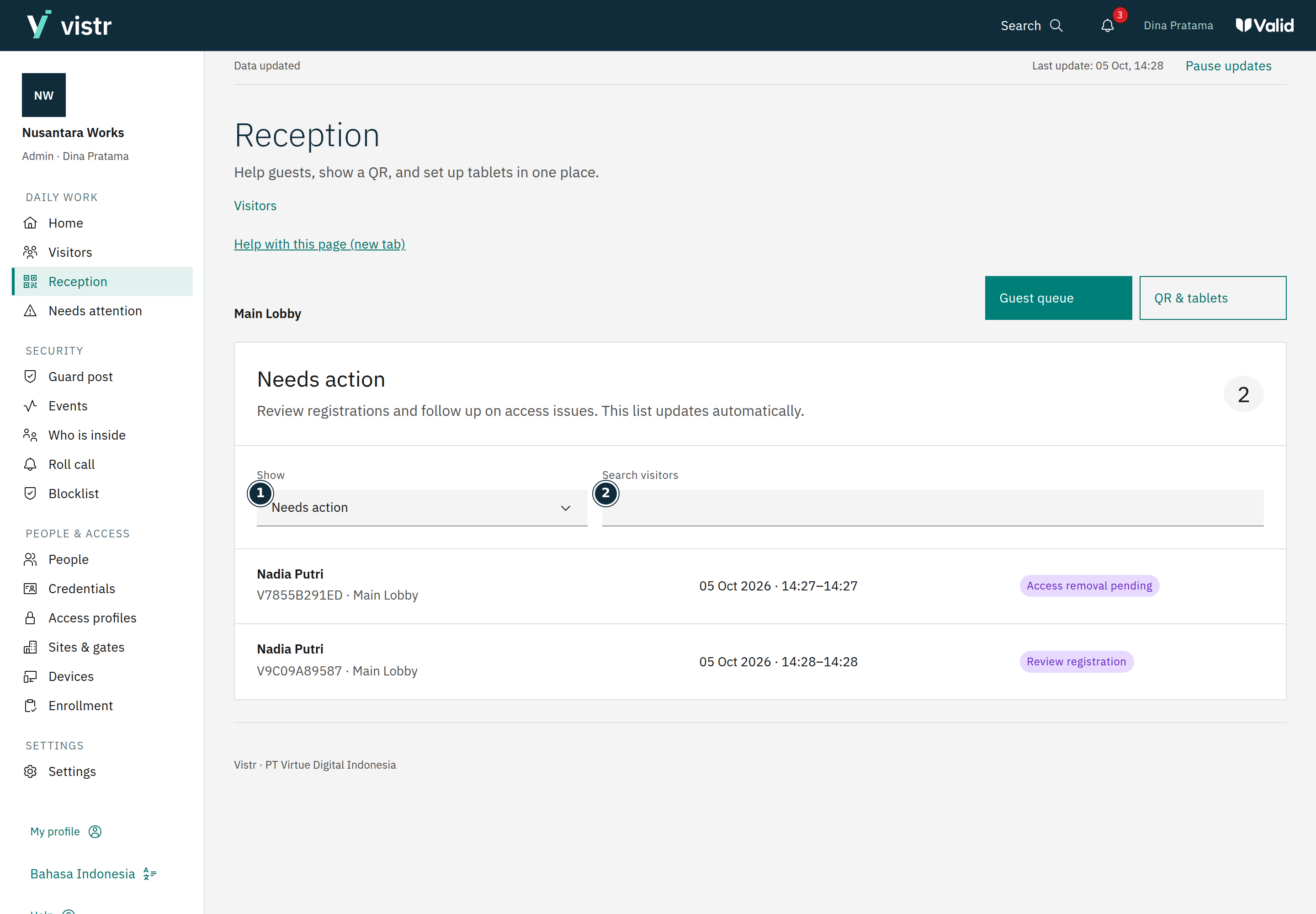
The system follows the place rules. Staff review when manual approval is required.
 Enlarge image
Figure 3. Staff handle registrations requiring action. - Show
- Search visitors
Sample data · Admin · 2026-10-05 · 2880 × 2000 px
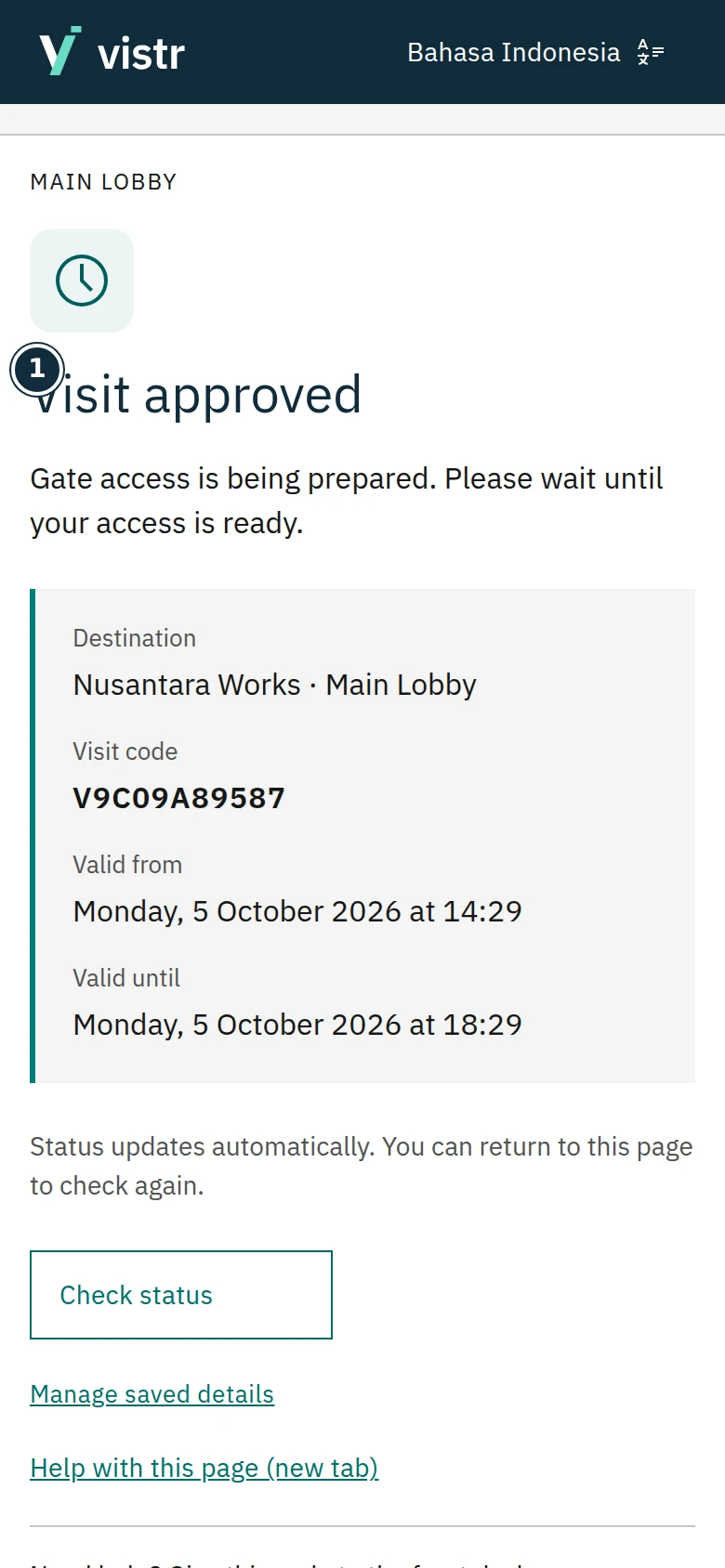
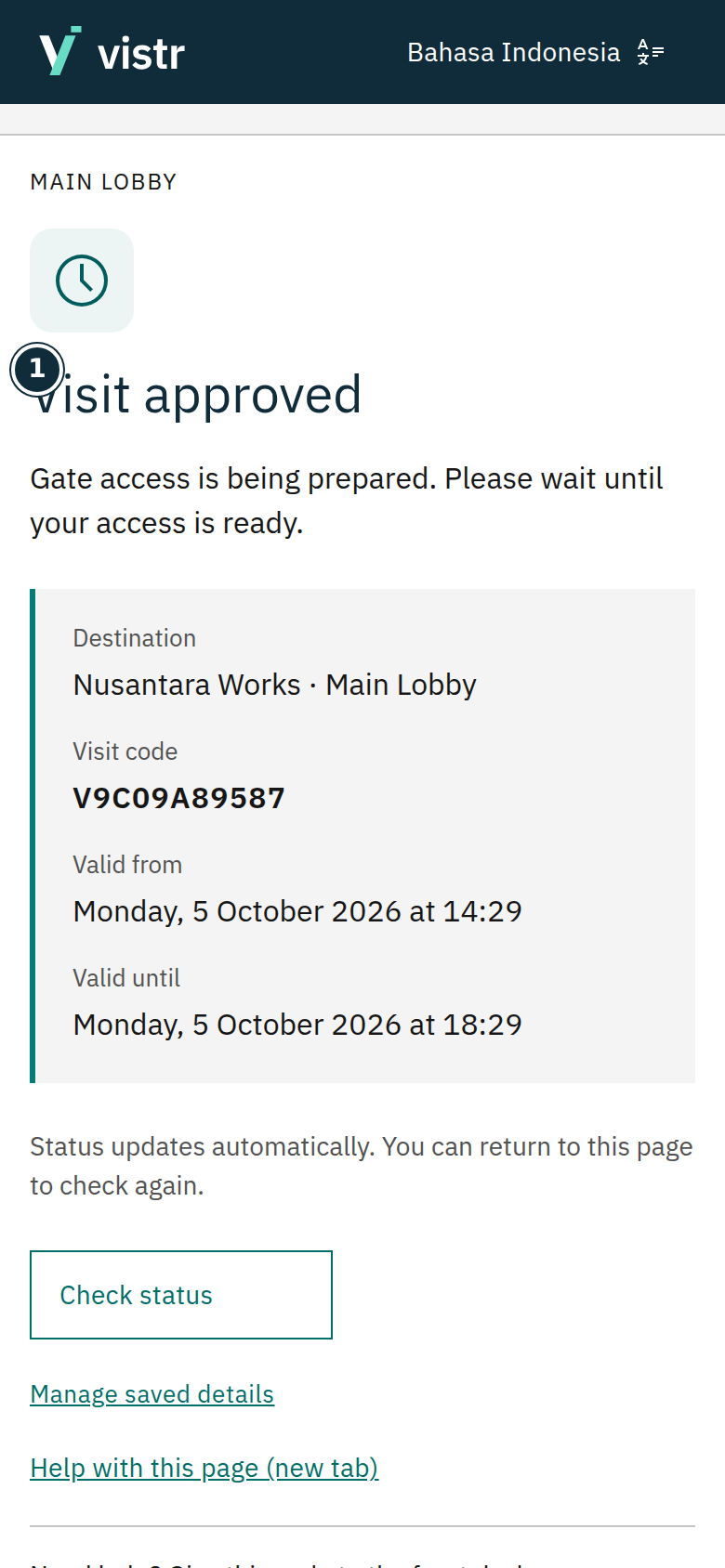
After approval, check timing and access readiness before going to the gate.
 Enlarge image
Figure 4. Read the visit decision together with access readiness. - Visit approved
Sample data · Guest · 2026-10-05 · 780 × 1688 px
Arrival is recorded only through staff confirmation or an appropriate gate event.
Expected result
One meeting has its own visit, schedule, and approval. A verified guest profile can be reused while keeping each visit separate.
If something goes wrong
Roles or steps differ at your destination
Place rules determine fields and approval. Follow the screen and authorized staff; this diagram explains how stages relate, not a guarantee of automatic access.